Projects
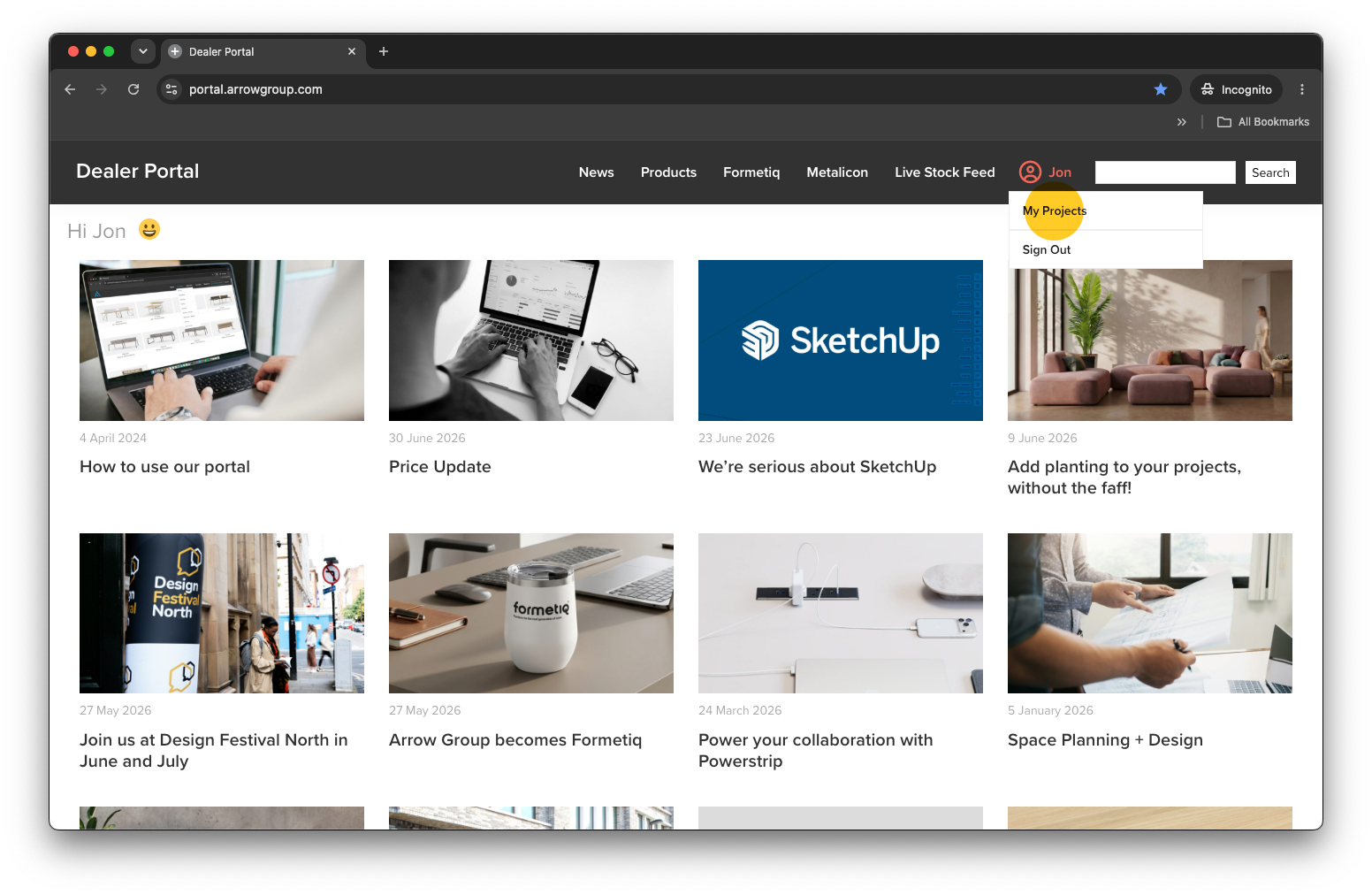
You’ll find the ‘My Projects’ section in the user menu (top right).
- Add Projects
- Add / Edit Project Users
- Add Project Groups
- Add Products
- Edit Products
- Request a Quotation
Add Projects
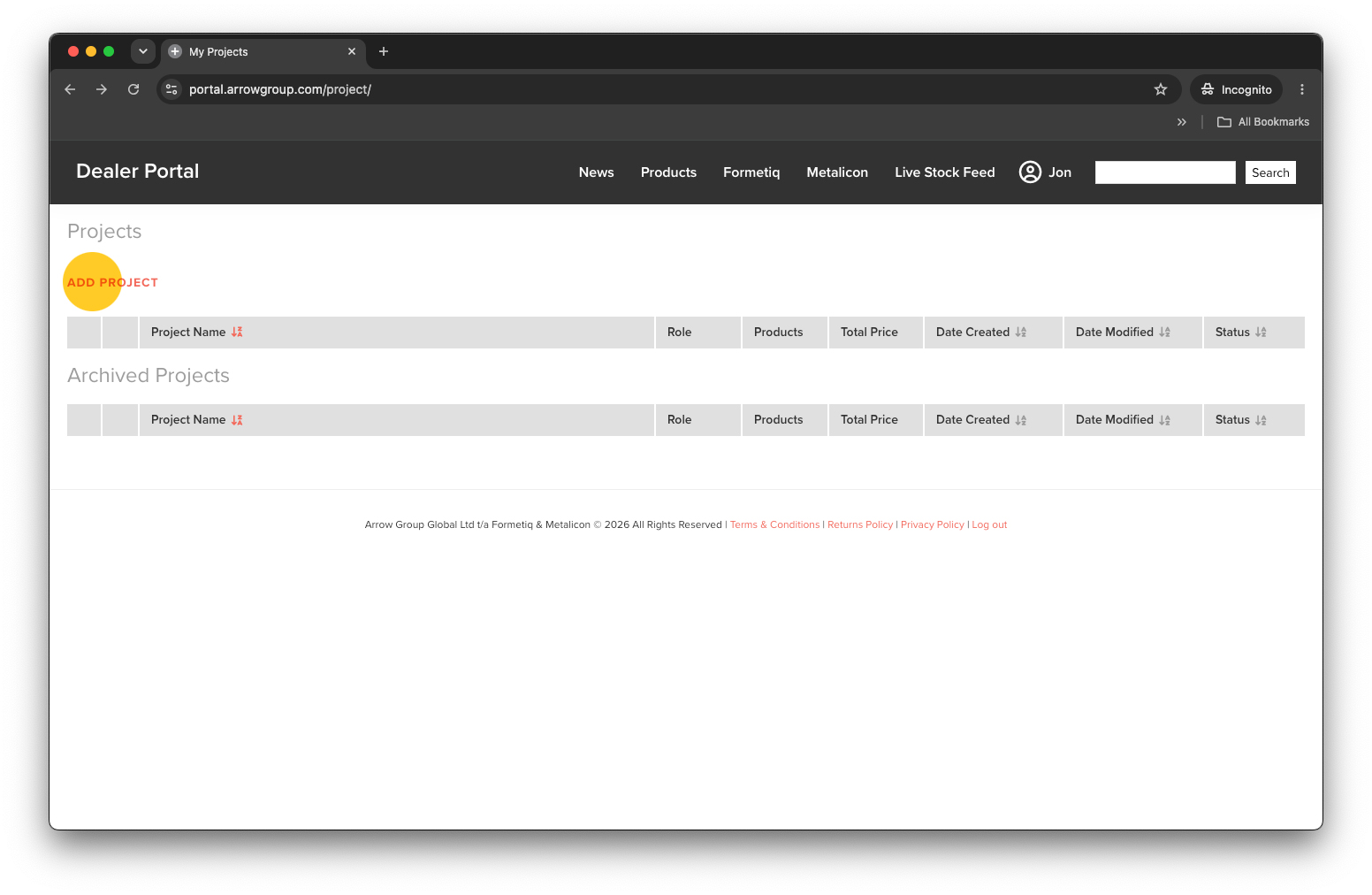
Click the ‘ADD PROJECT’ link (top left) to start a new project.
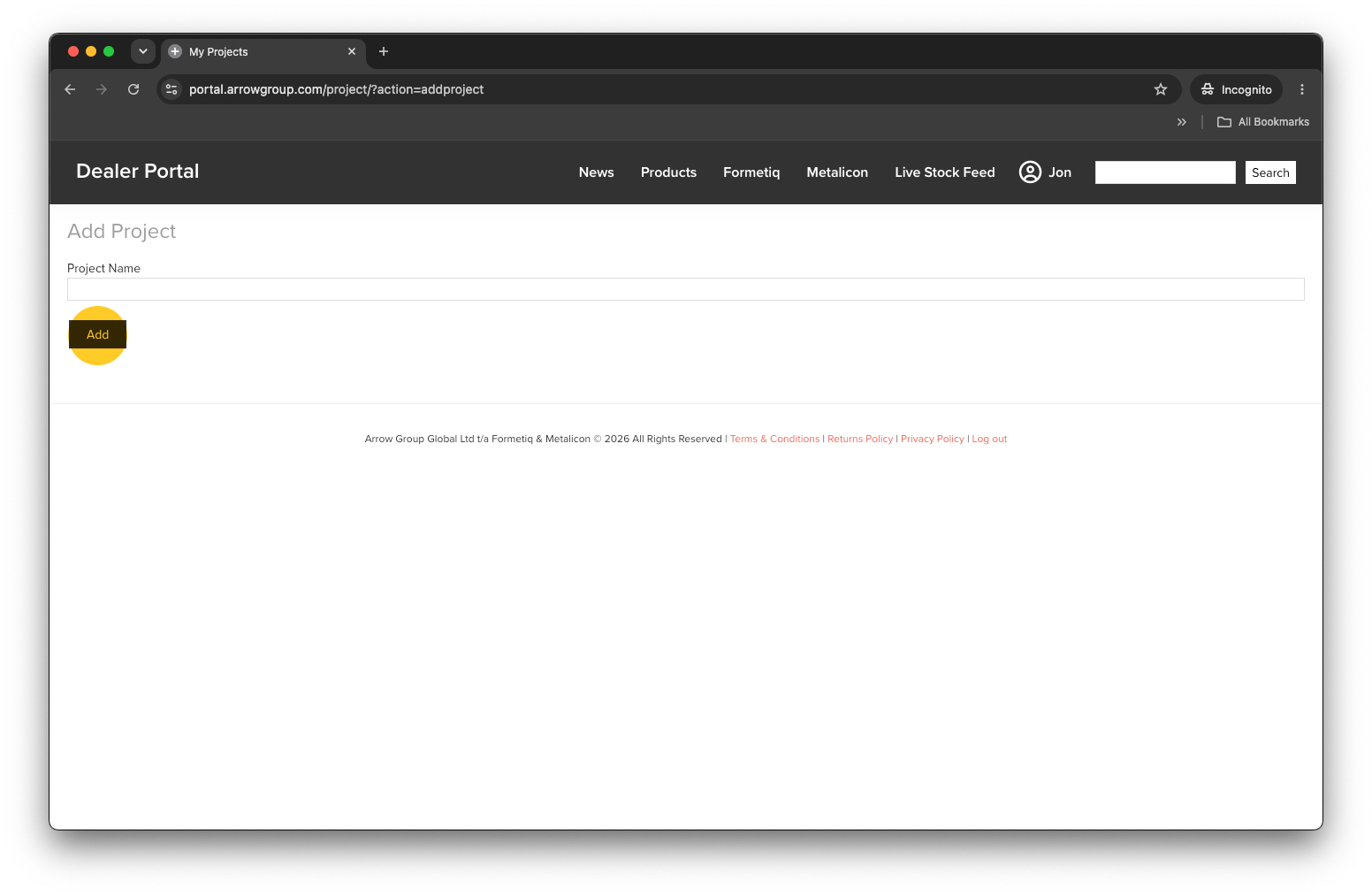
Give your project a name and click the ‘Add’ button.
On the Projects page, for each project you can see:
- Your Role
- Quantity of Products in the project
- Total Price of all products in the project
- The Date the project was Created
- The Date the project was last Modified
- The project Status (Draft, Quoted, Revised)
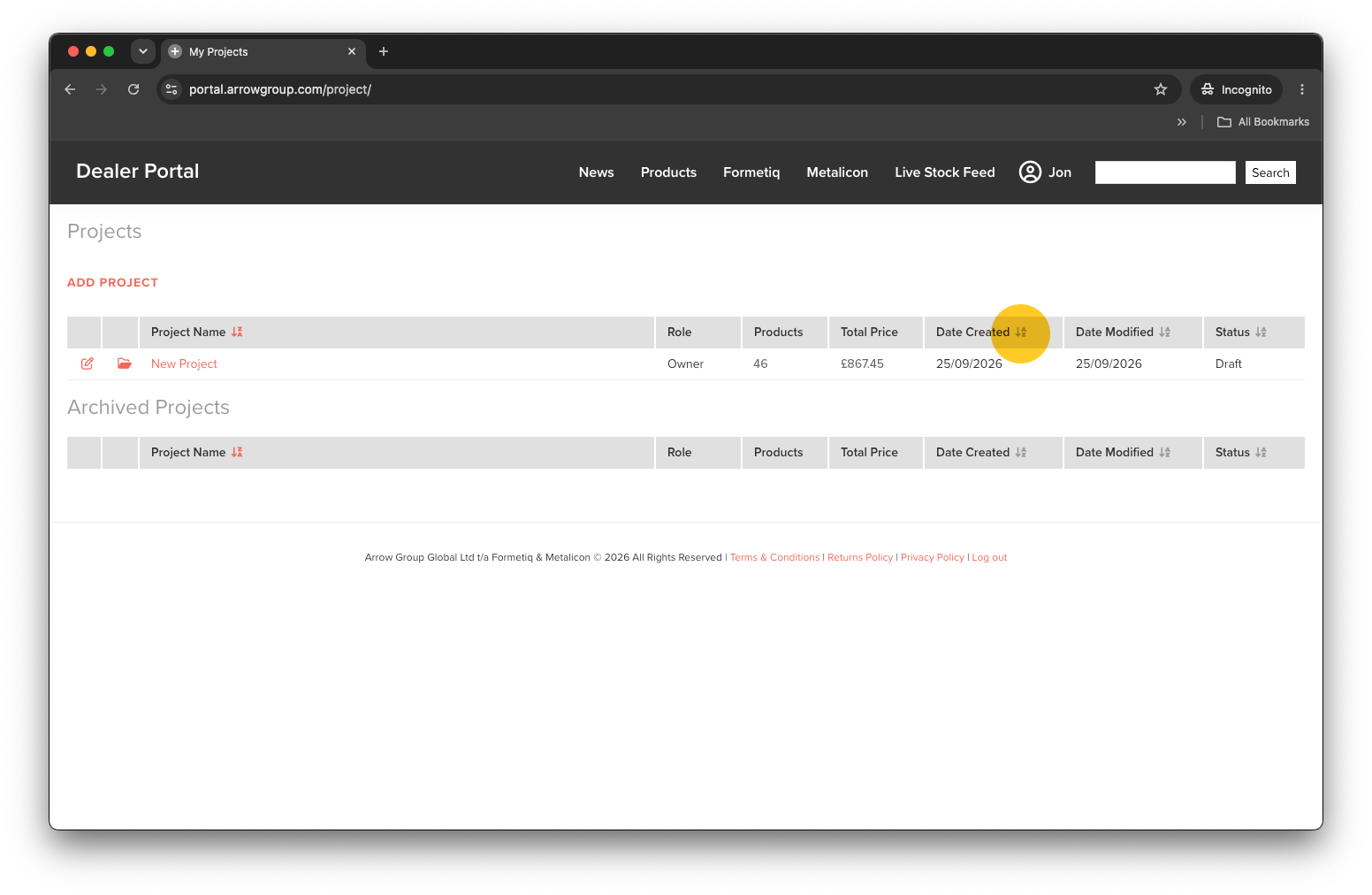
You can order your projects list by Project Name, Date Created, Date Modified or Status. Simply click the ‘AZ’ symbol in the grey header bar.
Edit Projects
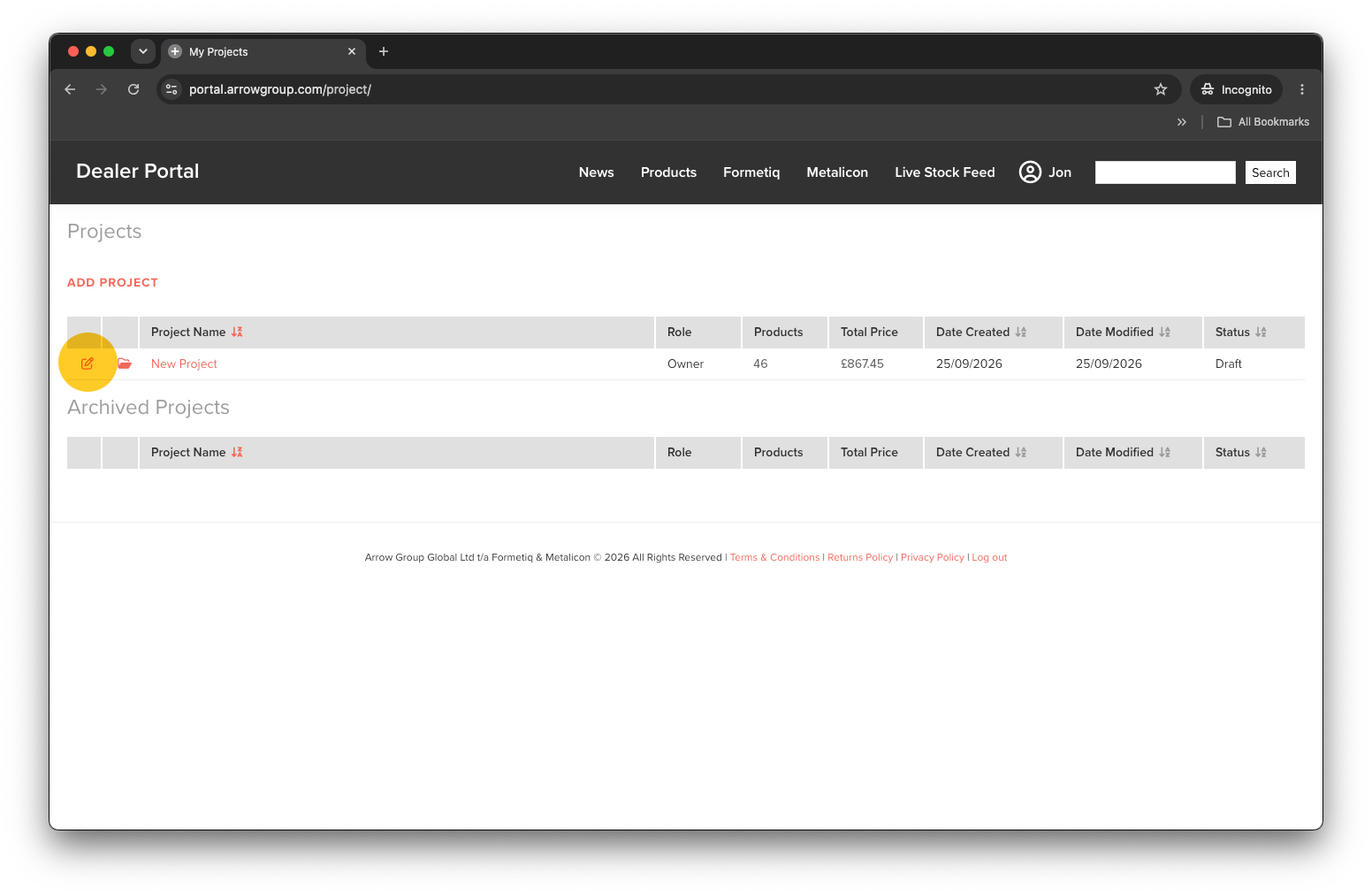
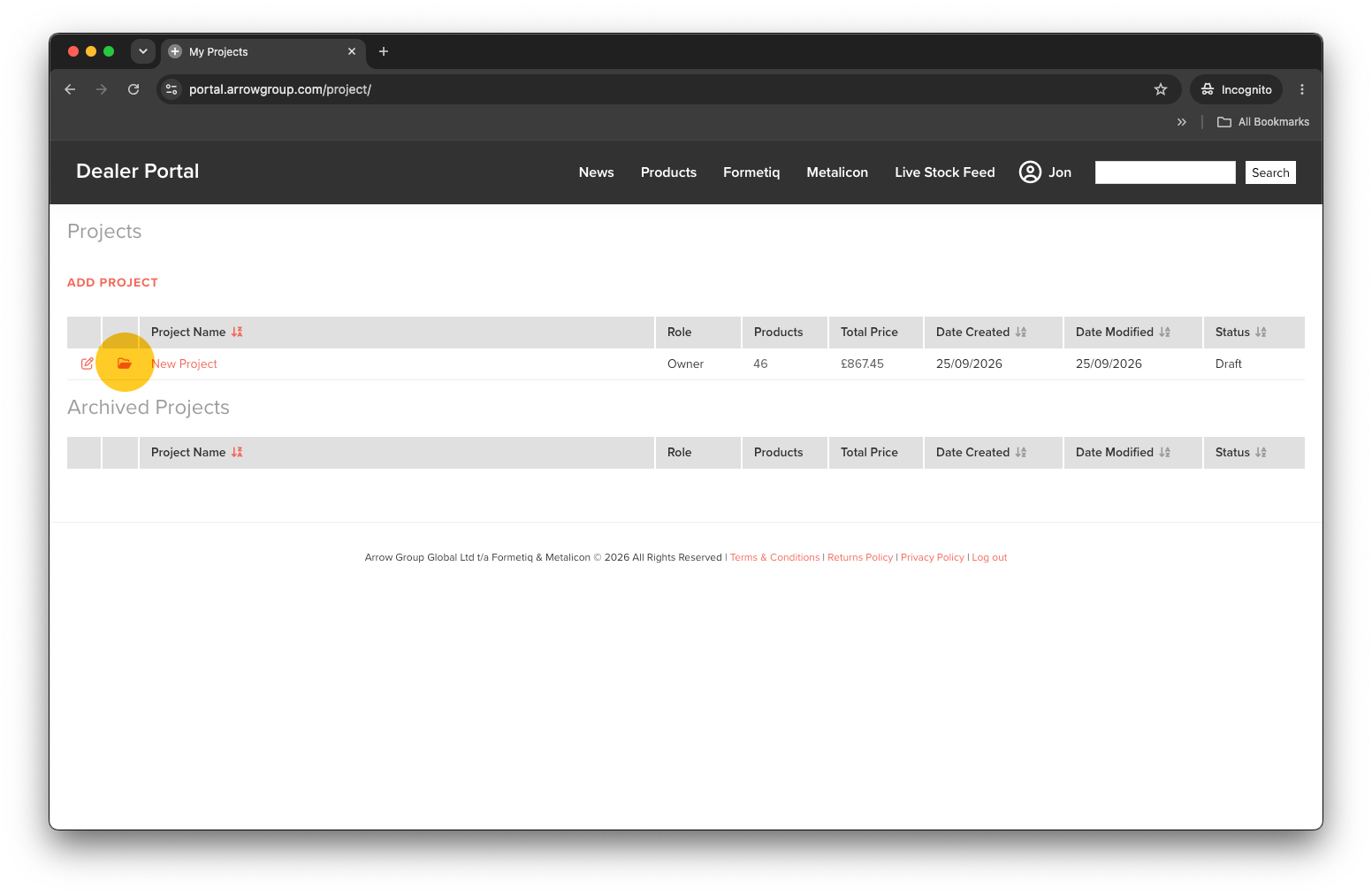
To edit a project click the red pencil icon or the project name.
Archive Projects
To keep your project list tidy you can archive projects that you no longer require. Simply click the red archive icon to move the project into the ‘Archived Projects’ section below.
Project Users
Add / Edit Project Users
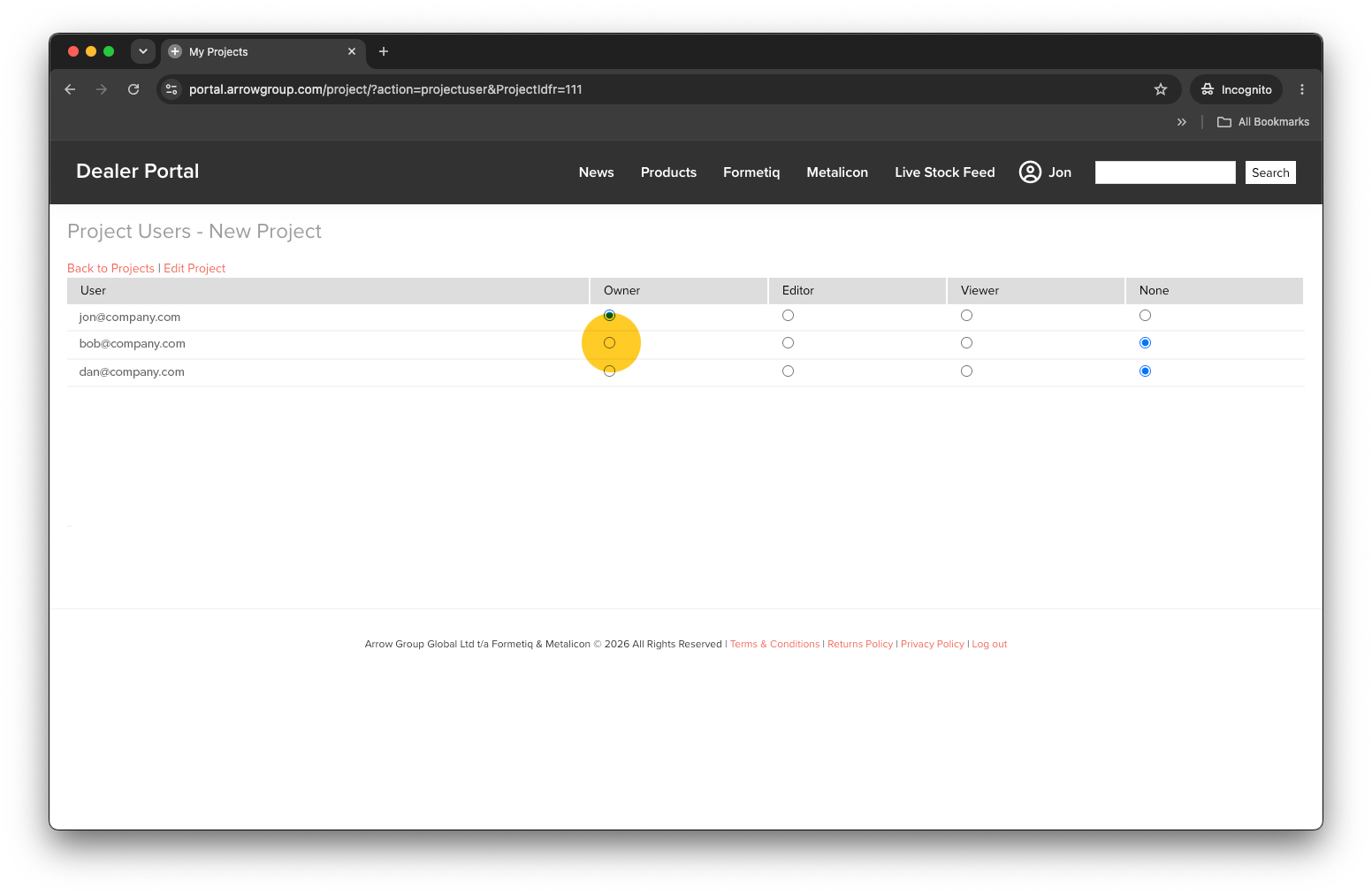
You can share access to your projects with your team. To add users to your project click the edit icon (or project name) to edit the project. Next click the ‘Edit Project Users’ link (top left).
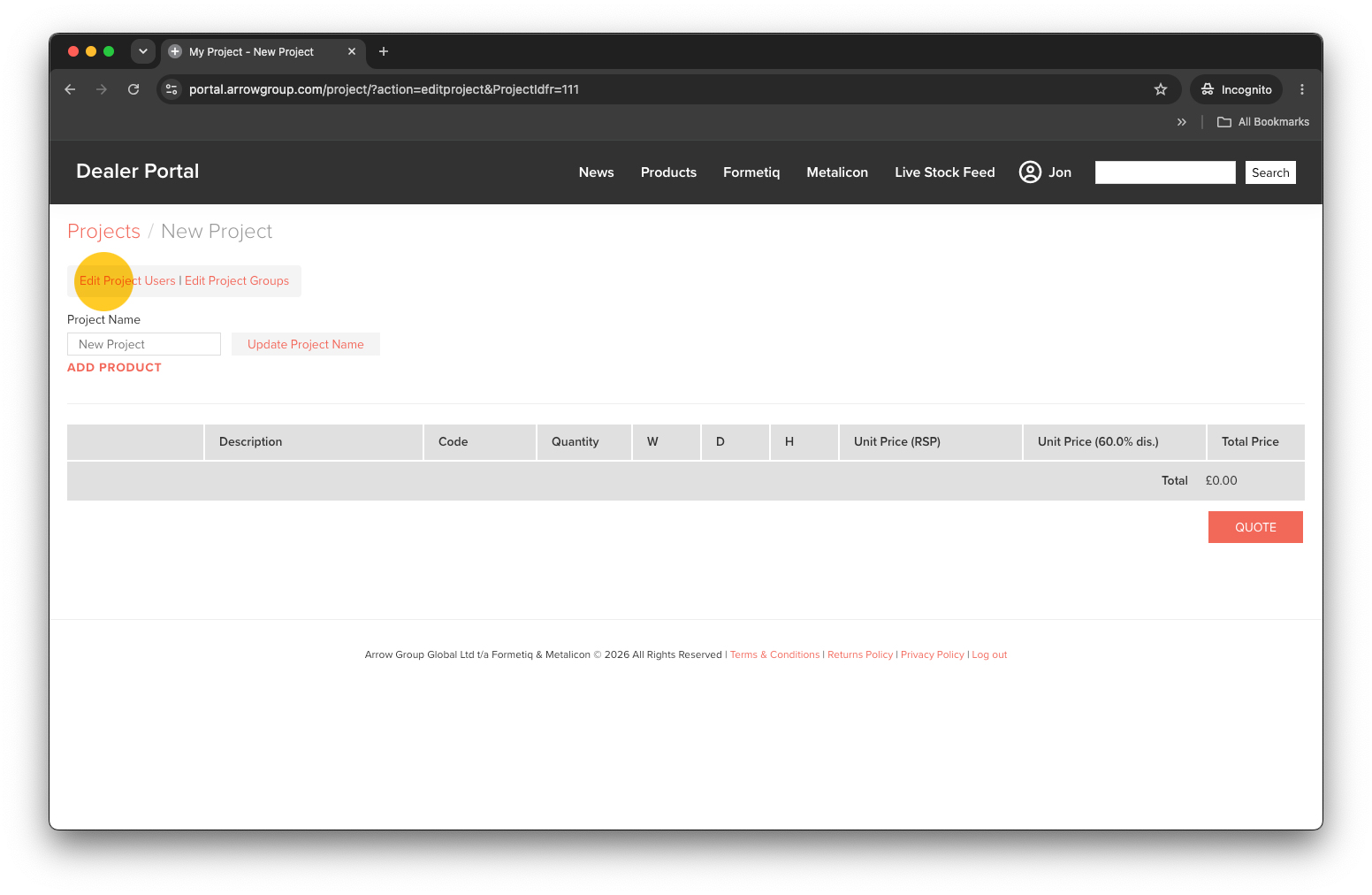
Select the level of access to give each member of your company. Editors will be able to add, edit and remove products within the projects you share with them. Viewers will only be able to see products within projects.
Any changes made to Project Users are automatically applied.
Project Groups
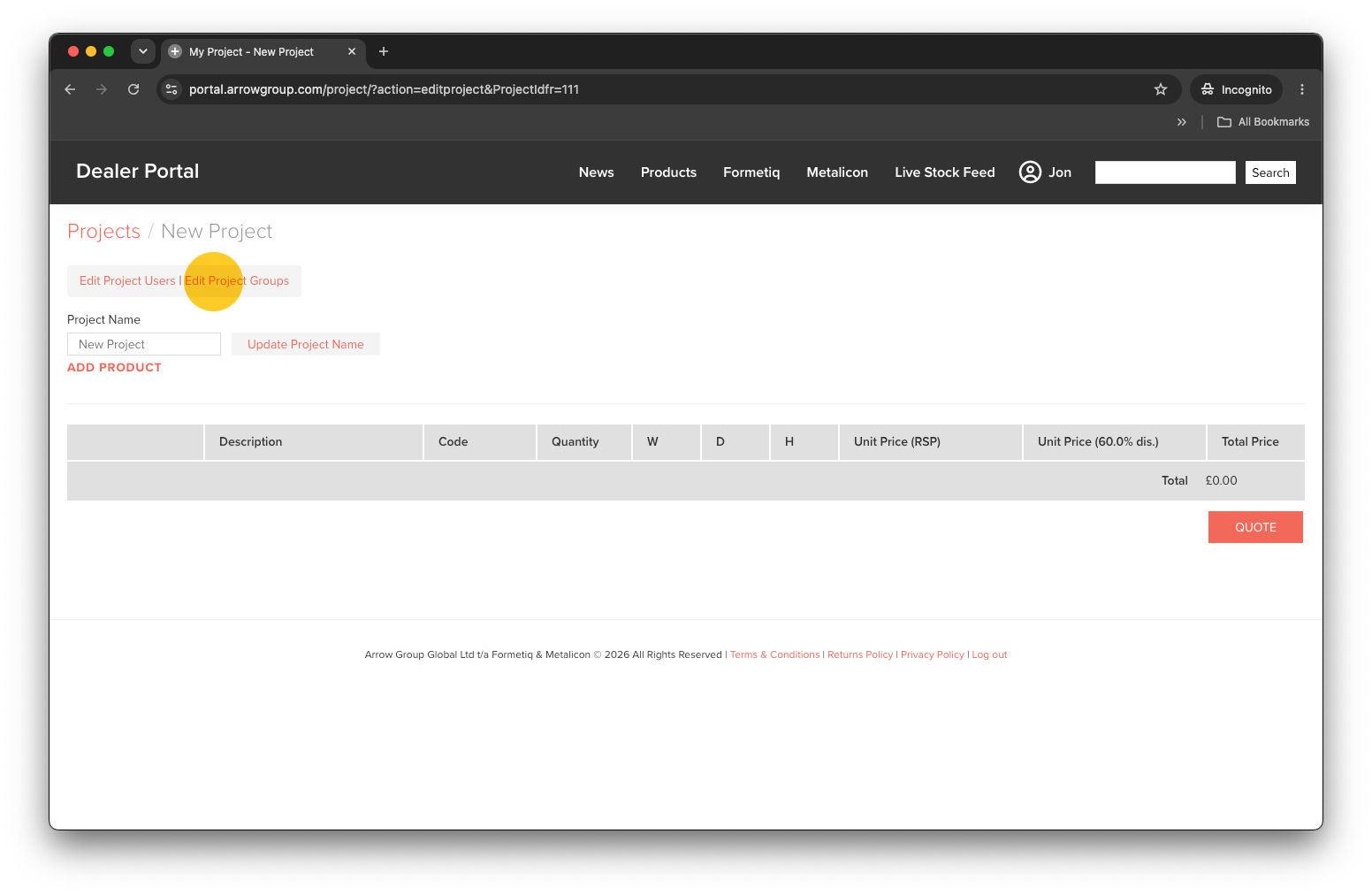
You can add groups to your project to help arrange products into sections, eg. ‘Ground Floor’ or ‘Board Room’. To add a group first click the ‘Edit Project Groups’ link (top left).
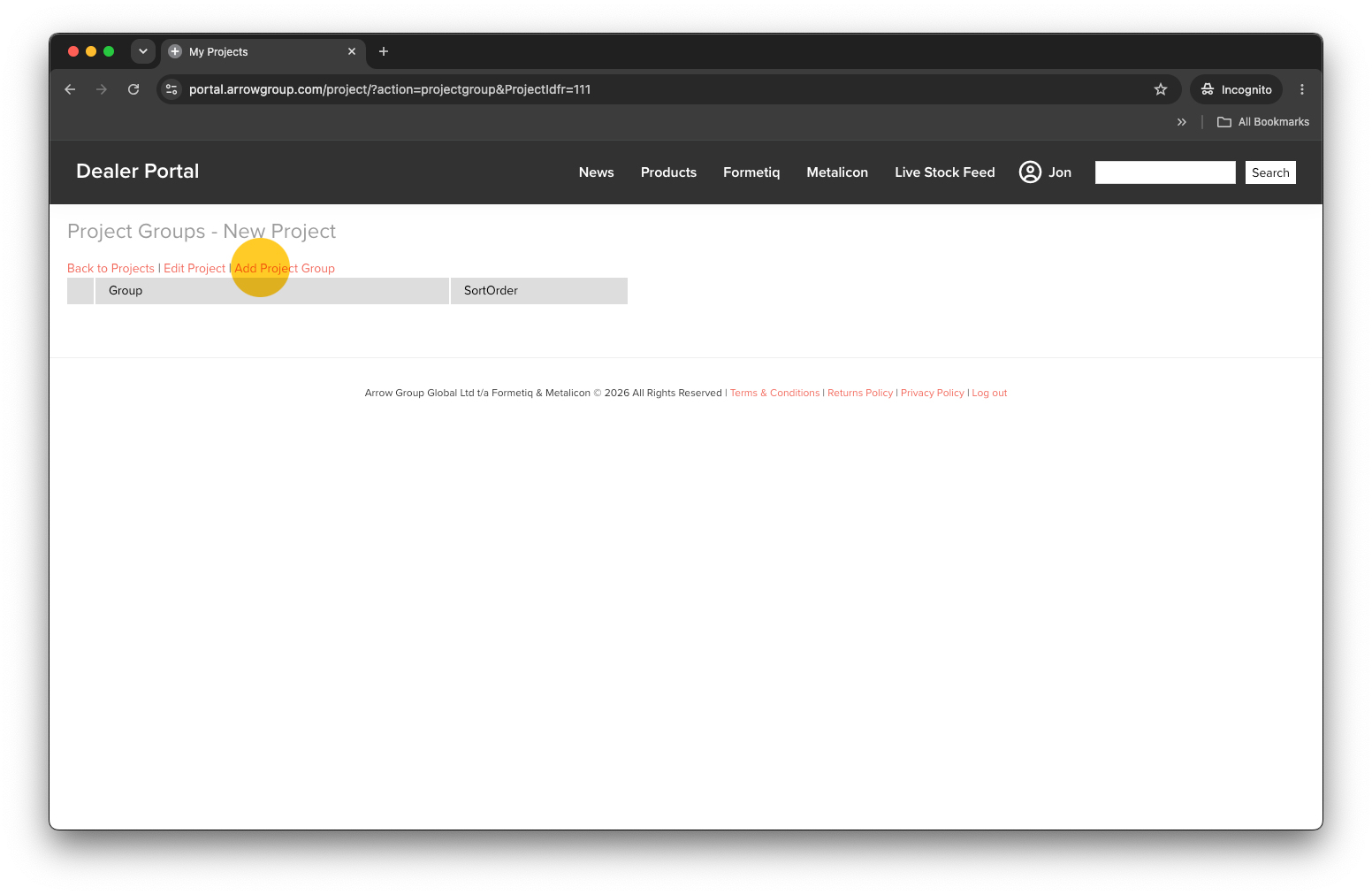
Next click the ‘Add Project Group’ link to create a new group.
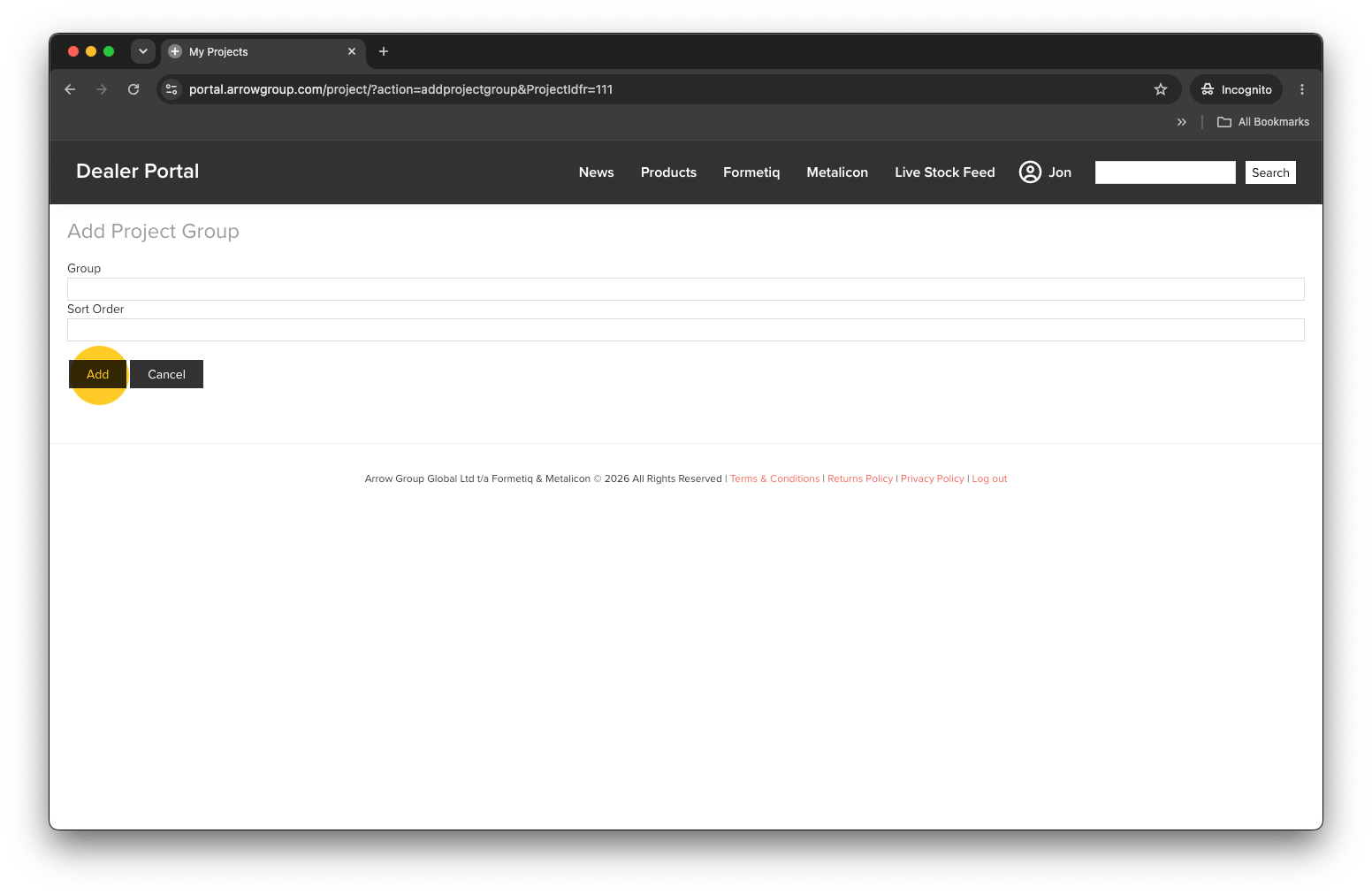
Give the group a name and the order you want it to appear on the projects page. The lower the number, the higher up the page the group will appear. Next click the ‘Add’ button.
Edit Project Groups
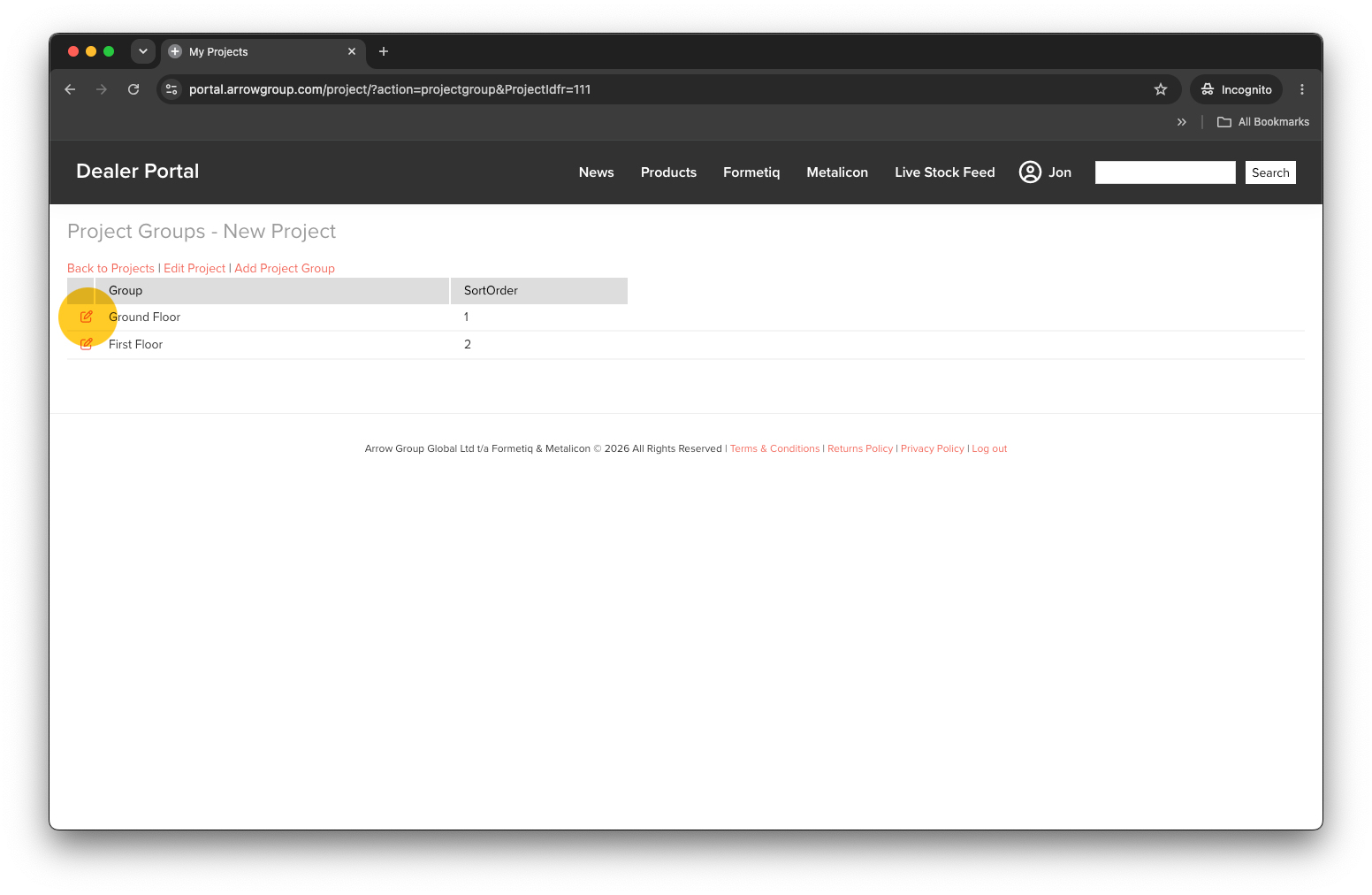
To edit a project group click ‘Edit Project Groups’. Find the group you want to edit and click the Edit icon .
Reorder Products
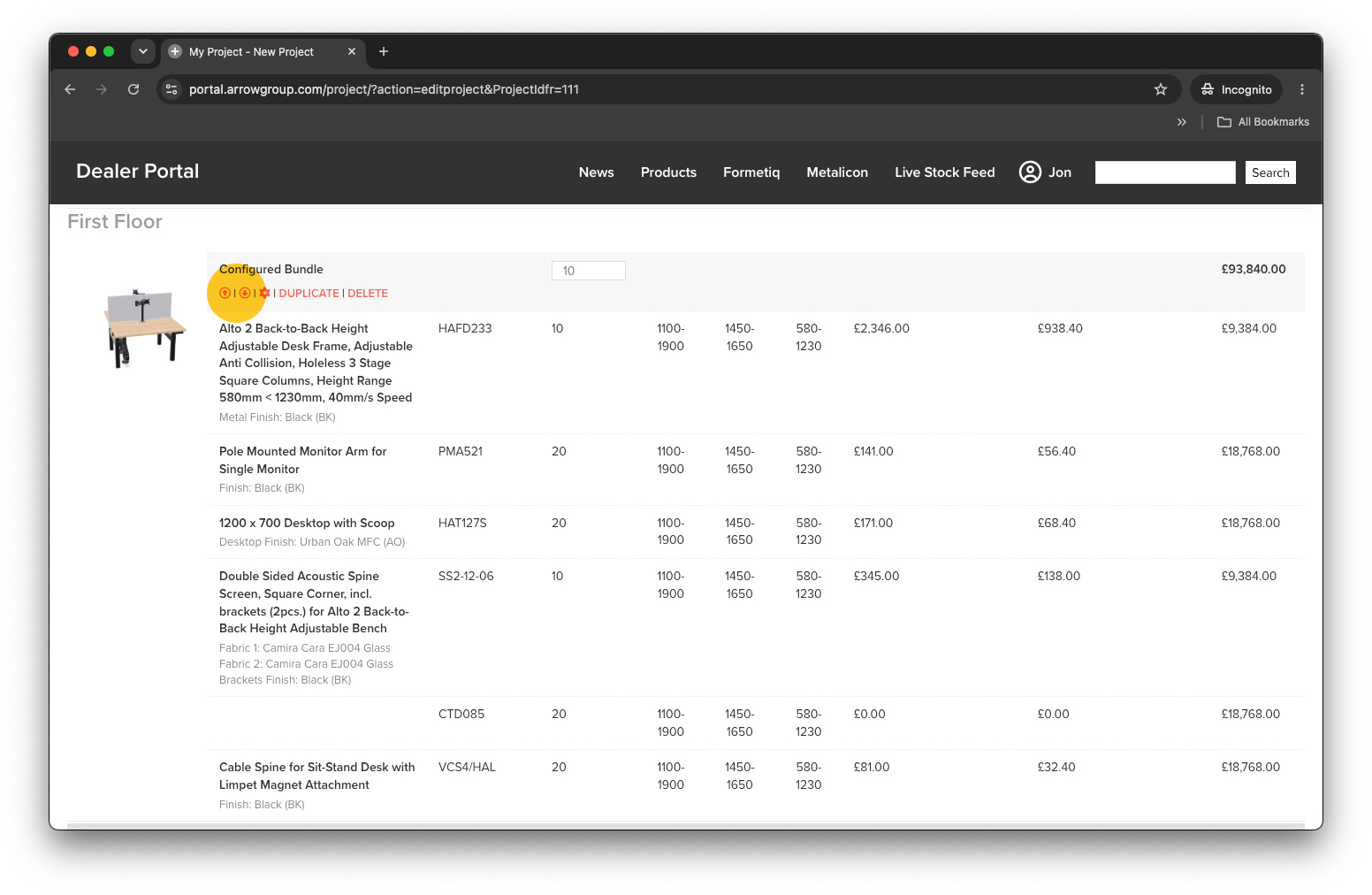
You can also reorder products within your project using the red up and down arrow buttons.
Add Products
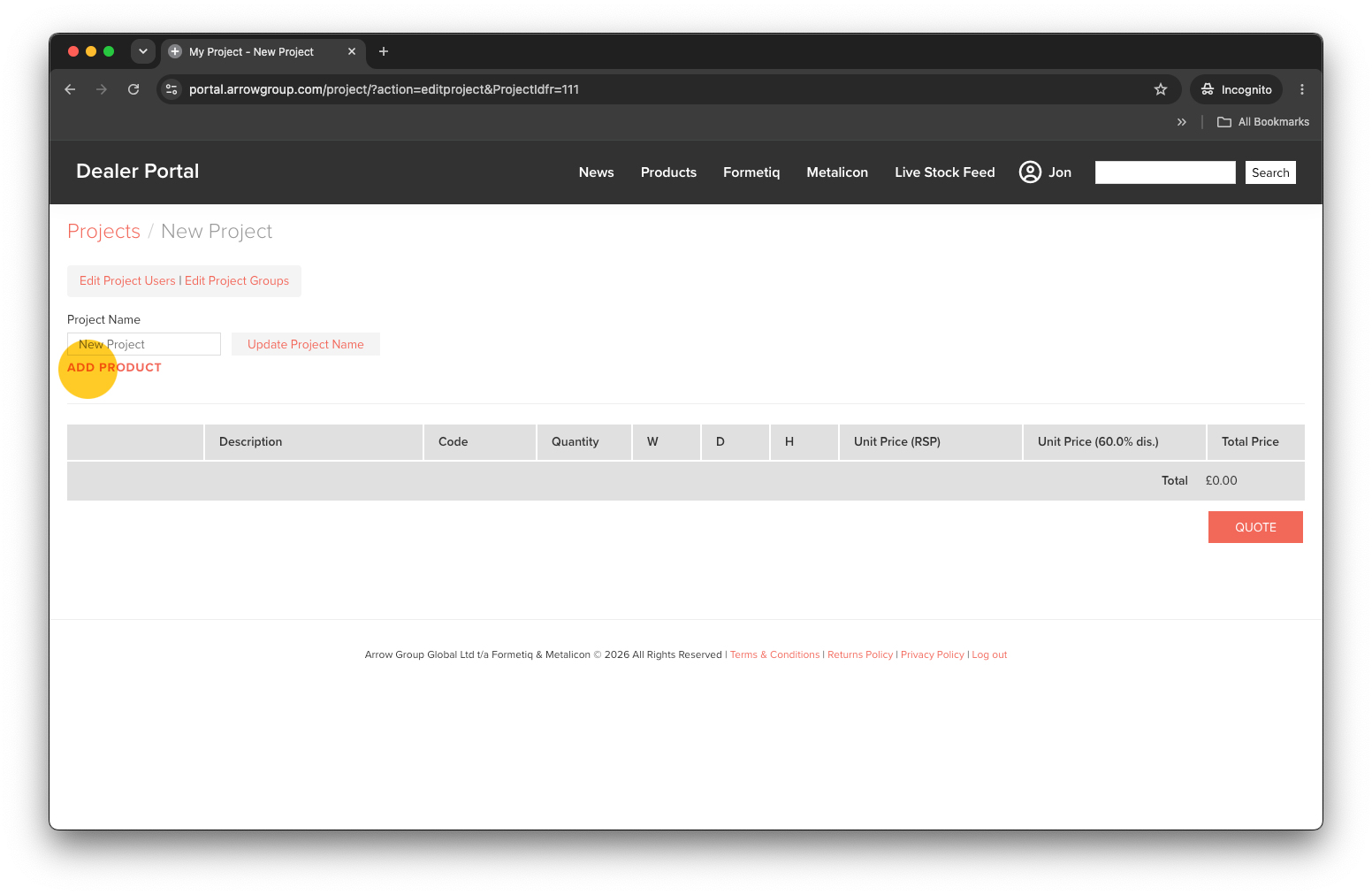
To add products to your project click ‘ADD PRODUCT’.
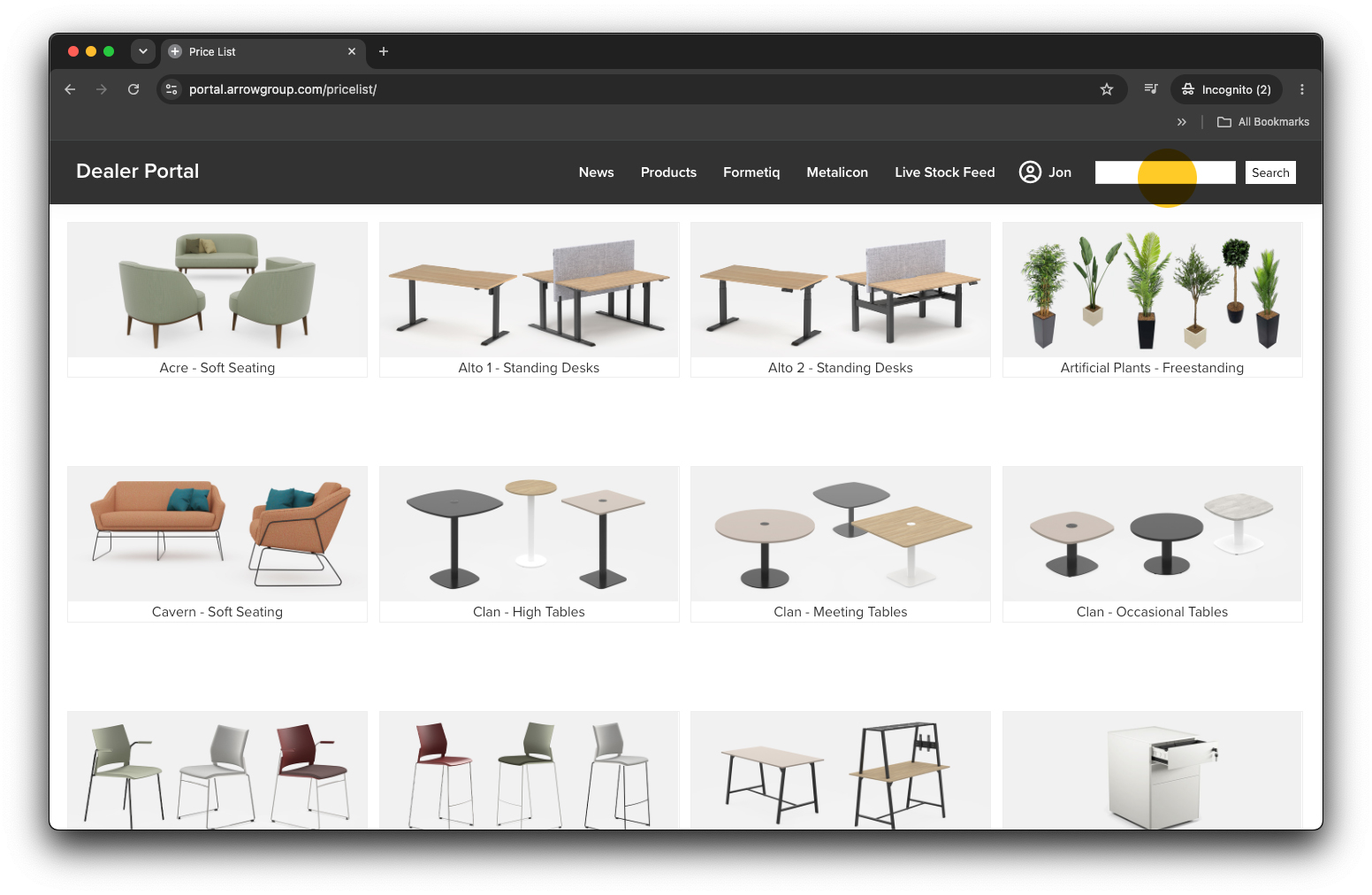
Use the navigation menus or Search bar (top right) to navigate to your desired product. You cannot add products from the Live Stock Feed.
Add a Simple Product
To quickly add a specific product to your project click the red price link.
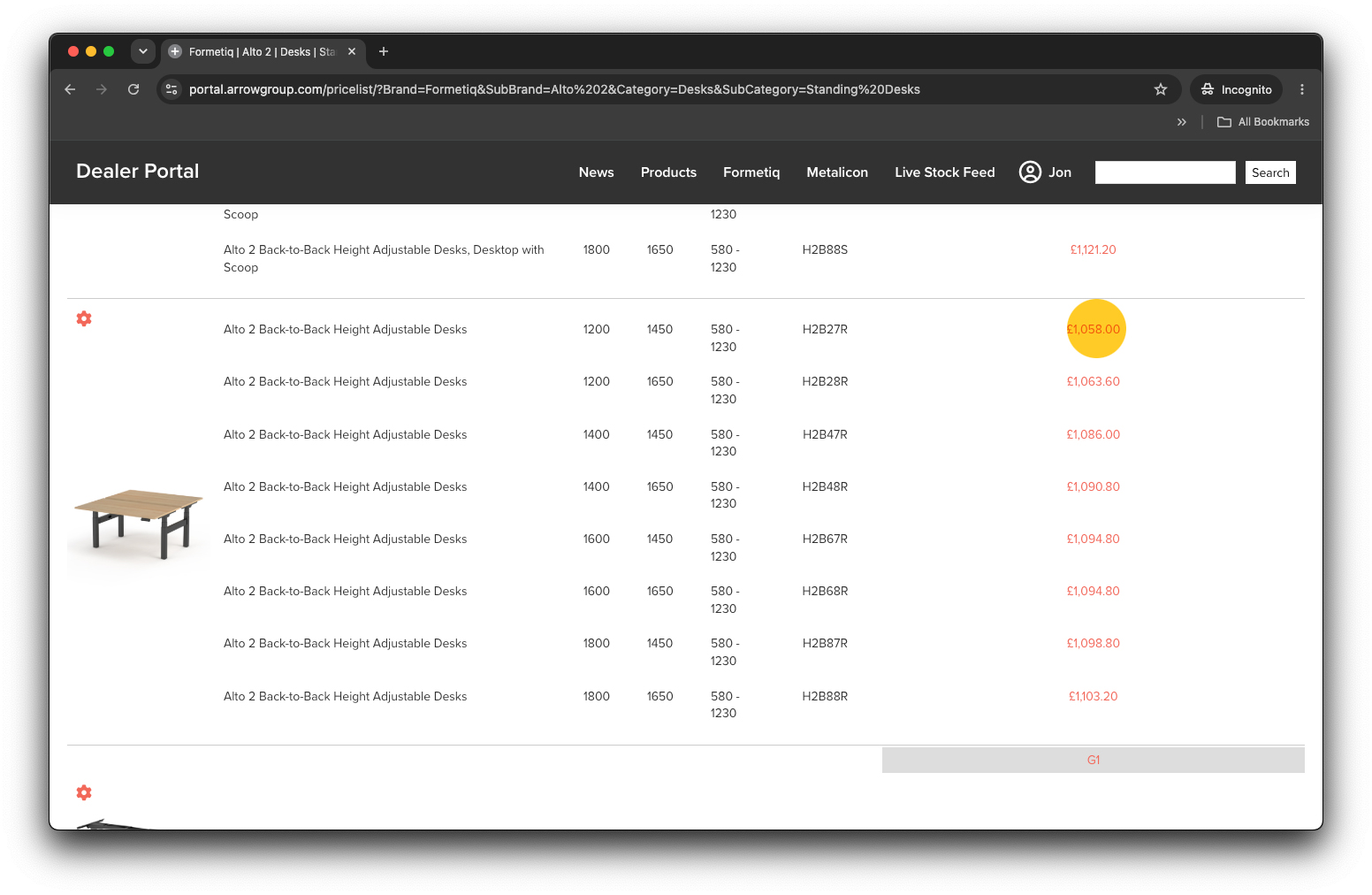
Select the project you want to add the product too (or create a new project). If you have created project groups within your project you can select the group here.
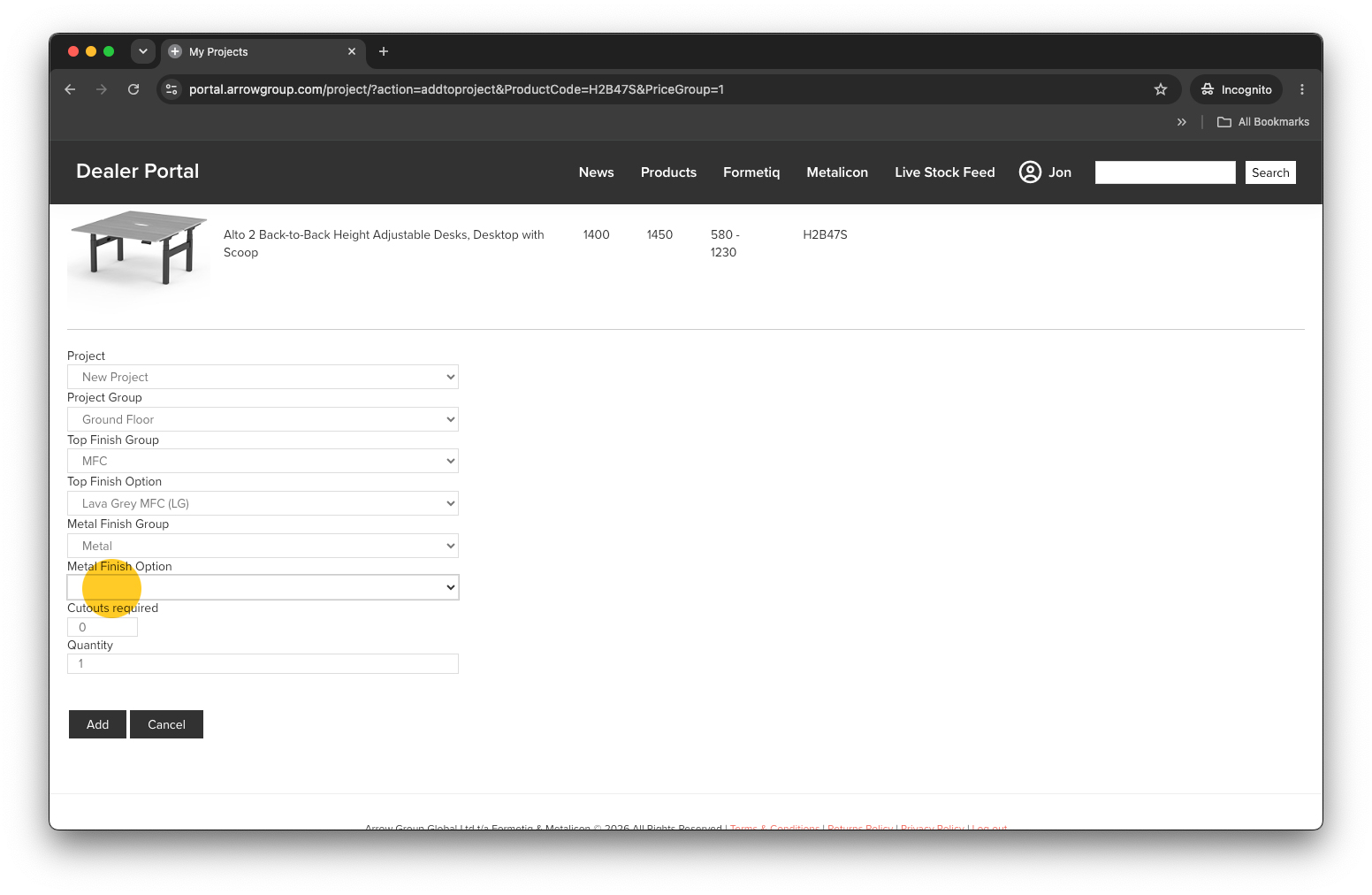
Choose the options / finishes from the drop-down menus, choose a Quantity and click the ‘Add’ button. With simple products you can select a general price group (or leave the finish blank) to avoid selecting a specific finish.
If you’re adding a desk or table and you want to include 1 or more cutouts please simply add the number of cutouts in the ‘Cutouts required’ box. All sizes of cutout incur the same cost.
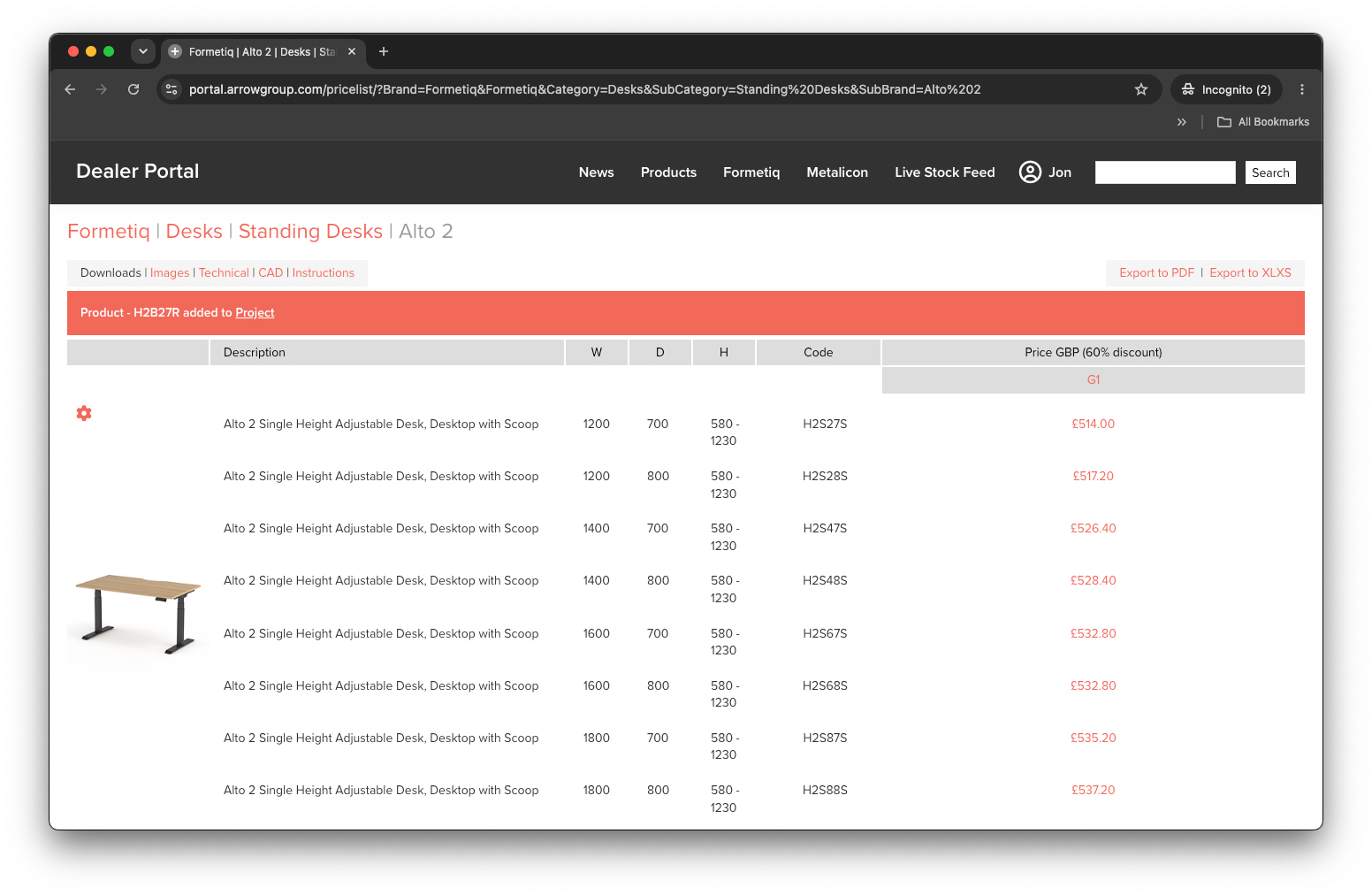
The red banner will tell you your product has been added and you can continue to add more products to your project(s).
NOTE: Simple Products have greyed thumbnail images in the project list since the selected finishes may not match the default product thumbnail.
Add a Configured Product
If a product can be configured in 3D the thumbnail image will have a small red cog .
To configure a product in 3D simply click the product thumbnail image.
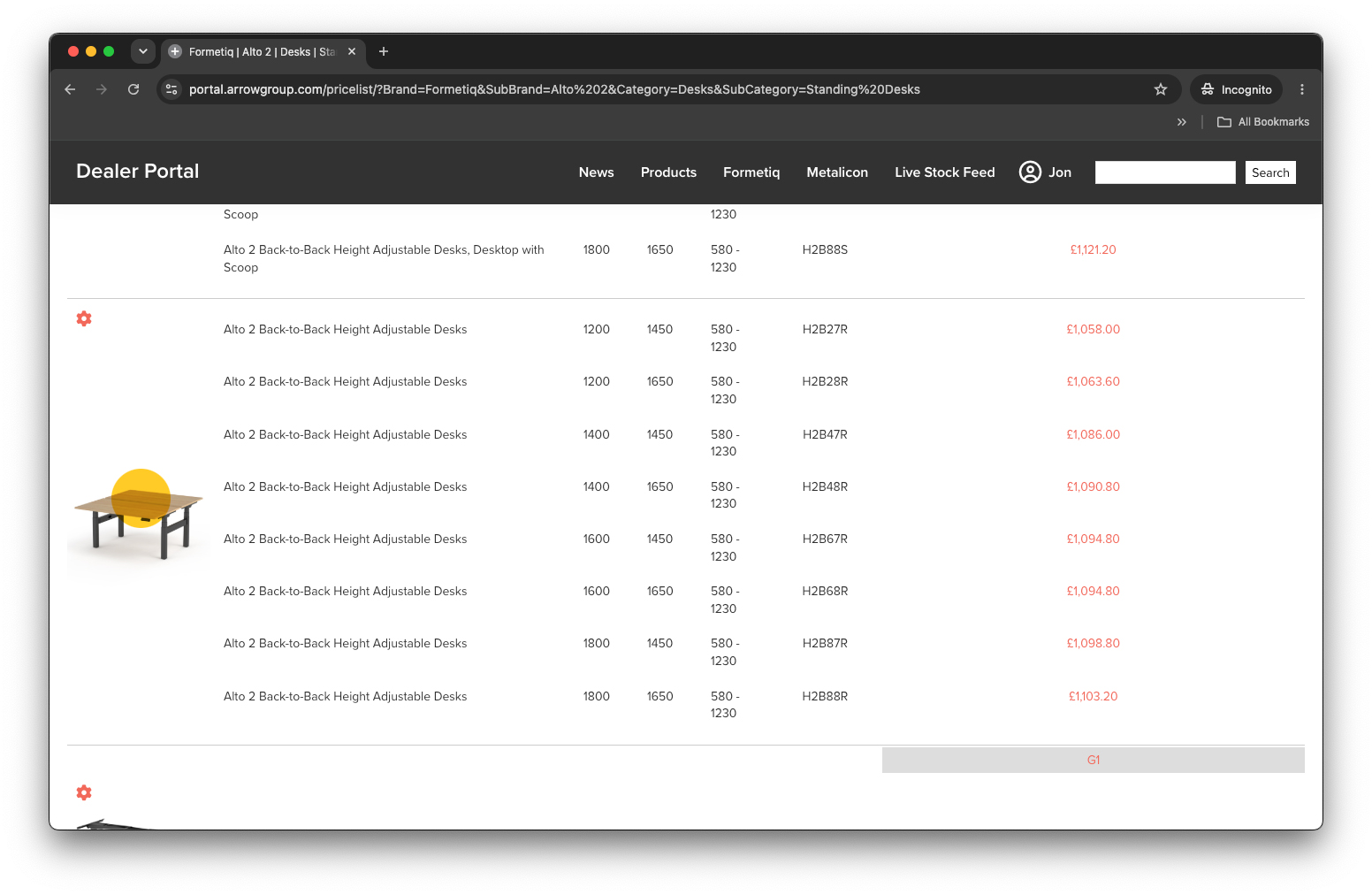
Use the 3D configurator to configure your product. You can add extras like fabric screens, cable trays and other ergonomic accessories. Click the ‘Add to Project’ link.
NOTE: You can’t add cutouts using the 3D configurator.
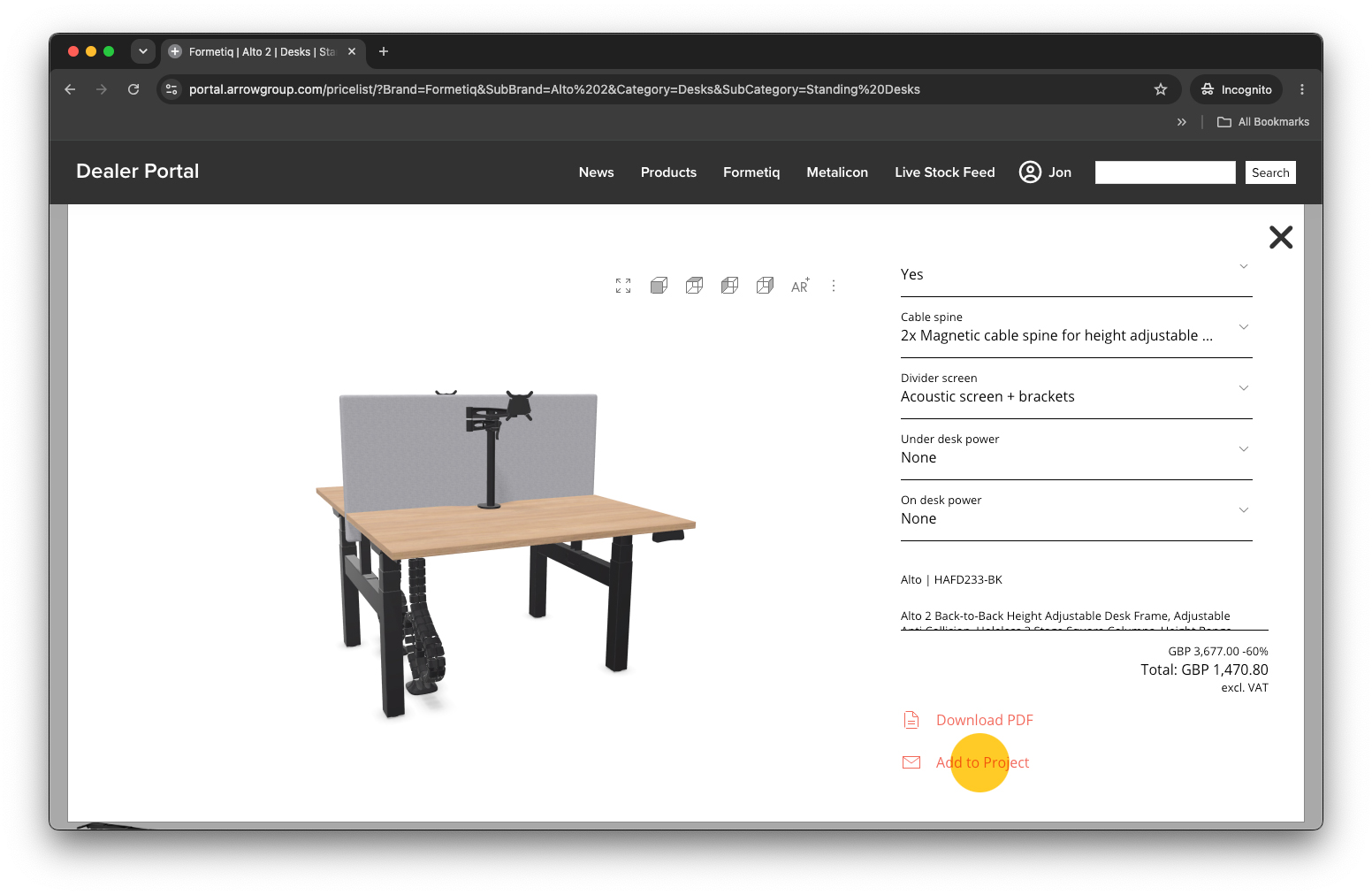
Next, select which project you want to add the configured product to and, if applicable, the group within that project. Click the ‘Add to Project’ button.
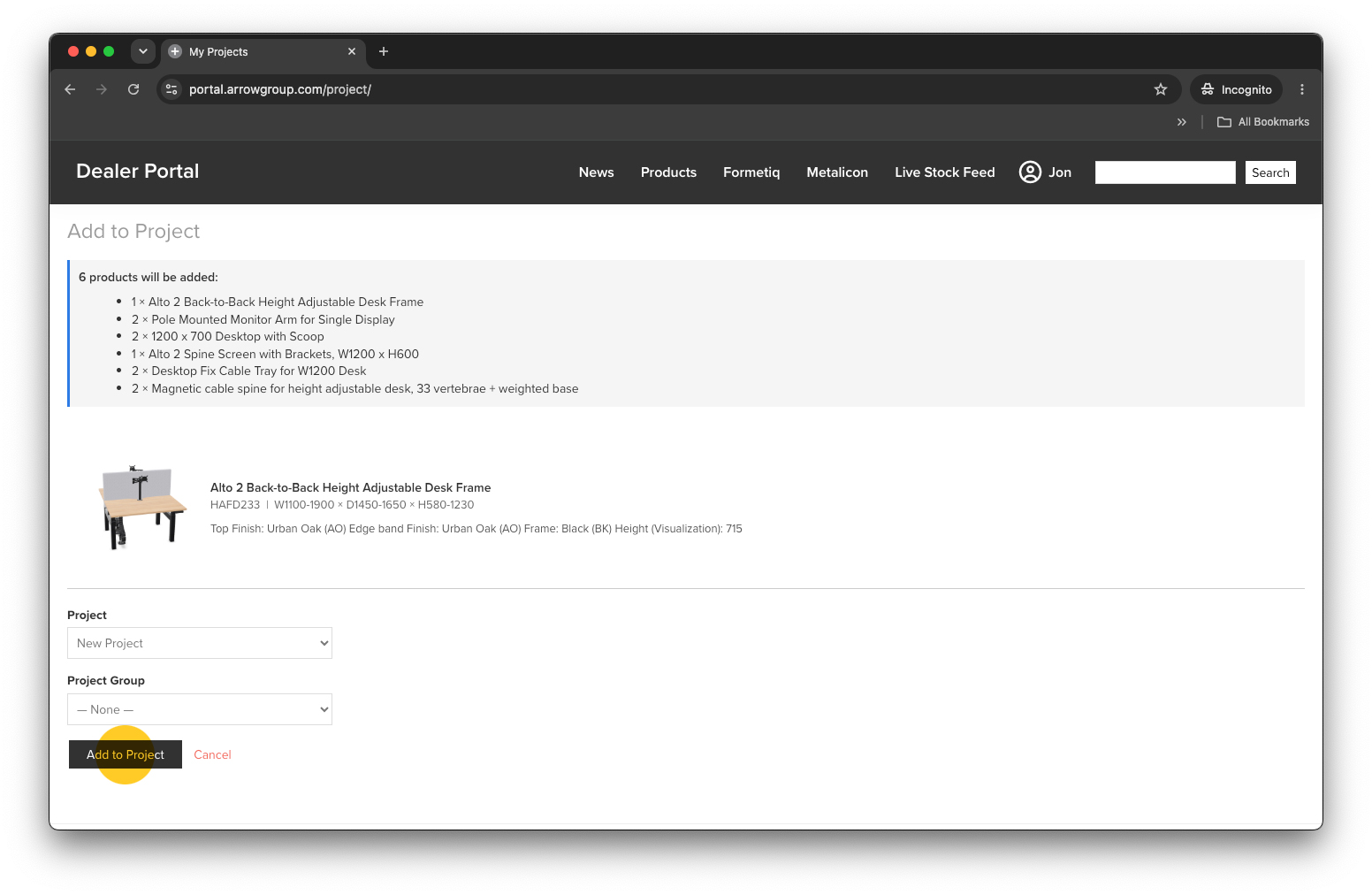
The red banner will tell you your product has been added and you can continue to add more products to your project(s).
NOTE: Configured Products have colour thumbnail images in the project list since our 3D configurator generates the thumbnail image to match your selected finishes.
Edit Products
To edit Simple Products within a project click the ‘EDIT’ link.
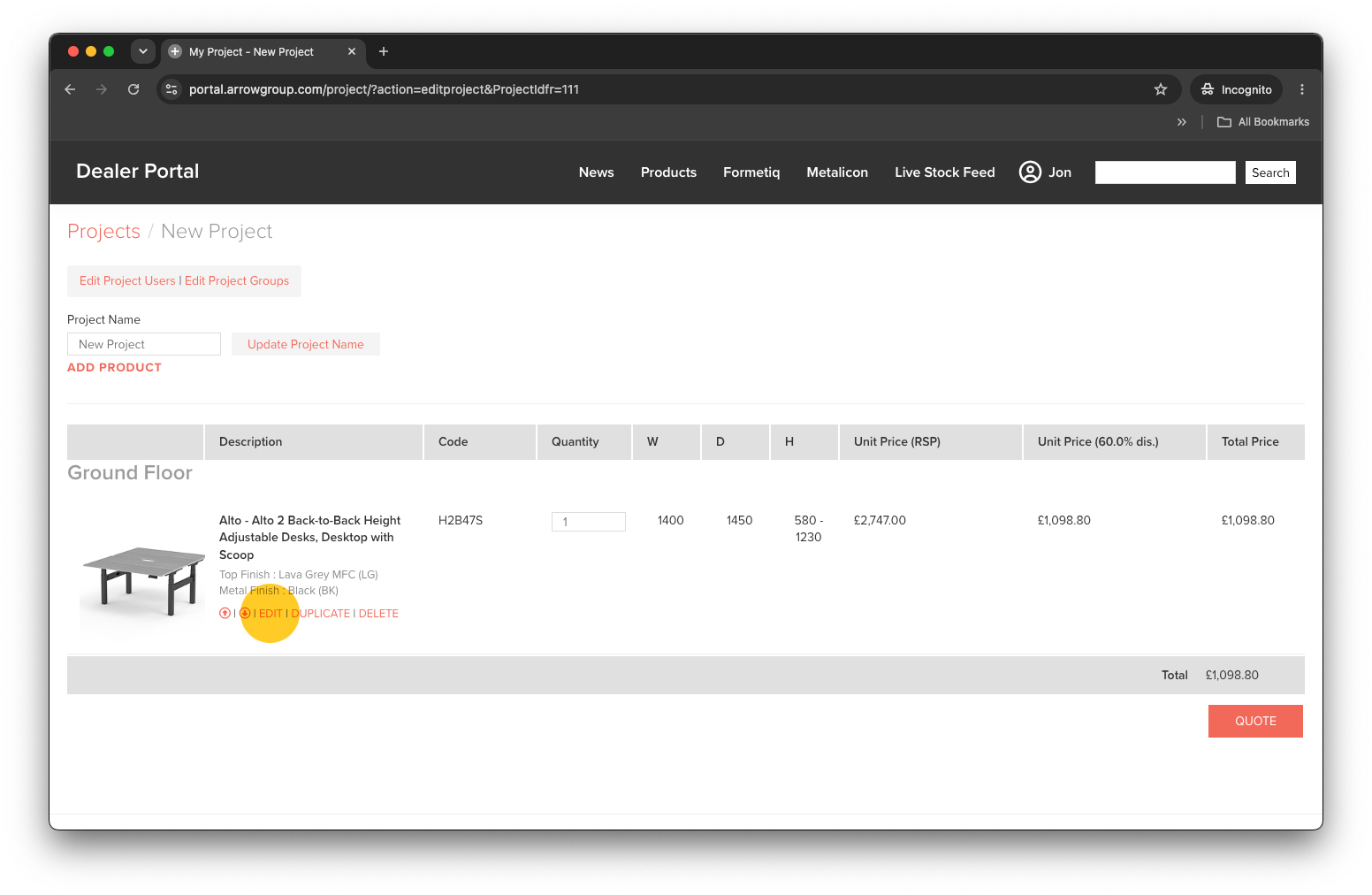
To edit Configured Products within a project simply click on the red cog symbol .
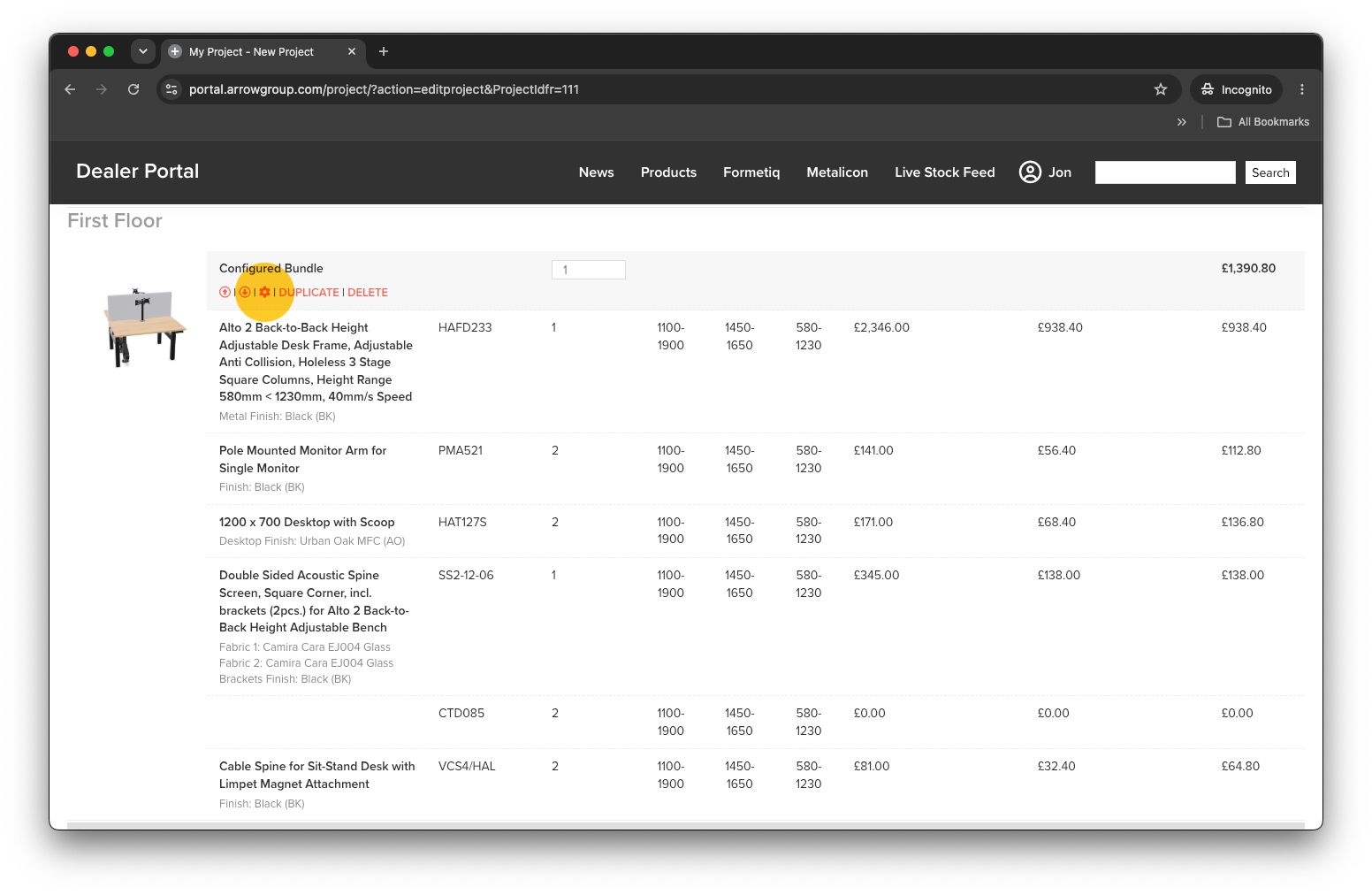
Change Quantities
To change the quantities of a product within a project simply type the new quantity into the quantity box. The price will update automatically. For Configured Products you can only change the quantity of the parent product bundle, not the individual configured components.
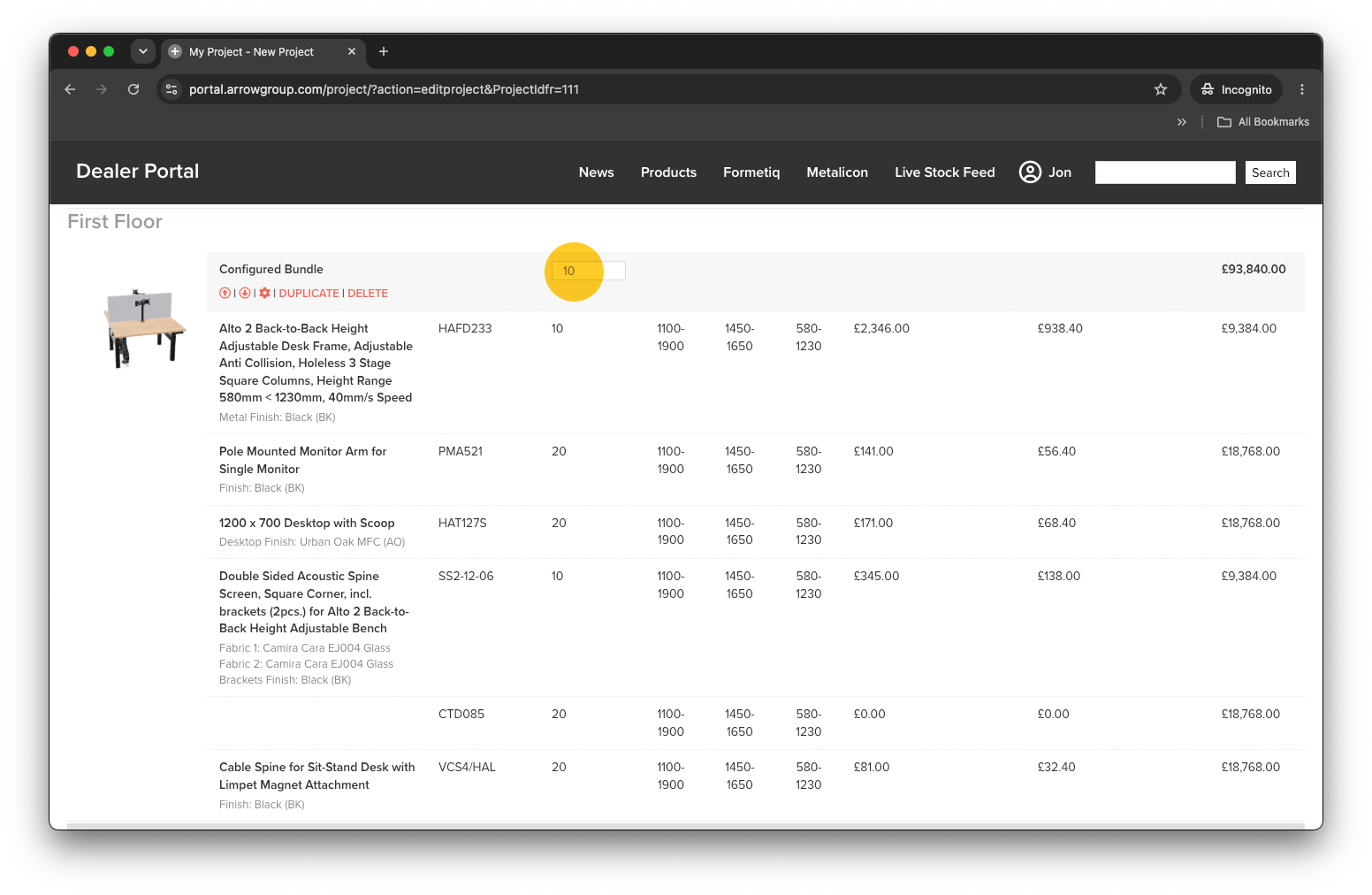
Duplicate / Copy a Product
To duplicate a product simply click the ‘DUPLICATE’ link.
Delete / Remove a product
To delete a product simply click the ‘DELETE’ link. This action can’t be undone!
Request a Quotation
If you’re happy your project is complete you can request a quotation. Simply click the red ‘QUOTE’ button (bottom right).
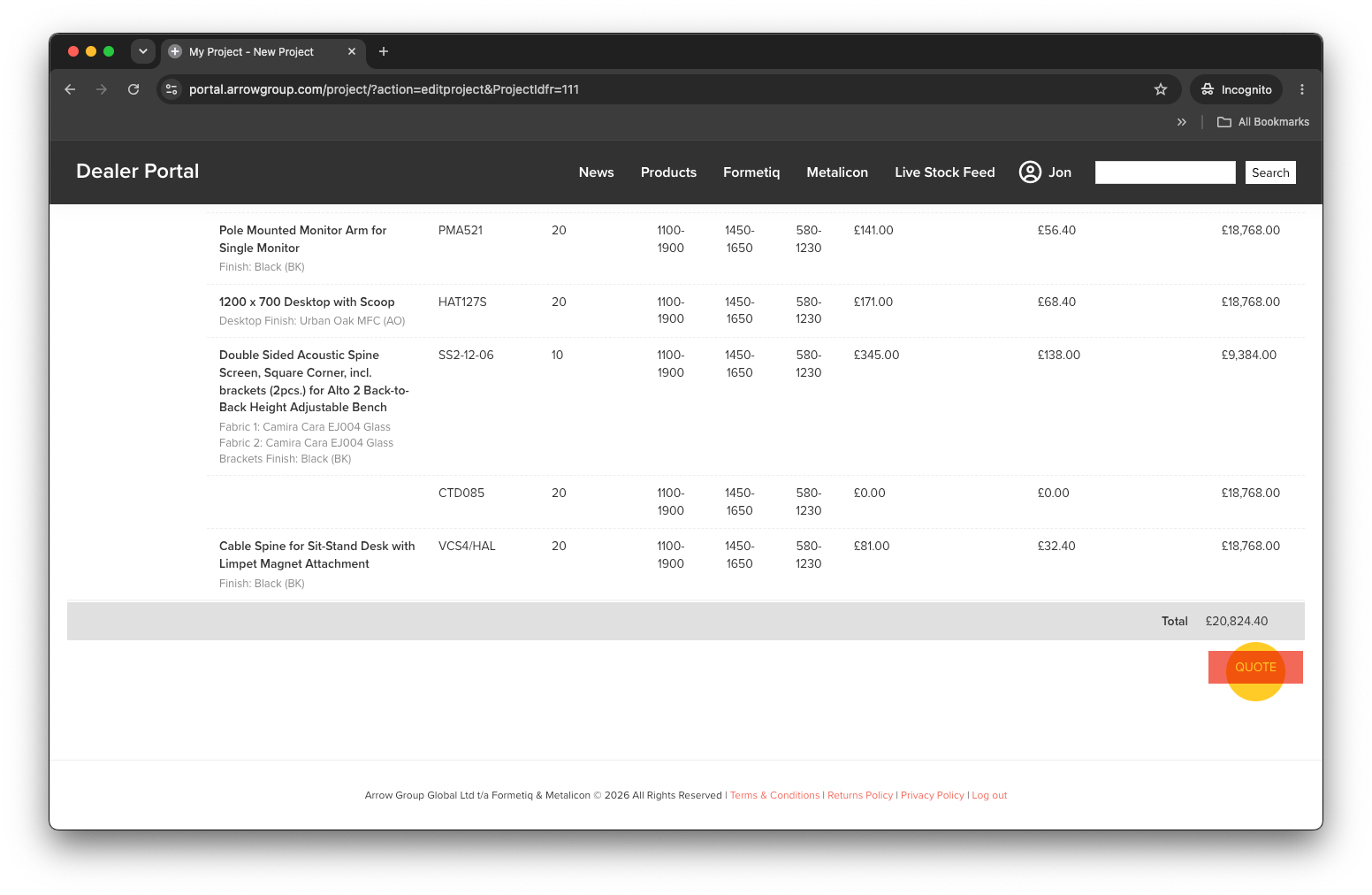
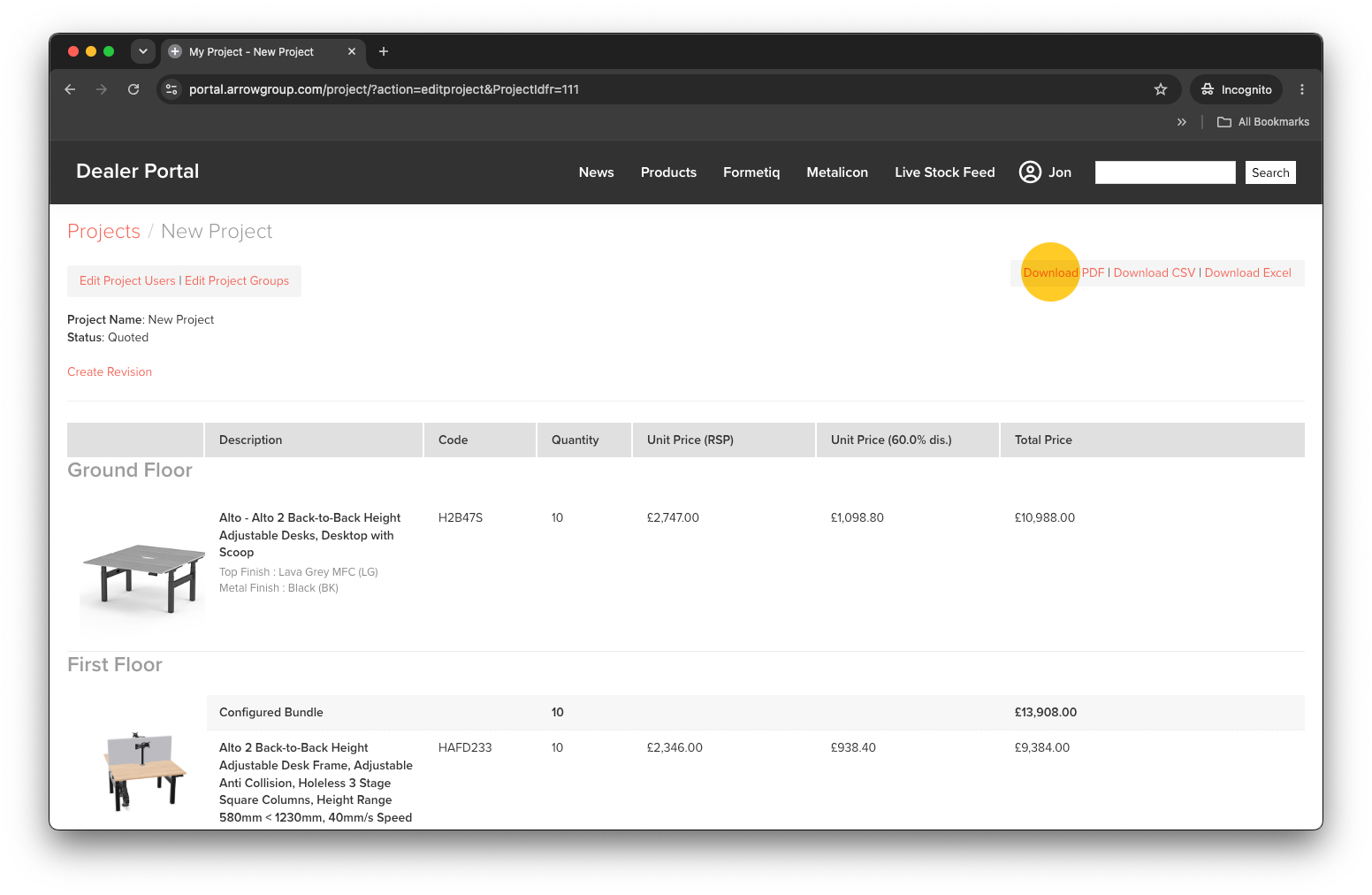
Now you can download your quoted project as a PDF, CSV file or Microsoft Excel file (.xlxs) using the download links (top right).
NOTE: At the moment none of our portal quotations include delivery. For delivery costs included in your quotation please contact our business support team. Please include your unique quotation number found on the PDF download.
Revise a Quotation
To revise a quotation click the ‘Create Revision’ link within the quoted project.
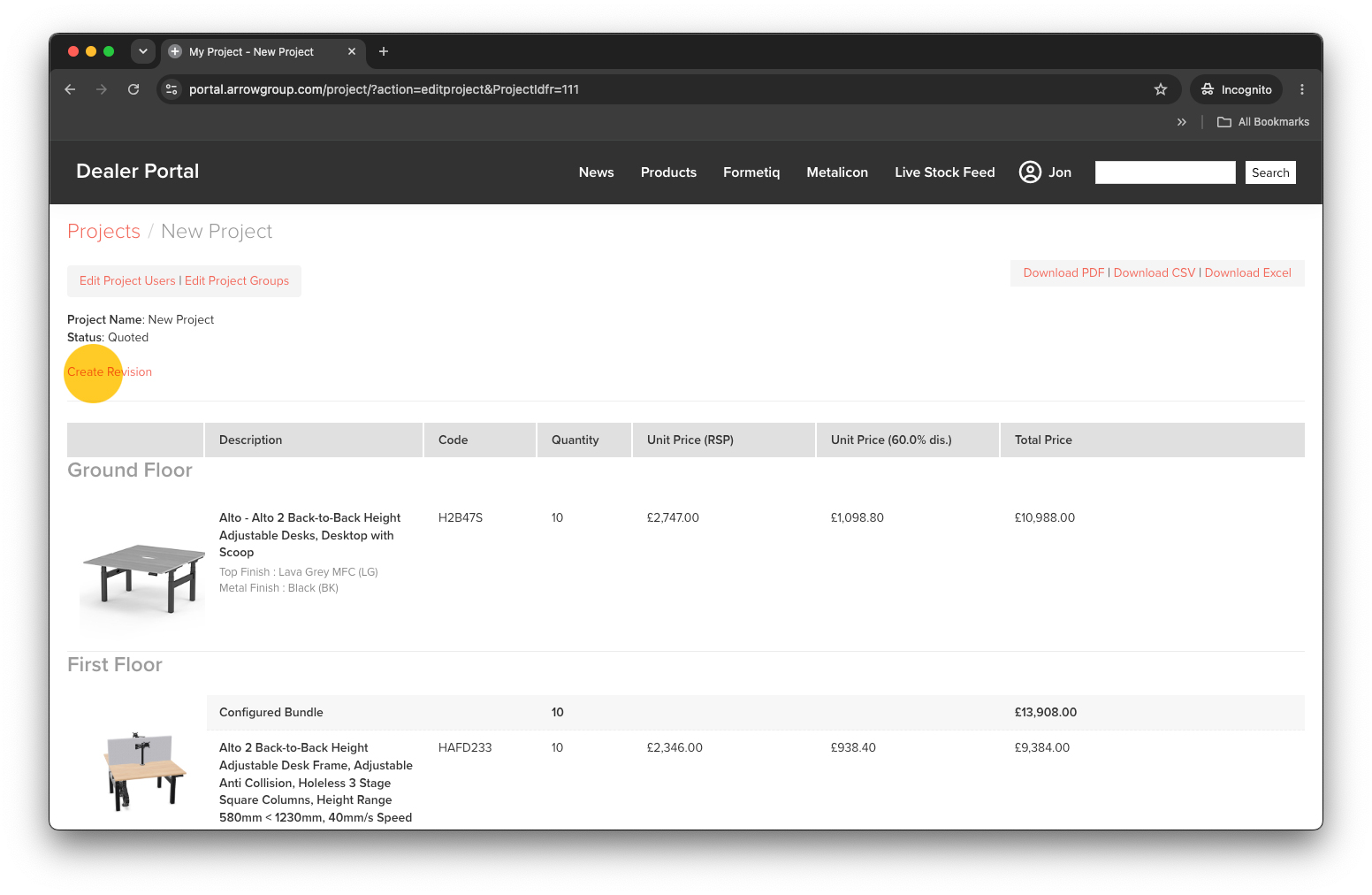
This will create a duplicate project that you can edit. When you’ve made the necessary revisions simply click the red ‘QUOTE’ button (bottom right) to create a fresh quotation.
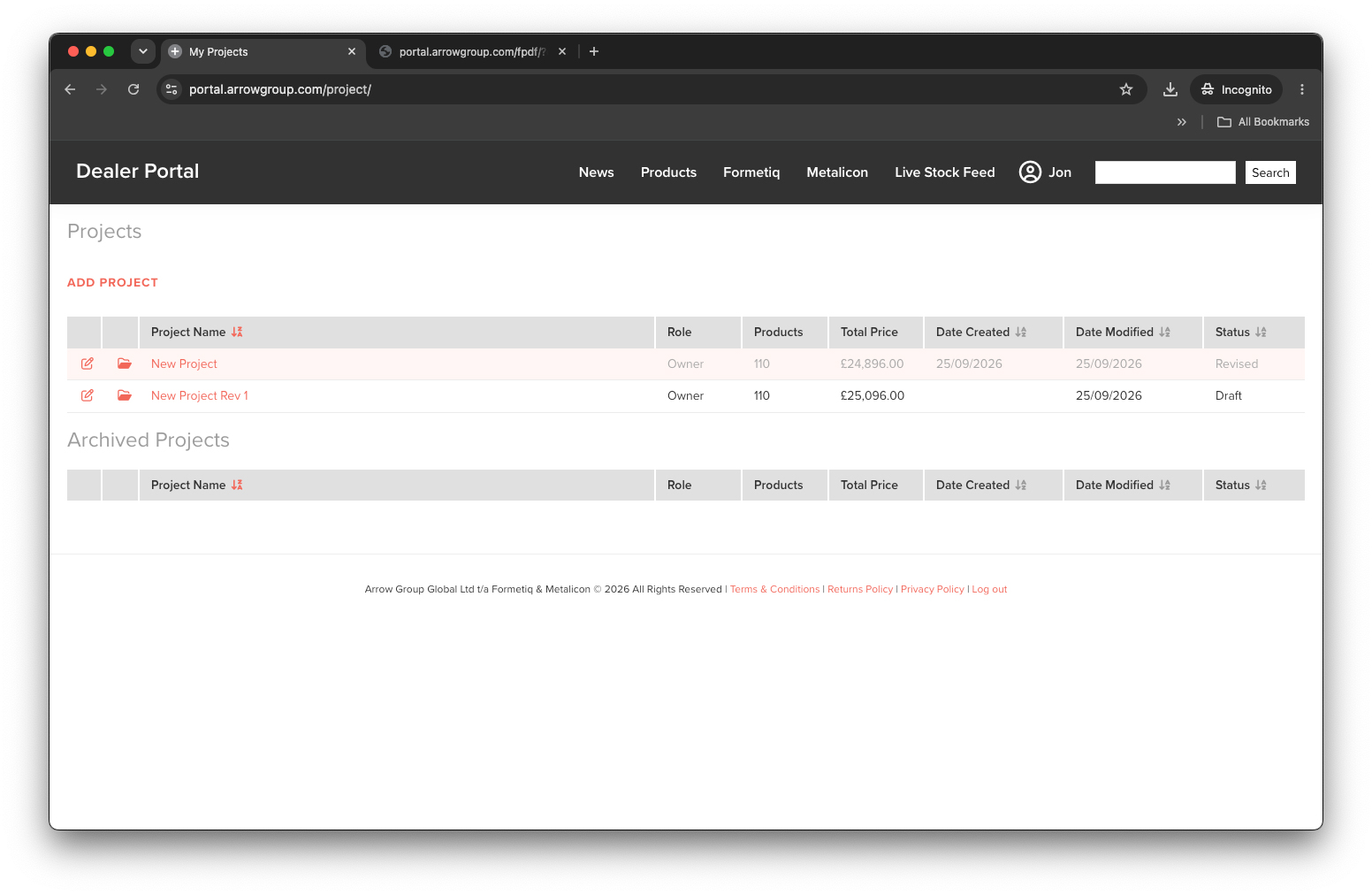
This revised quotation will share the name of the original quoted project but with ‘Rev X’ at the end.