• Skip to primary navigation
  • Skip to main content
  • Skip to primary sidebar

Dealer Portal

Jon

Discover designer fabrics from Cristina Marrone

October 19, 2026 by Jon


Discover sumptuous designer fabrics that won’t blow your project budget

We’re thrilled to be partnering with Cristina Marrone to offer over 80 premium quality fabric ranges across our seating collections.
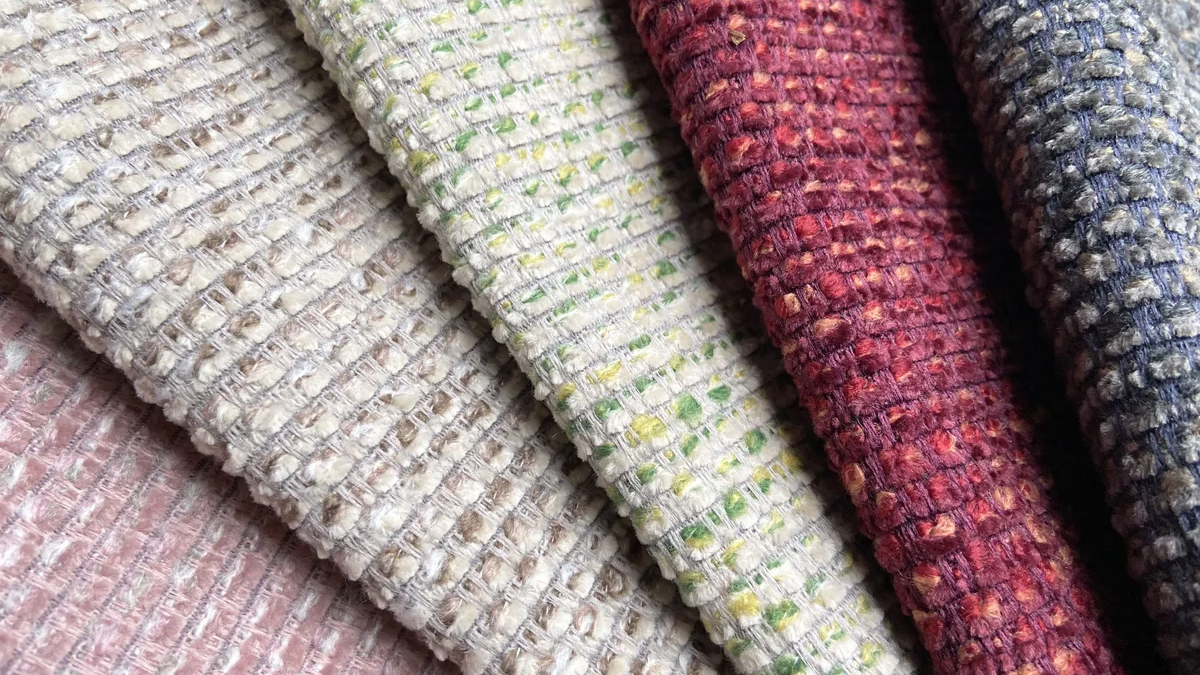
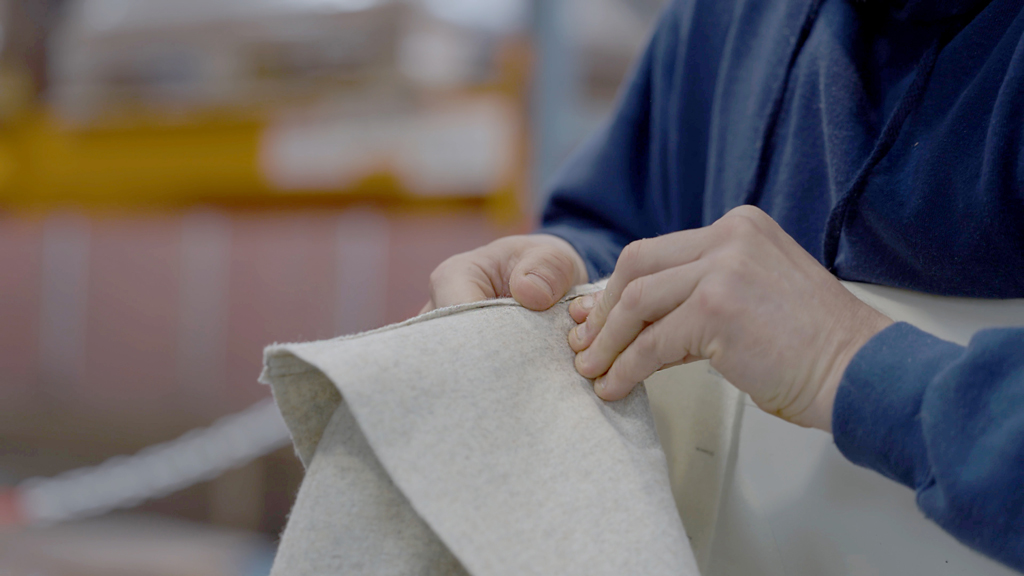
Cristina Marrone collections provide a perfect balance of high‑end aesthetics and hard‑working practicality for a price that lets you elevate every area of your workspace design project. Besides looking and feeling fabulous the majority of Cristina Marrone fabrics are available in our Band B price group!

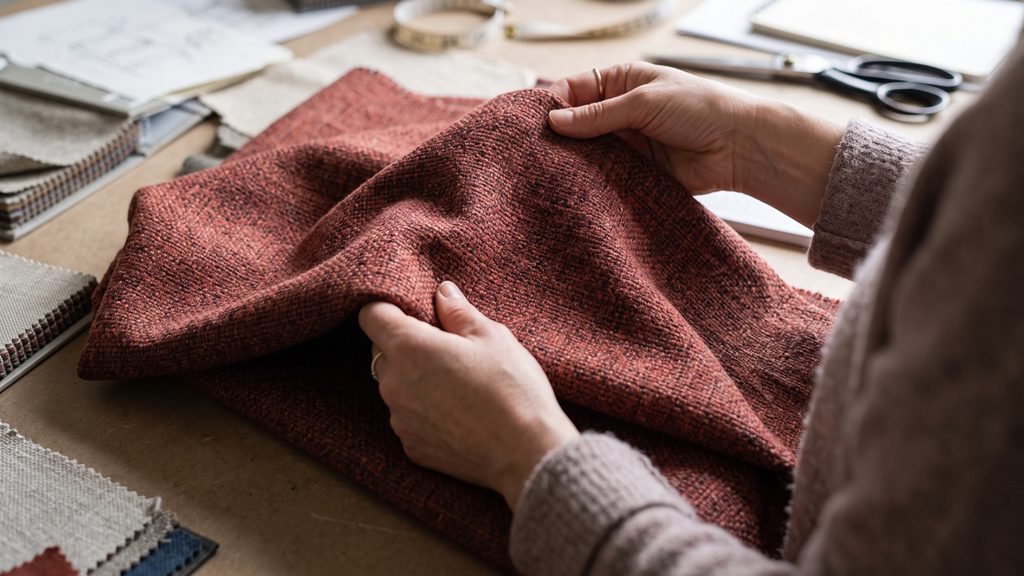
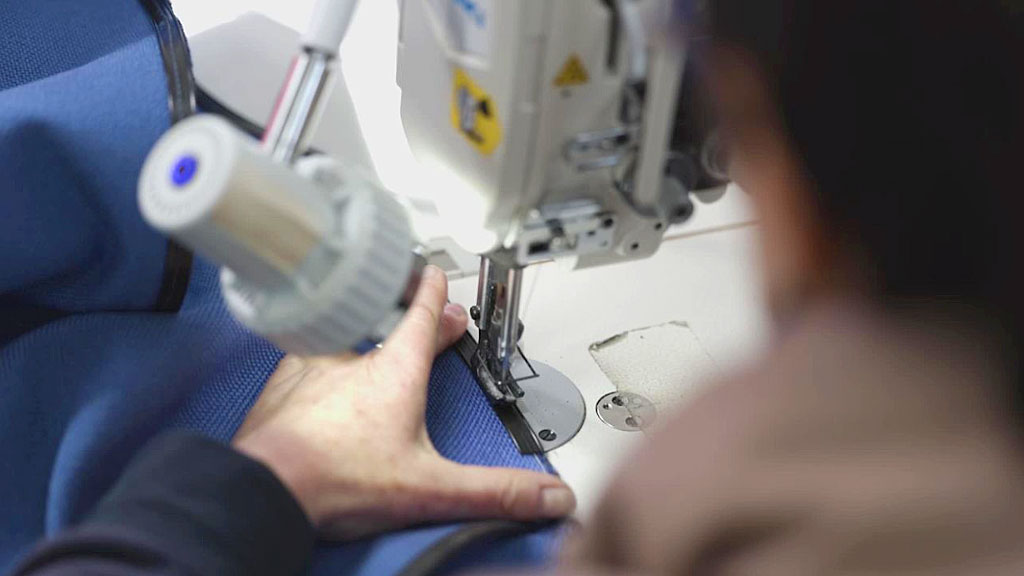
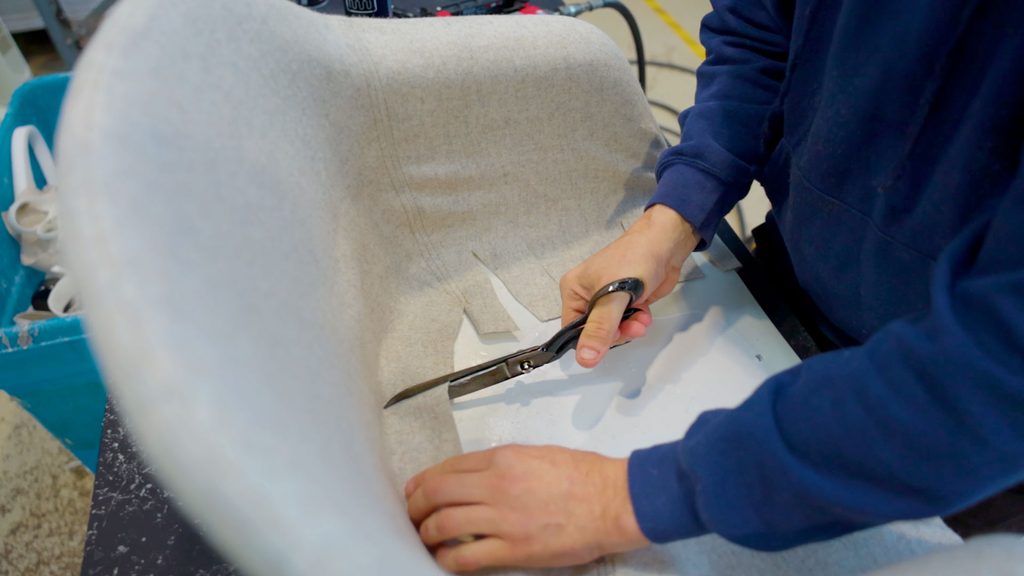
Our in-house upholstery team, based at our HQ in Suffolk, love working with these versatile fabrics and have selected a range they think will work beautifully on our seating. You’ll find these listed against seating on this Dealer Portal. Please talk to us about any fabrics you can’t see listed.
You’re invited to the launch!
Experience Cristina Marrone in our showroom

Thursday 19 November
4.30pm to 7pm
Formetiq Showroom, 82 Turnmill Street, Clerkenwell, EC1M 5QU

GET YOUR FREE TICKET

Join us for informal drinks and nibbles and get hands on these sumptuous, tactile designer fabrics, featured on seating in our showroom. We’ll present a short introduction at 5.30pm with the Cristina Marrone team showcasing both brand new and existing collections. Tickets are limited. Don’t miss out!
Filed Under: Formetiq

New Como stackable conference chairs + stools

October 8, 2026 by Jon


Create comfortable and flexible training spaces with Como stacking conference seating

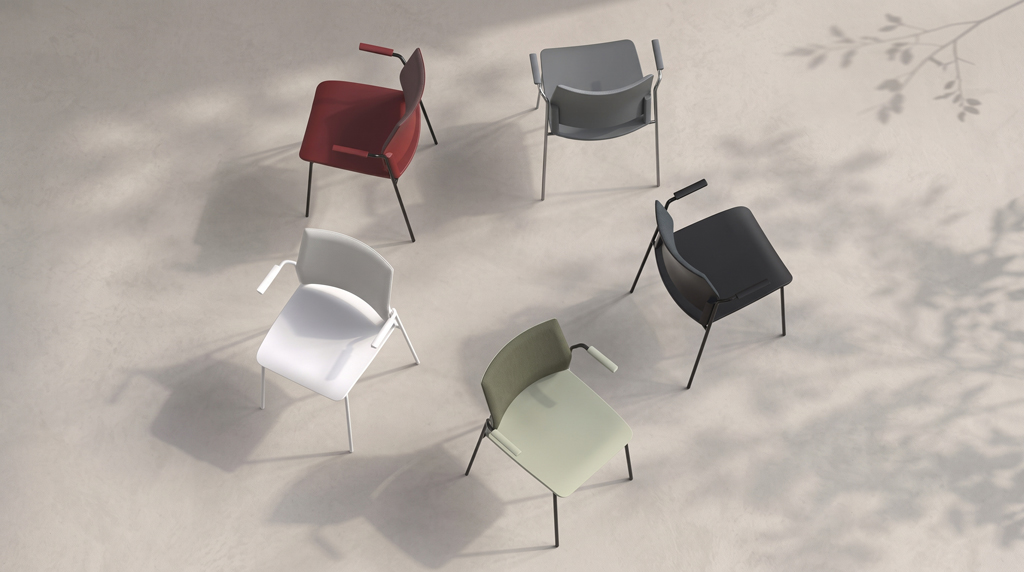
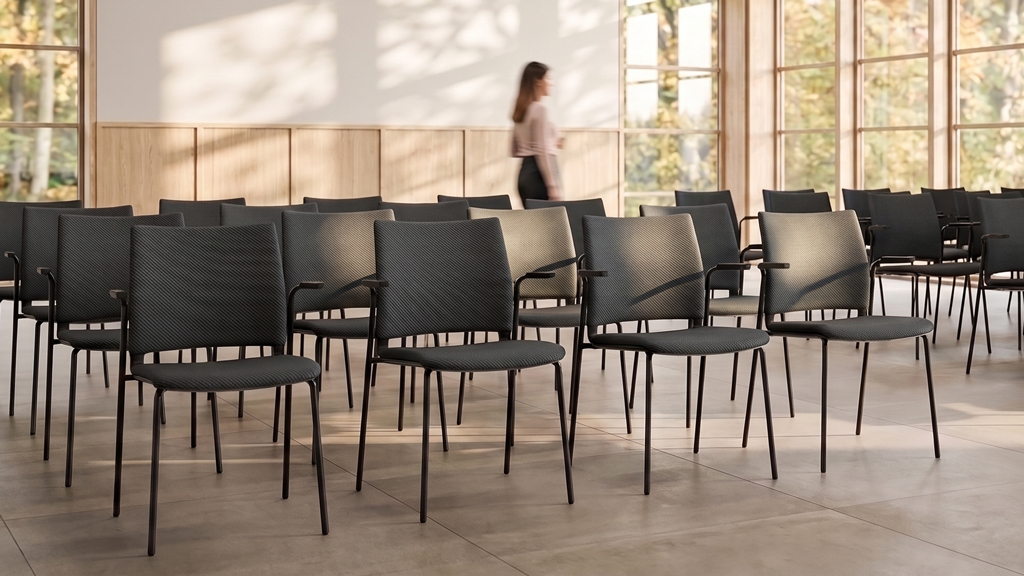
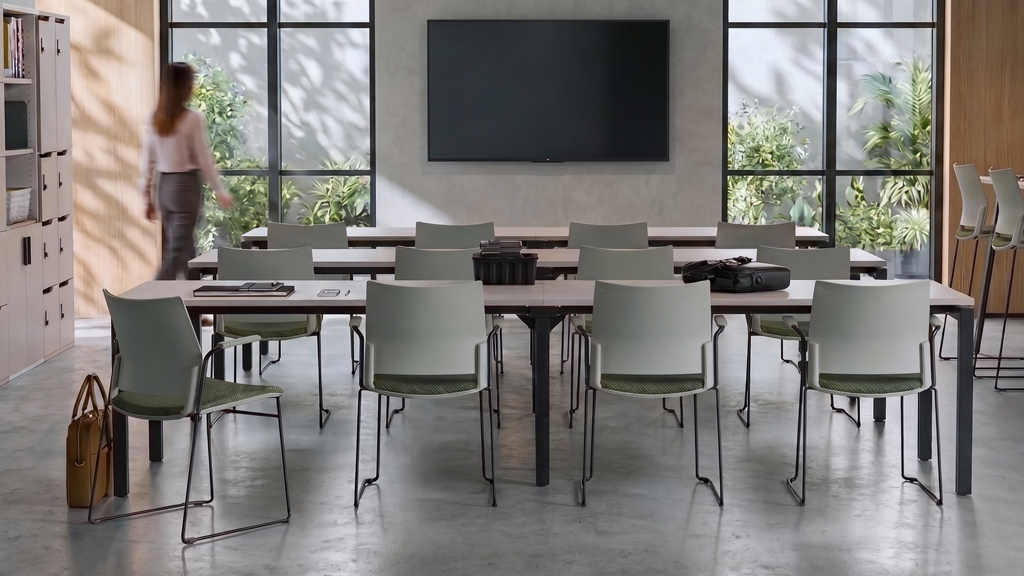
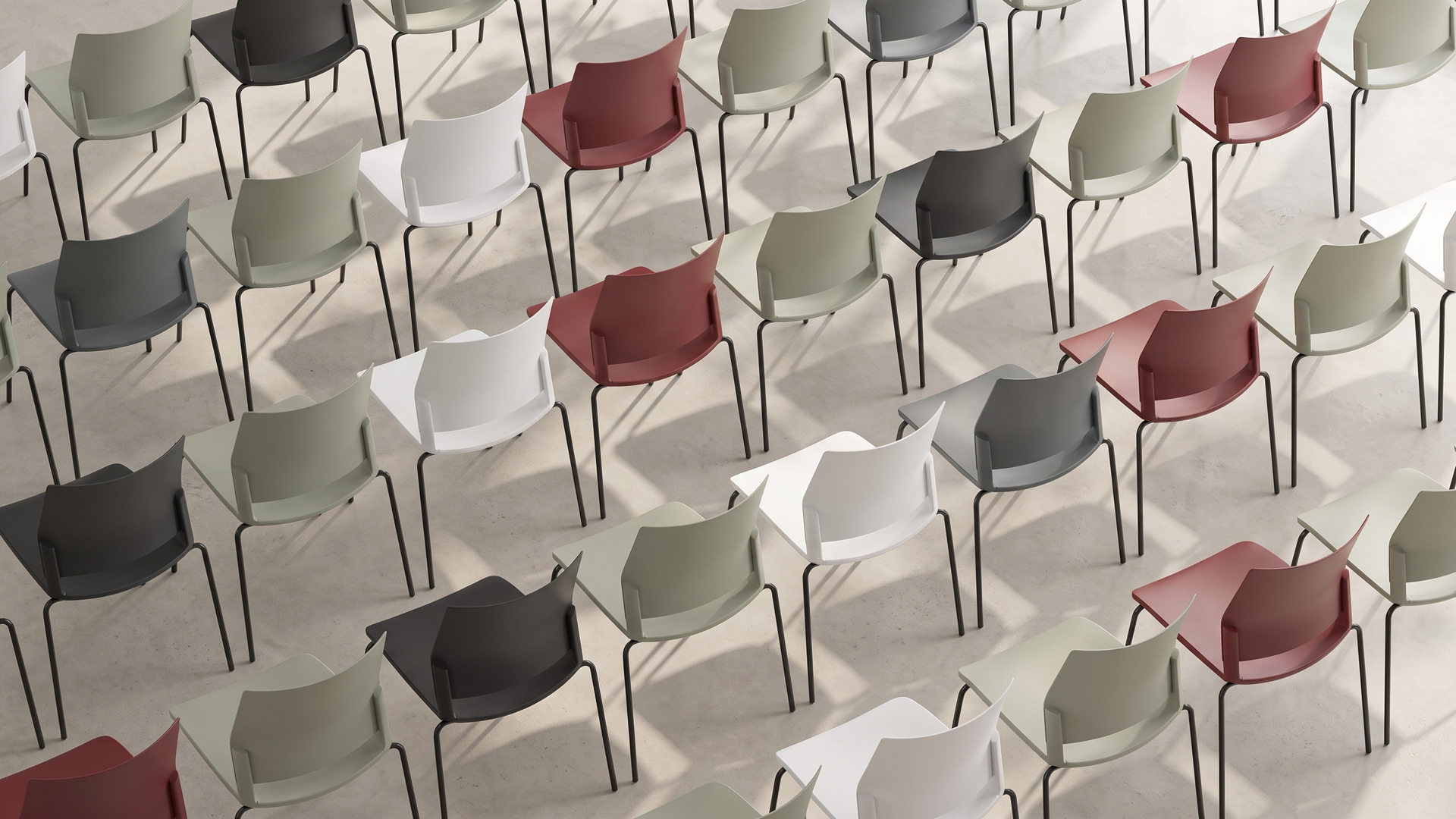
The Como conference seating collection provides designers with a highly adaptable solution tailored for a comprehensive range of spaces, from intimate meeting rooms to training areas or large-scale conference facilities.

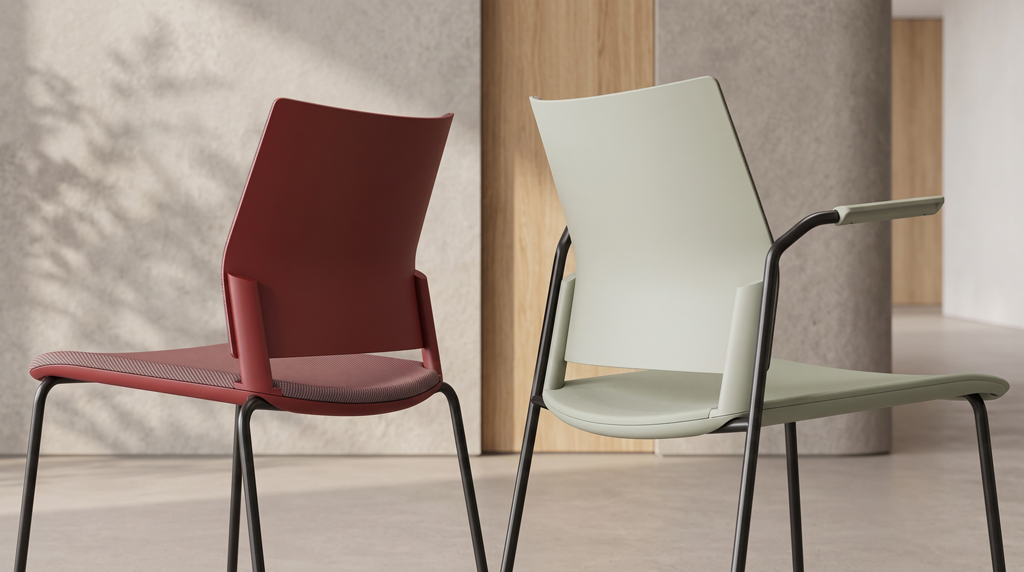
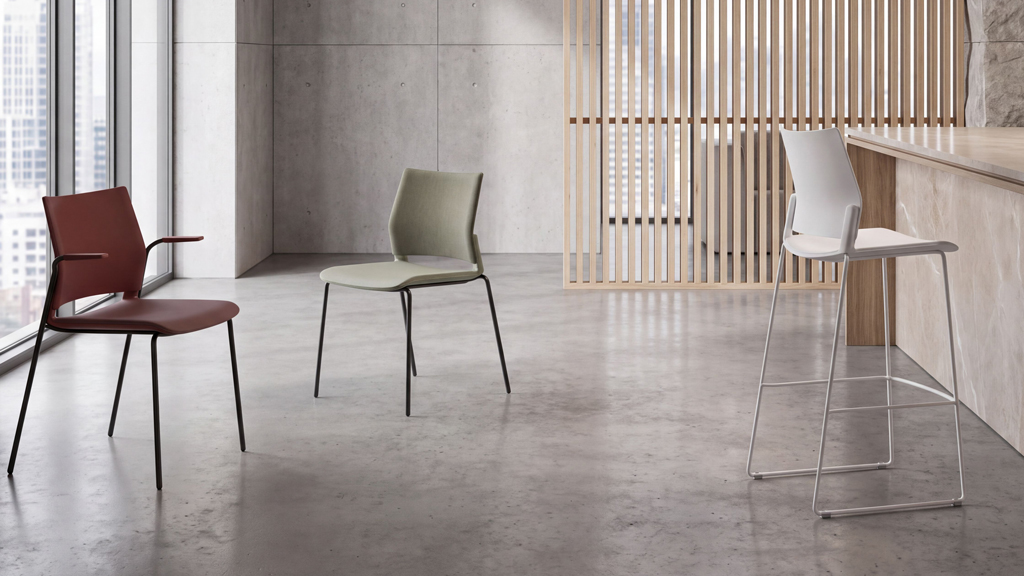
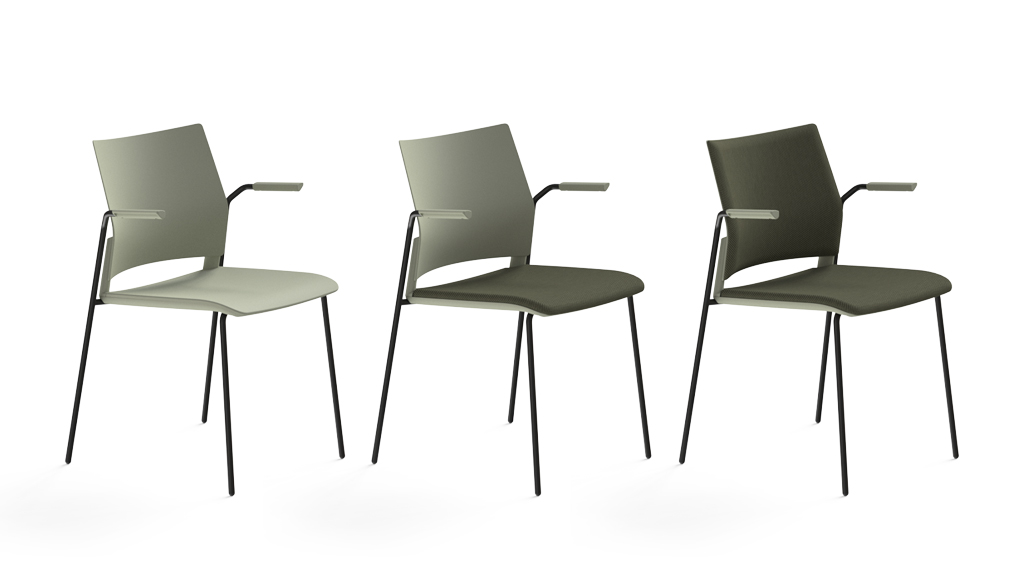
At the foundation of the Como collection is a refined plastic shell, available in 5 natural colours and engineered for complete modularity. Specifiers can select from 3 base configurations to suit specific functional needs: a standard 4-leg frame, a dynamic sled base with linking option, and a sled base stool, all available in black, white or polished finish.

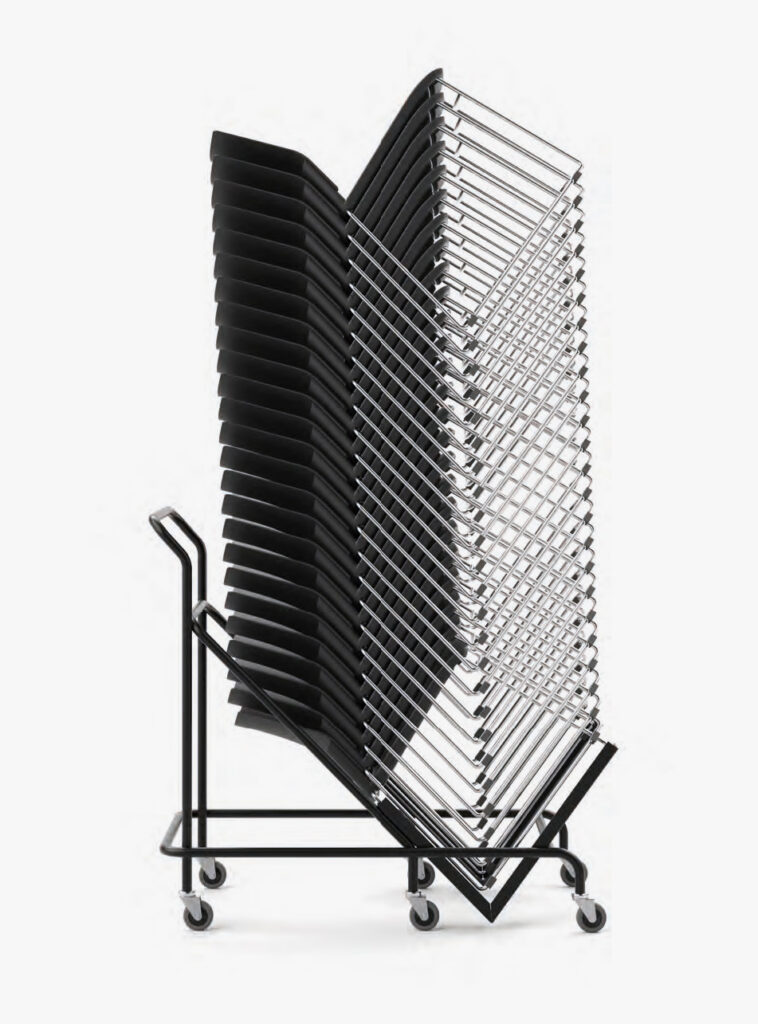
The seating can be further customised with or without armrests, and offers the option for tailored seat and back upholstery to enhance comfort in extended-use scenarios. Crucially for dynamic, multi-use environments, Como can be stacked on the floor or even higher on the specialised trolley, maximising space.


4-leg base

  • With or without armrests
  • 5 plastic colours, 3 base finishes
  • Upholstered seat and backrest options
  • Stack on mobile trolley

Sled base with linking option

  • With or without armrests
  • 5 plastic colours, 3 base finishes
  • Upholstered seat and backrest options
  • Stack on mobile trolley
  • Link sled bases together

Sled base stool

  • 5 plastic colours, 3 base finishes
  • Upholstered seat and backrest options
  • Link sled bases together

Choice of upholstery

Choose to upholster the seat pad, or both the backrest and the seat pad, all made in-house by our skilled team at our Suffolk HQ.

Filed Under: Formetiq

New 65W USB-C charging

October 5, 2026 by Jon


New 65W USB-C charging

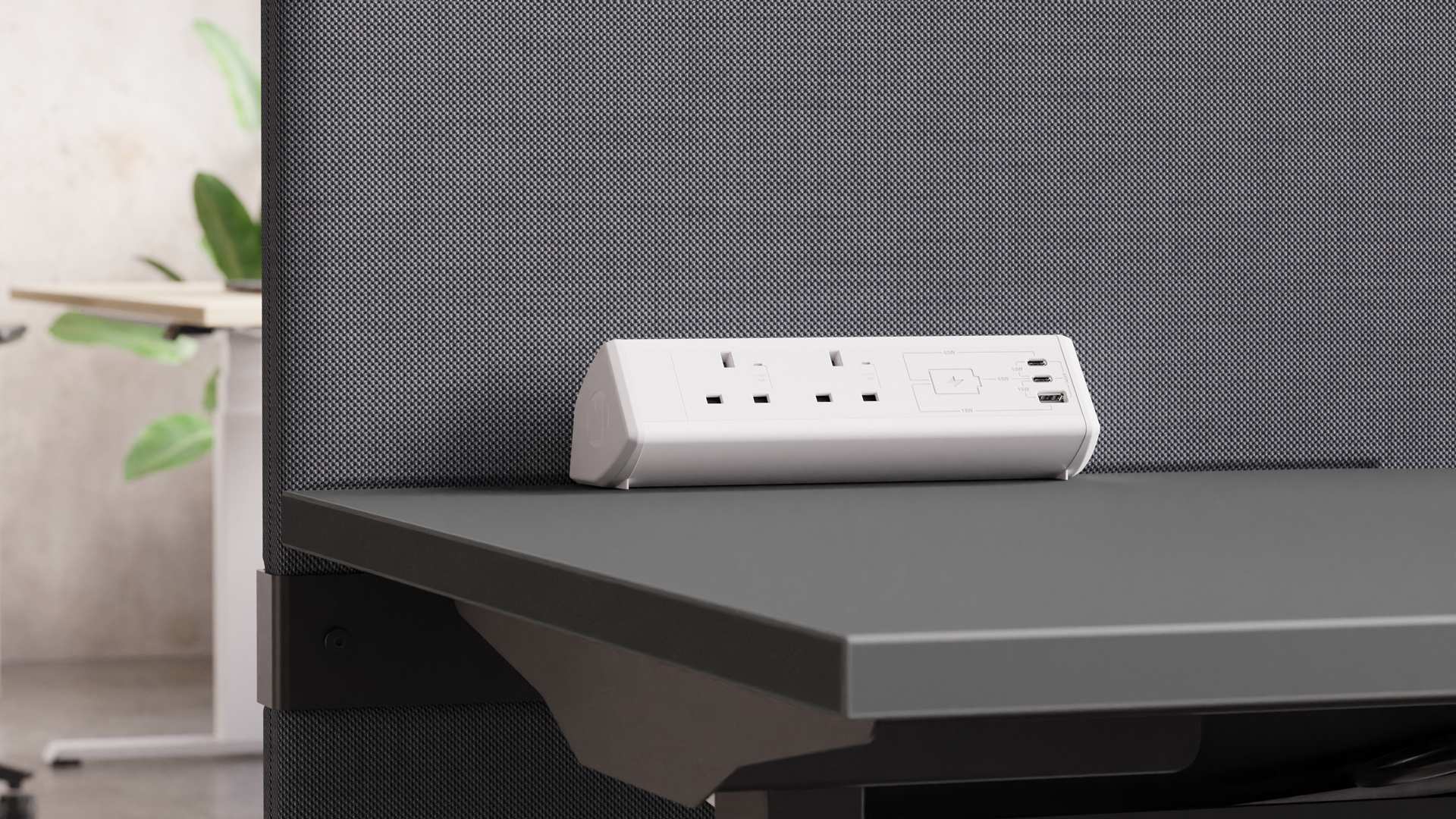
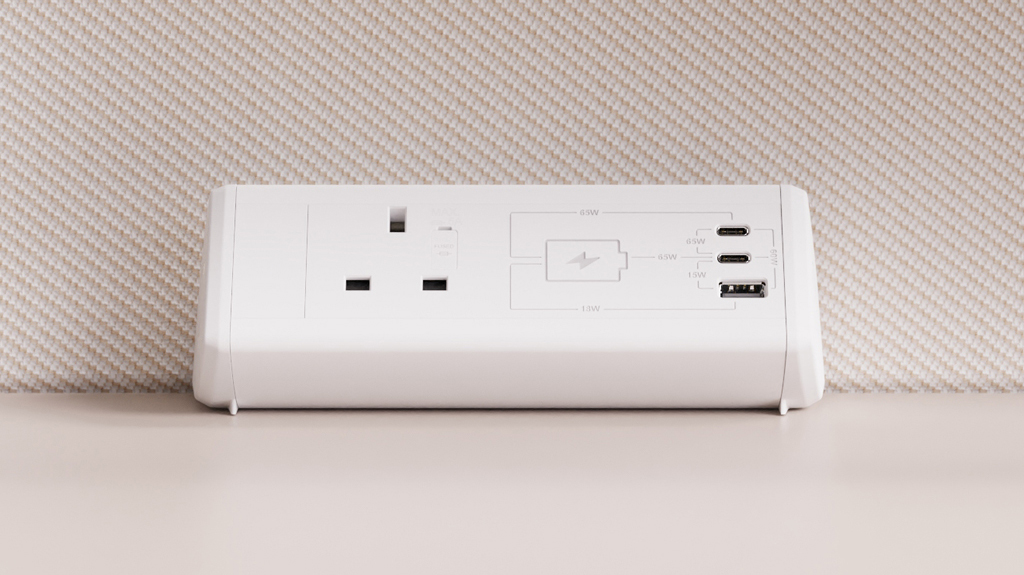
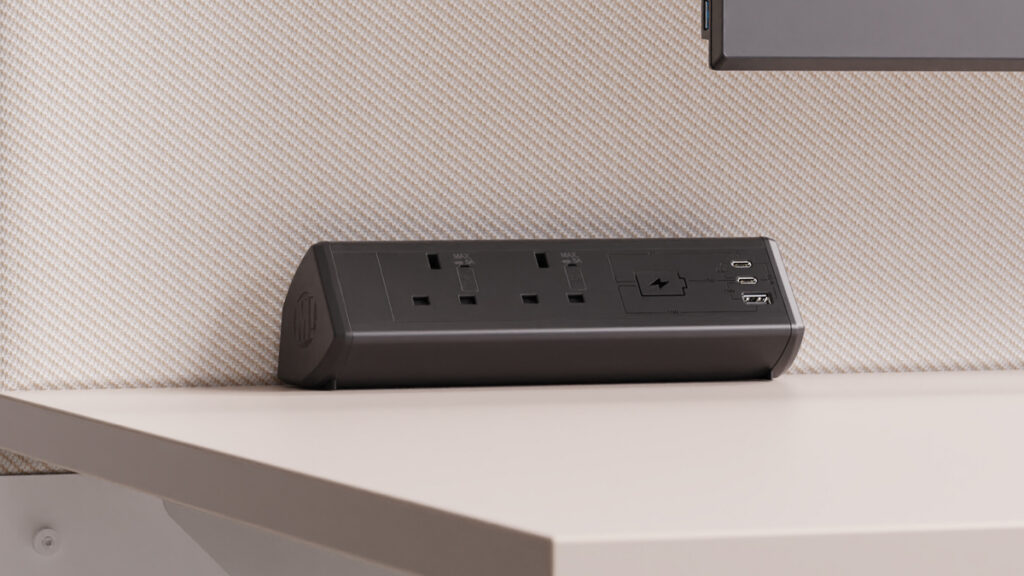
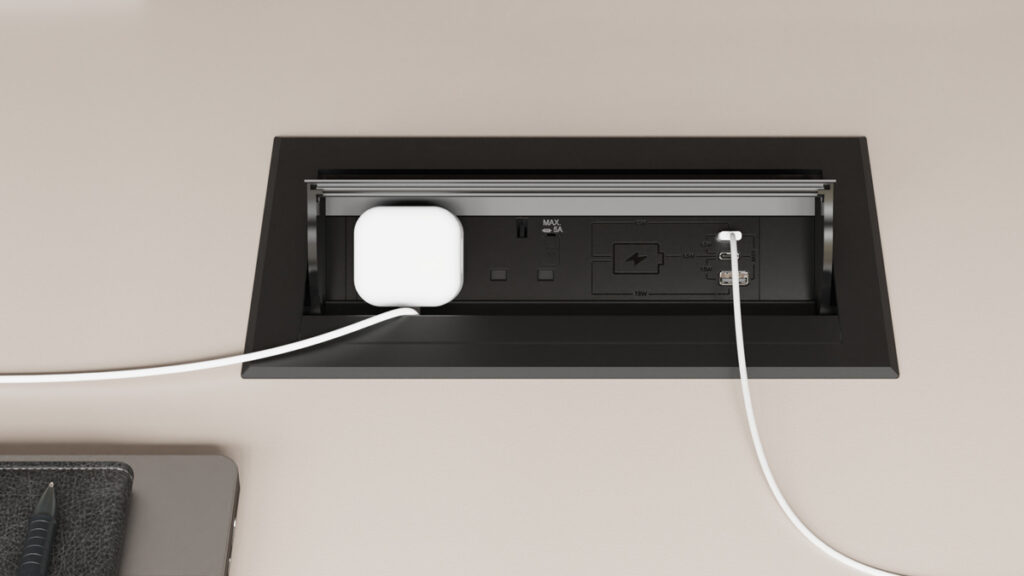
We’ve updated and improved our Boost and Click power module ranges with new high power 65W USB-C Power Delivery ports, ideal for charging smartphones, tablets and laptops.

Boost 65W on-surface power

We’ve added 2 new 65W modules to the Boost range, a single socket and double socket option. We’ve removed the red switch and redesigned the faceplate to create a more refined aesthetic.

Download Specification [PDF]

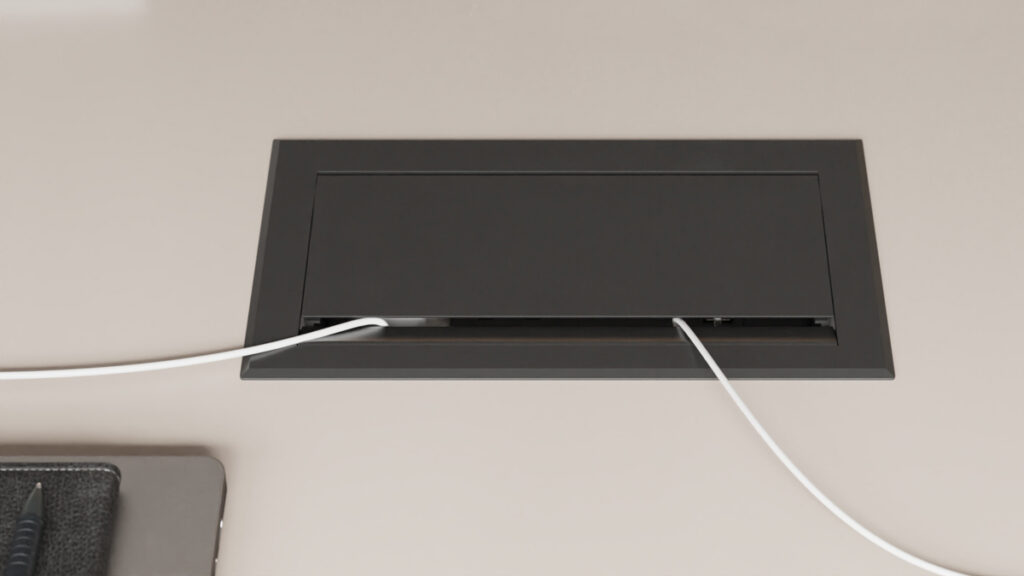
Click 65W hidden in-surface power

We’ve also added 2 new double socket 65W modules to the Click in-surface range. One option with just 18W USB-A + 65W USB-C charging and another with the addition of RJ45 (Cat6) and HDMI data transfer ports.

Download Specification [PDF]

Filed Under: Metalicon

New Projects Function

September 28, 2026 by Jon


Projects

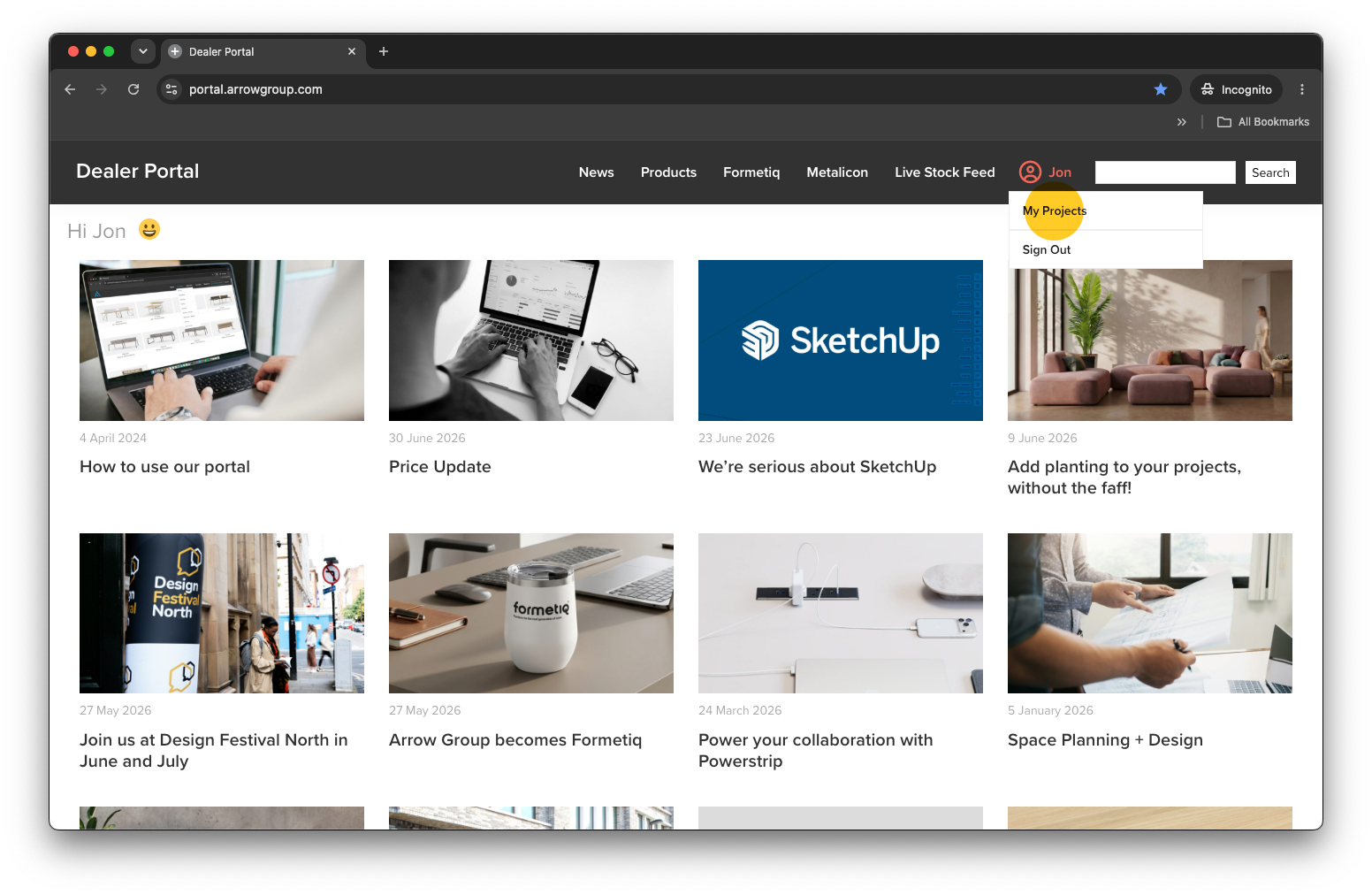
You’ll find the ‘My Projects’ section in the user menu (top right).

  1. Add Projects
    • Edit Projects
    • Archive Projects
  2. Add / Edit Project Users

  3. Add Project Groups
    • Edit Project Groups
    • Reorder Products
  4. Add Products
    • Add a Simple Product
    • Add a Configured Product
  5. Edit Products
    • Change Quantities
    • Duplicate / Copy a Product
    • Delete / Remove a Product
  6. Request a Quotation
    • Revise a Quotation

Add Projects

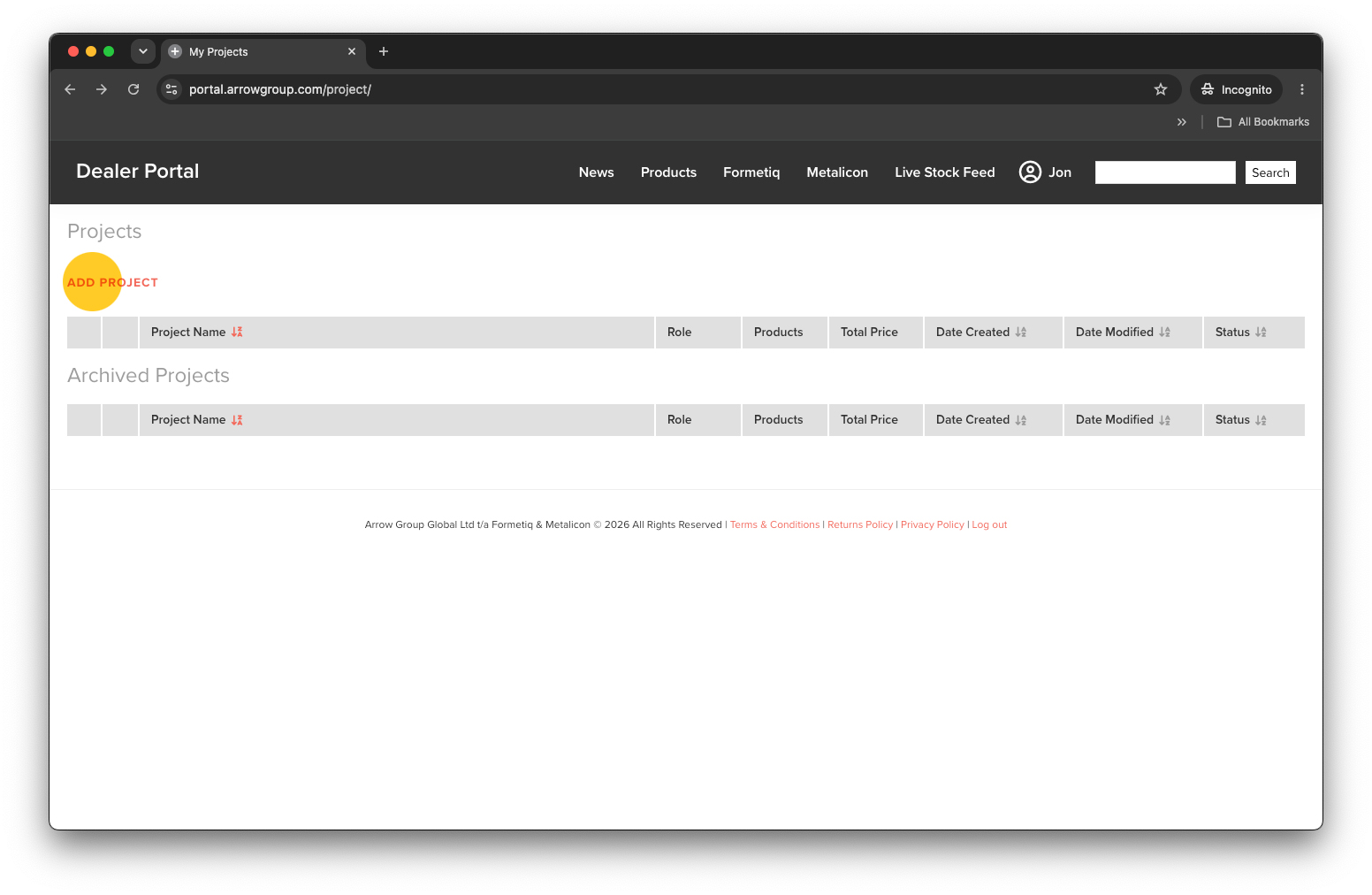
Click the ‘ADD PROJECT’ link (top left) to start a new project.

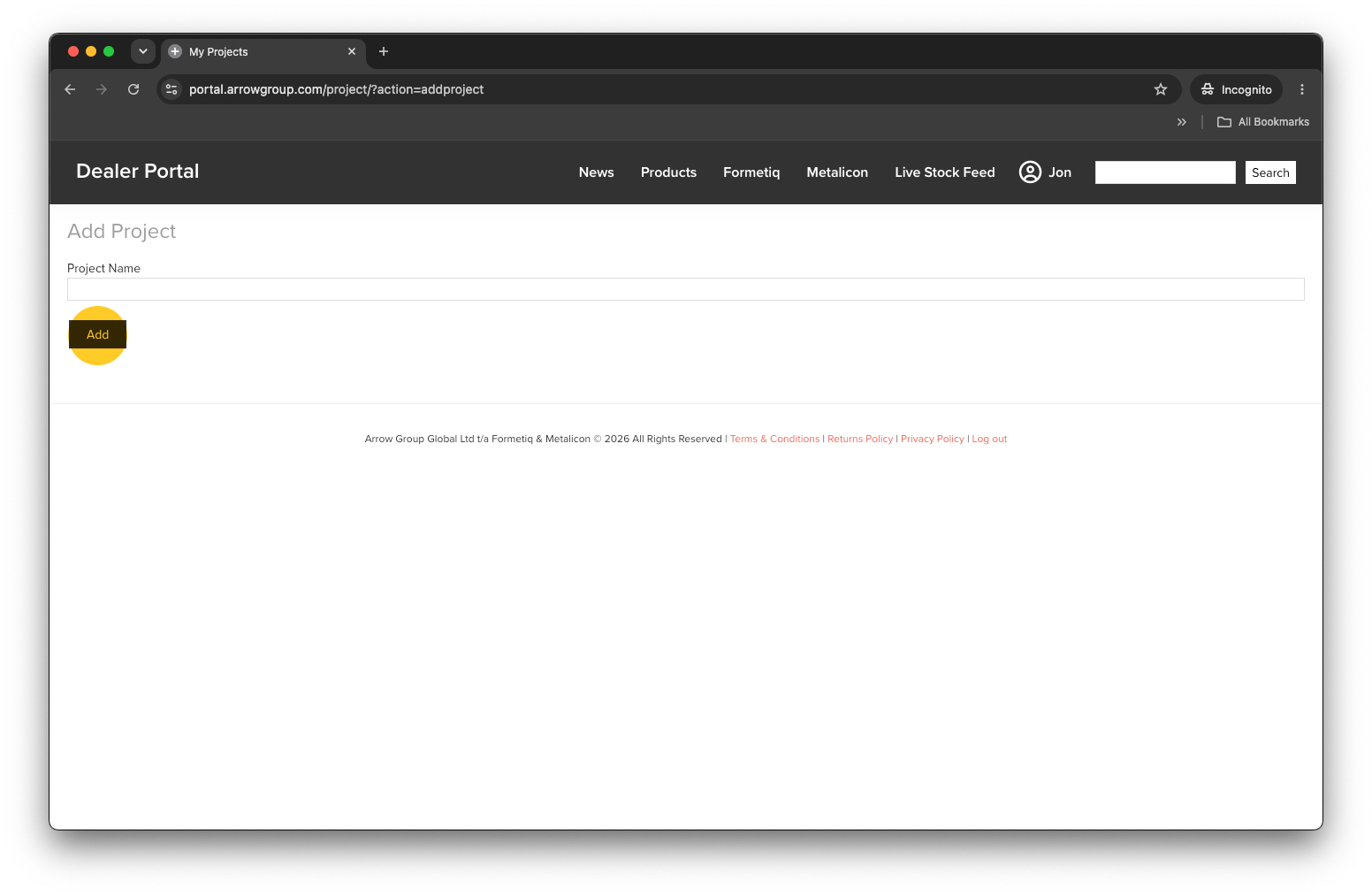
Give your project a name and click the ‘Add’ button.

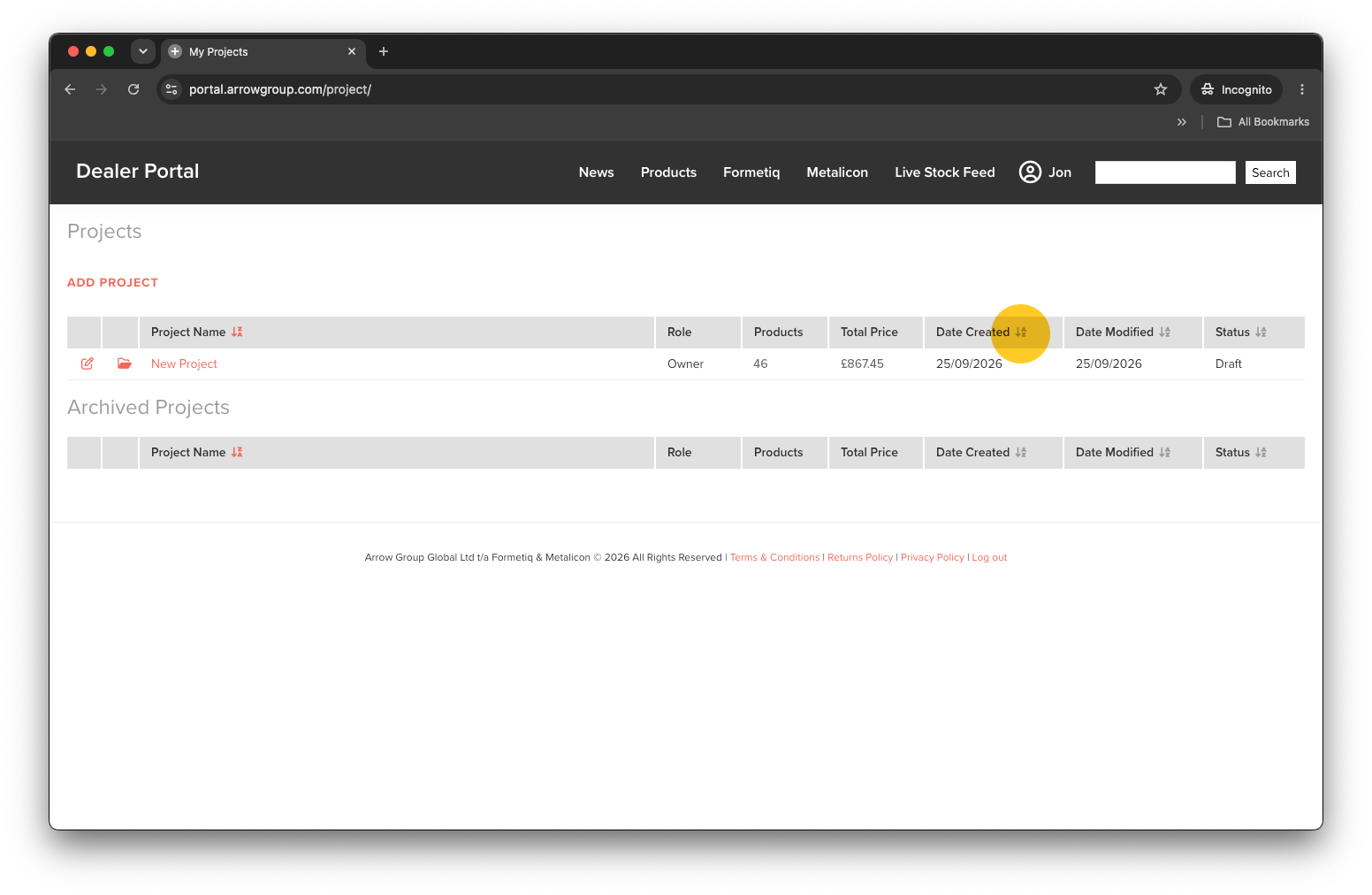
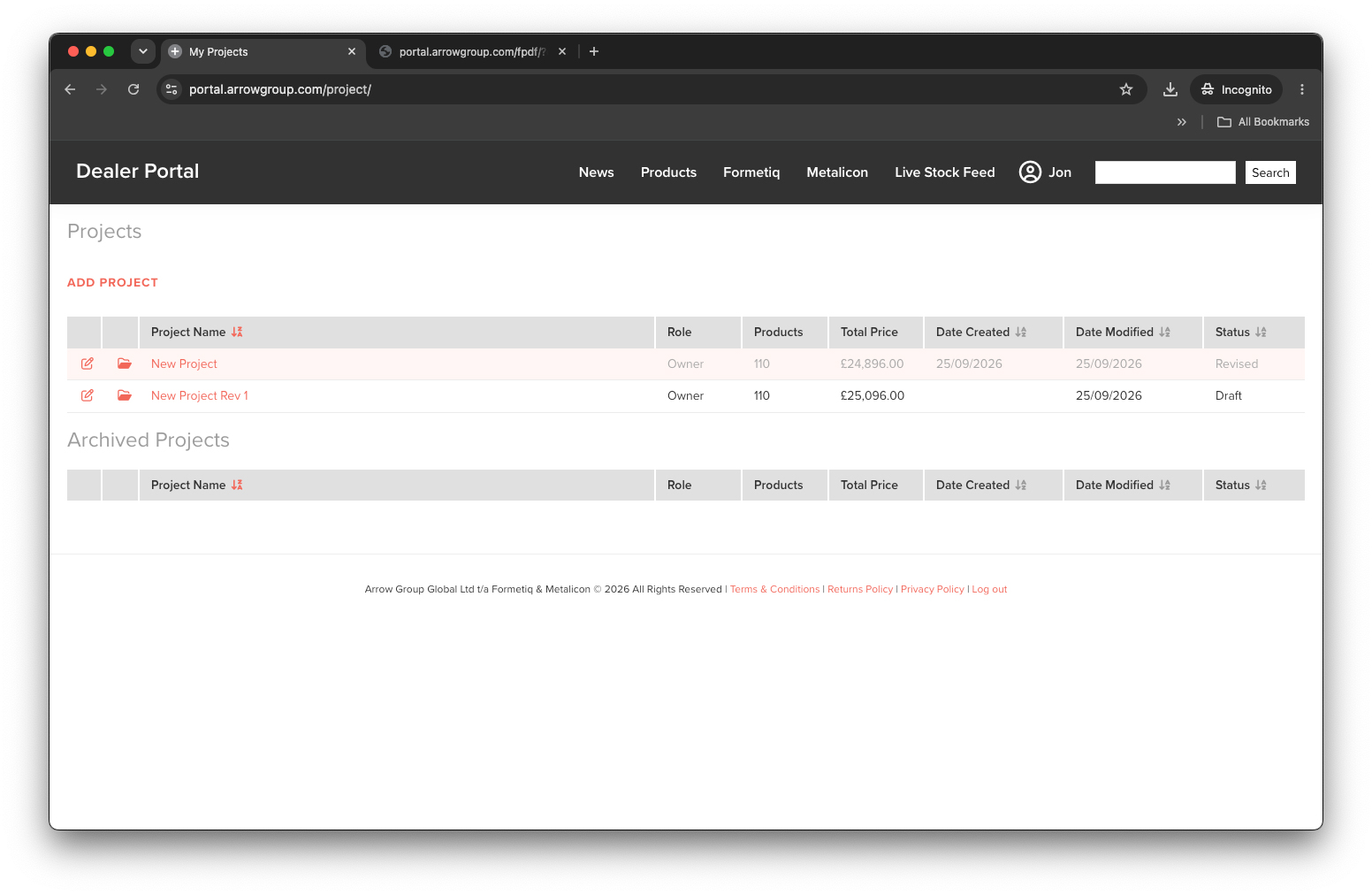
On the Projects page, for each project you can see:

  • Your Role
  • Quantity of Products in the project
  • Total Price of all products in the project
  • The Date the project was Created
  • The Date the project was last Modified
  • The project Status (Draft, Quoted, Revised)

You can order your projects list by Project Name, Date Created, Date Modified or Status. Simply click the ‘AZ’ symbol in the grey header bar.


Edit Projects

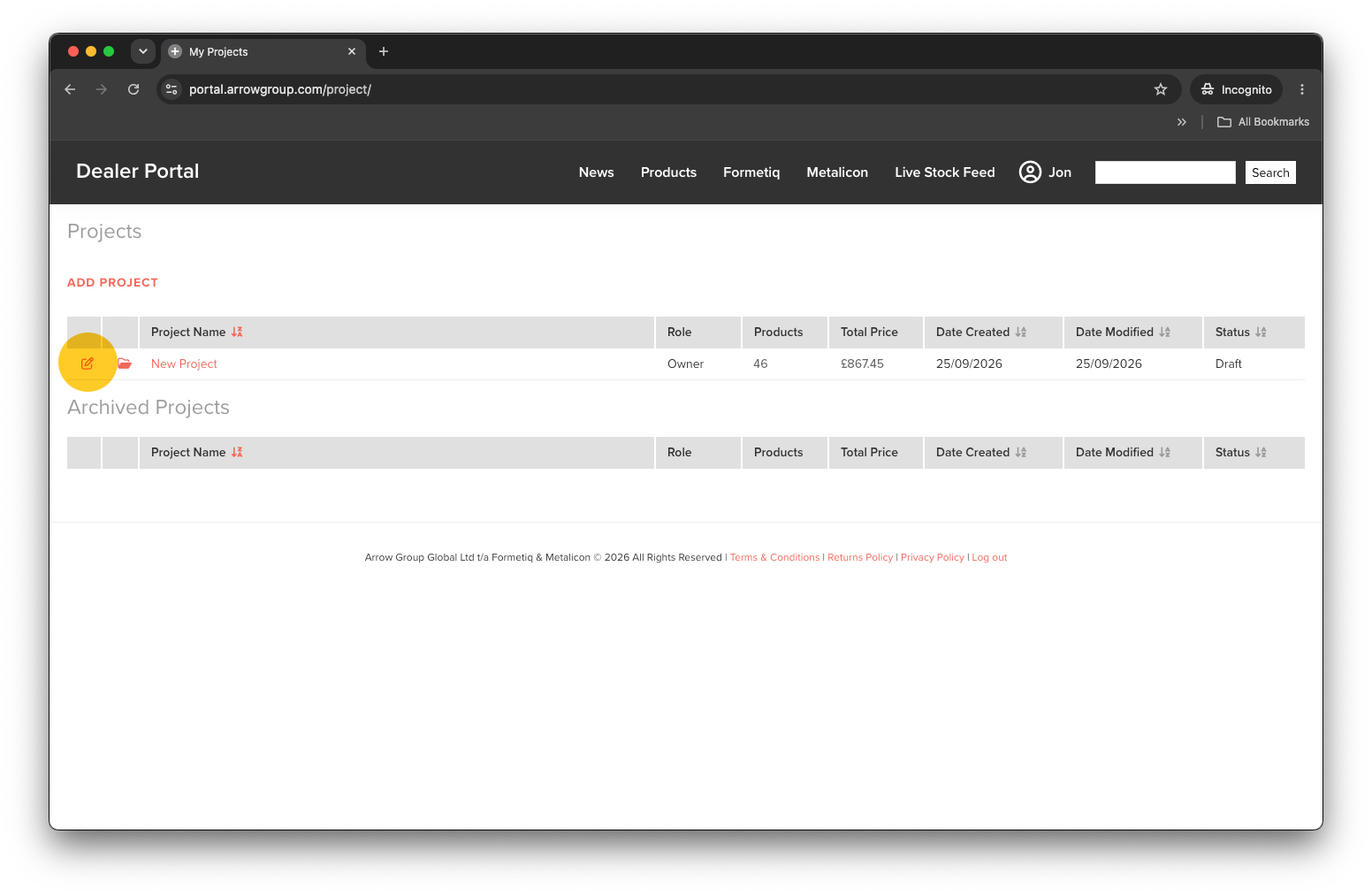
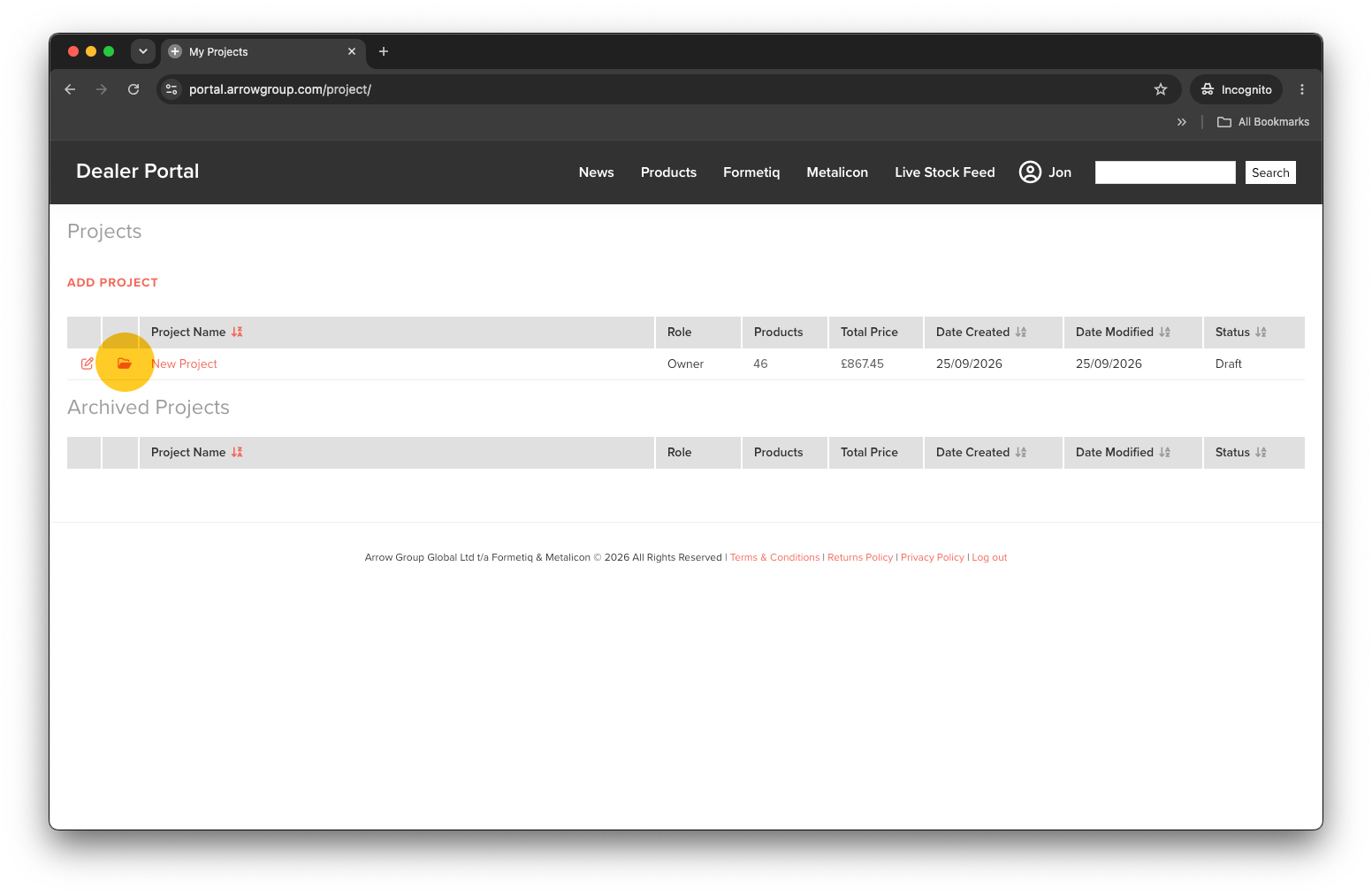
To edit a project click the red pencil icon or the project name.


Archive Projects

To keep your project list tidy you can archive projects that you no longer require. Simply click the red archive icon to move the project into the ‘Archived Projects’ section below.


Project Users

Add / Edit Project Users

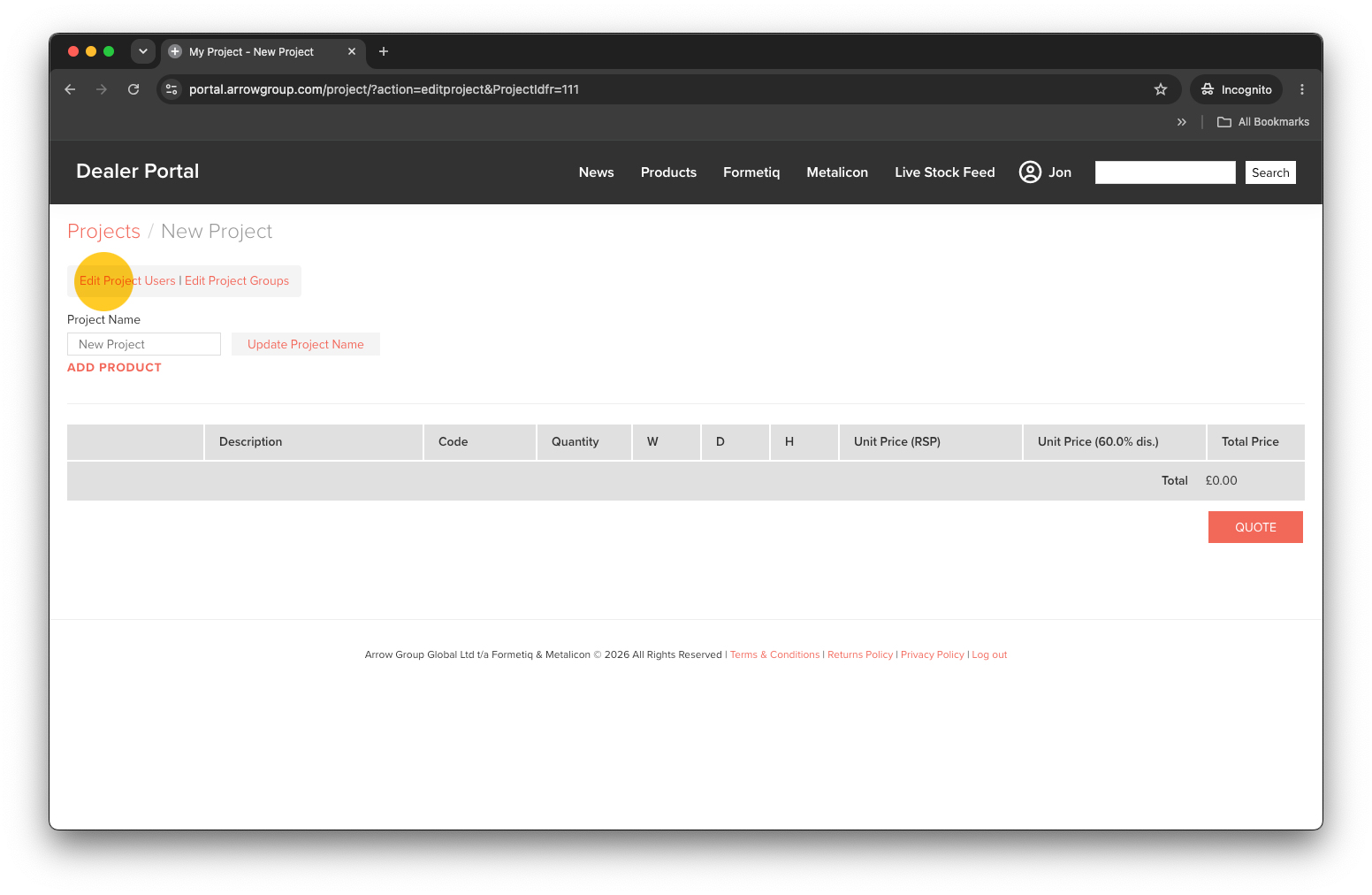
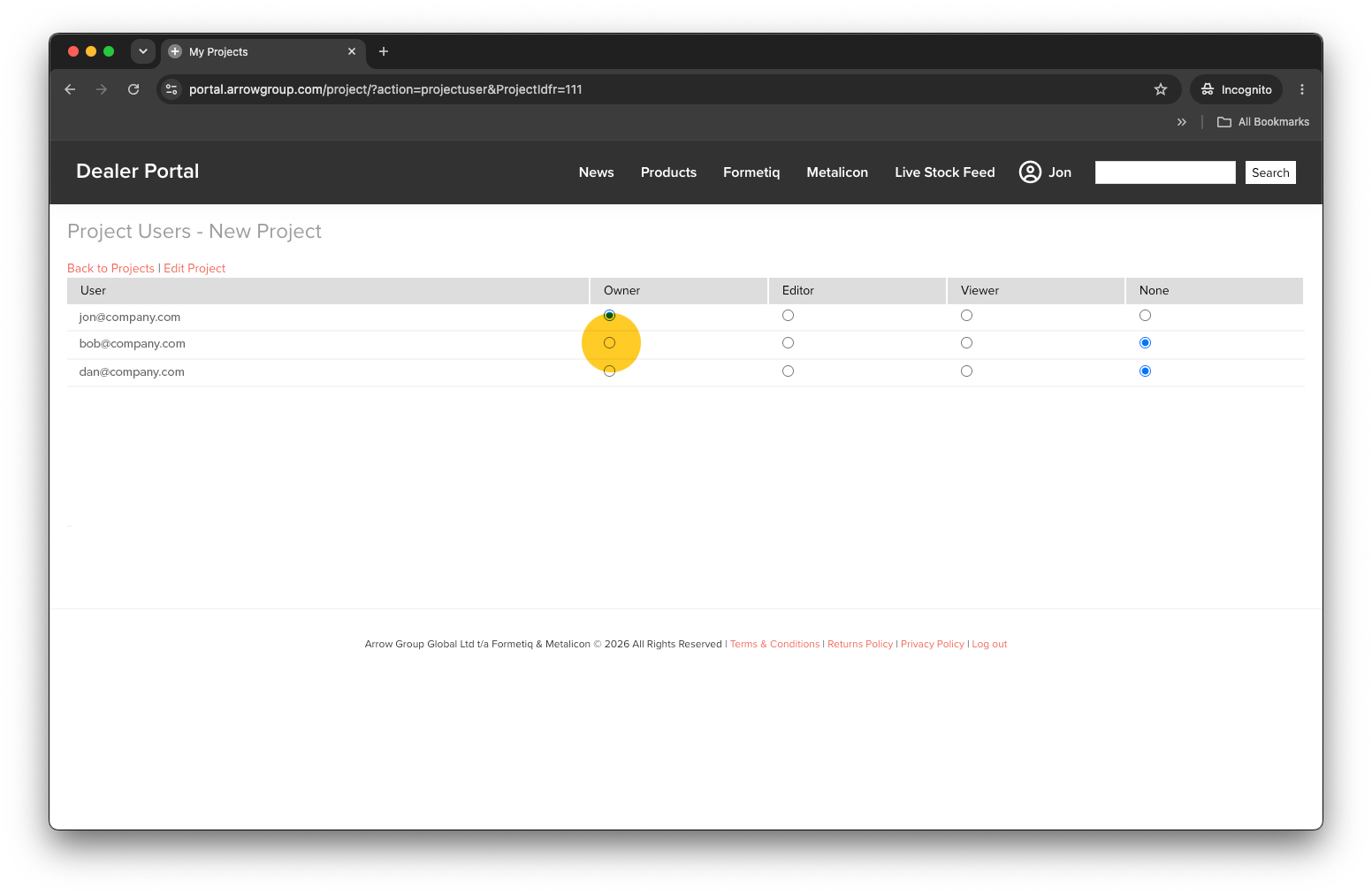
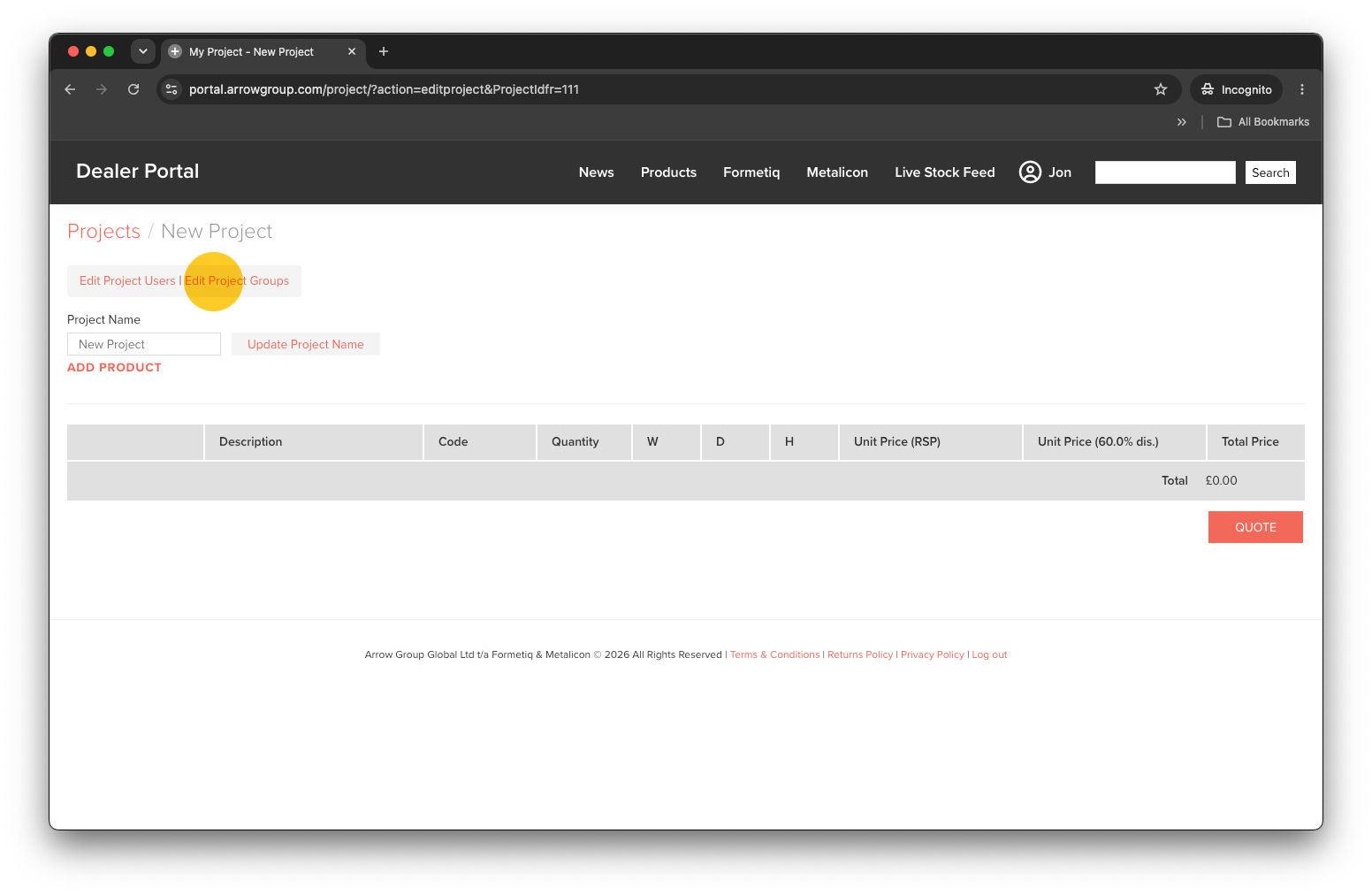
You can share access to your projects with your team. To add users to your project click the edit icon (or project name) to edit the project. Next click the ‘Edit Project Users’ link (top left).

Select the level of access to give each member of your company. Editors will be able to add, edit and remove products within the projects you share with them. Viewers will only be able to see products within projects.

Any changes made to Project Users are automatically applied.


Project Groups

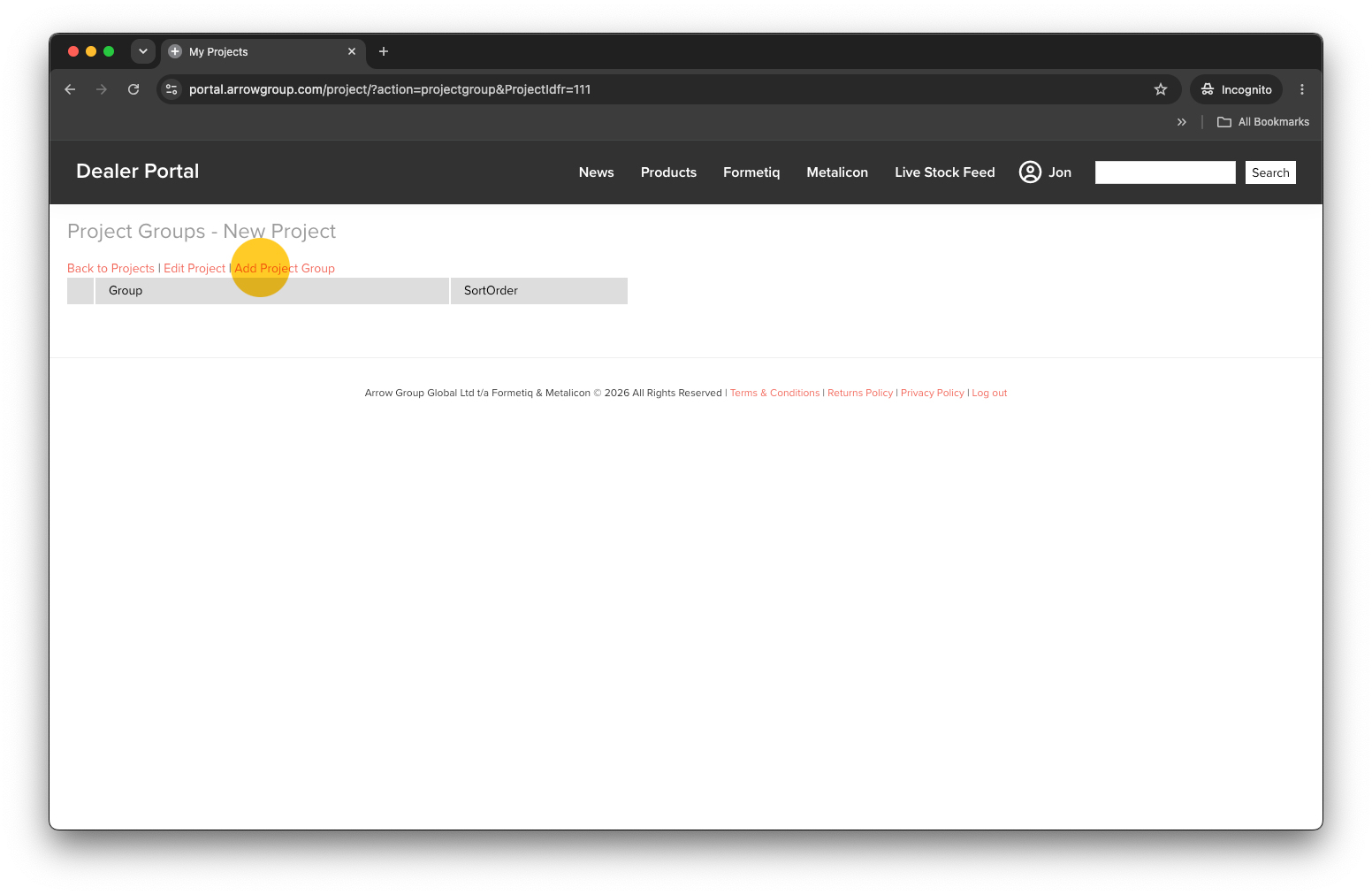
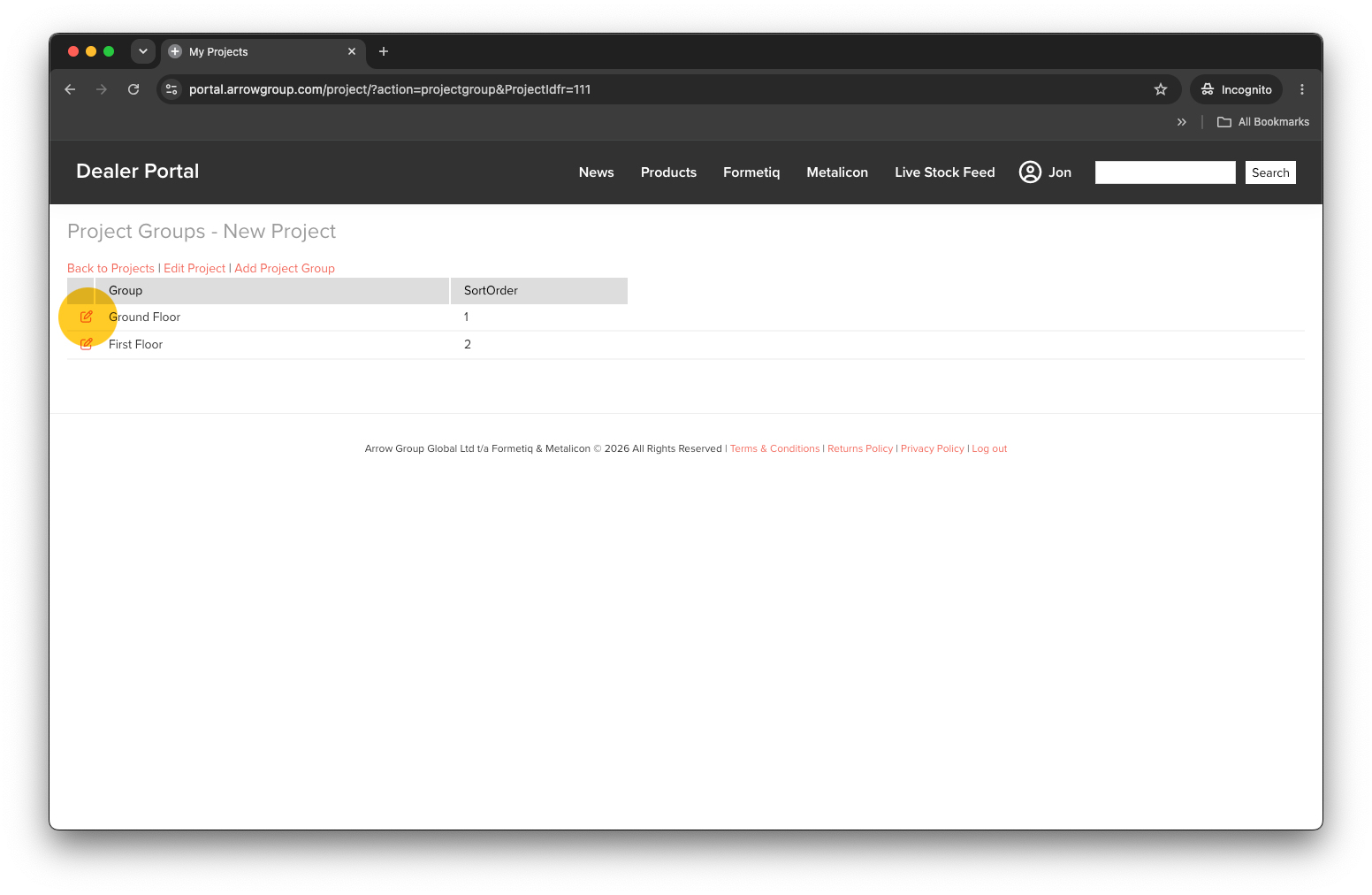
You can add groups to your project to help arrange products into sections, eg. ‘Ground Floor’ or ‘Board Room’. To add a group first click the ‘Edit Project Groups’ link (top left).

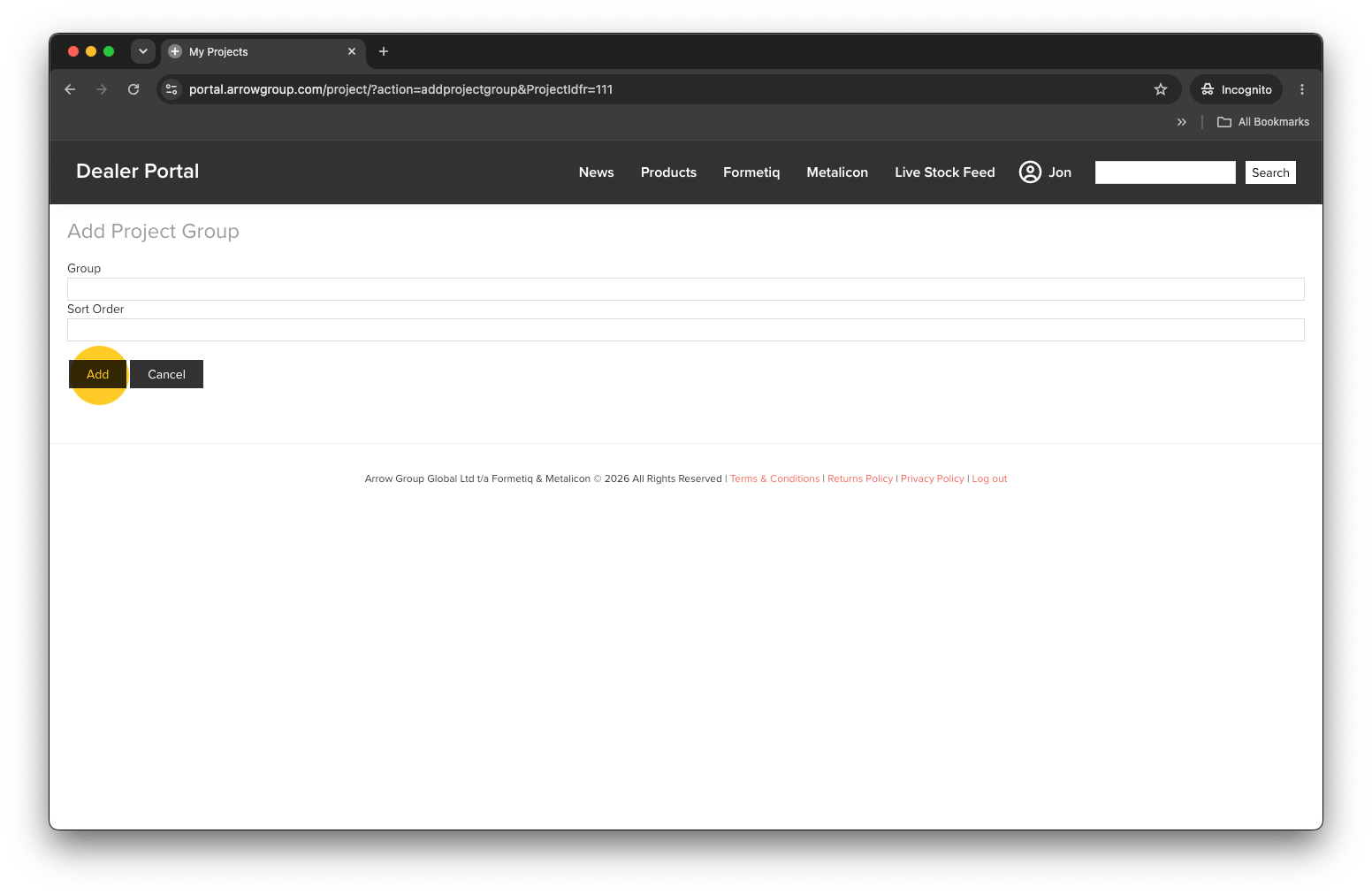
Next click the ‘Add Project Group’ link to create a new group.

Give the group a name and the order you want it to appear on the projects page. The lower the number, the higher up the page the group will appear. Next click the ‘Add’ button.


Edit Project Groups

To edit a project group click ‘Edit Project Groups’. Find the group you want to edit and click the Edit icon .


Reorder Products

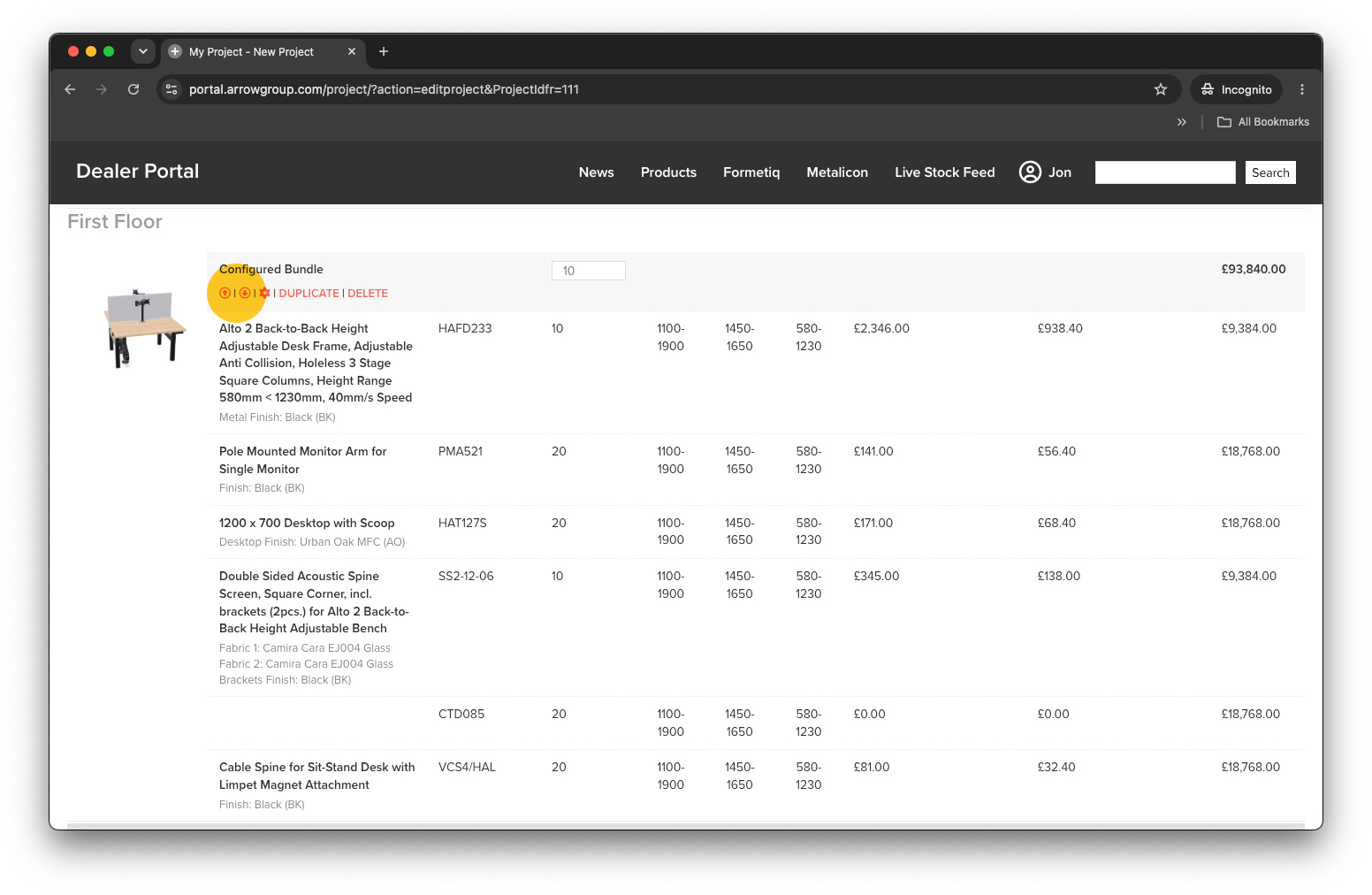
You can also reorder products within your project using the red up and down arrow buttons.


Add Products

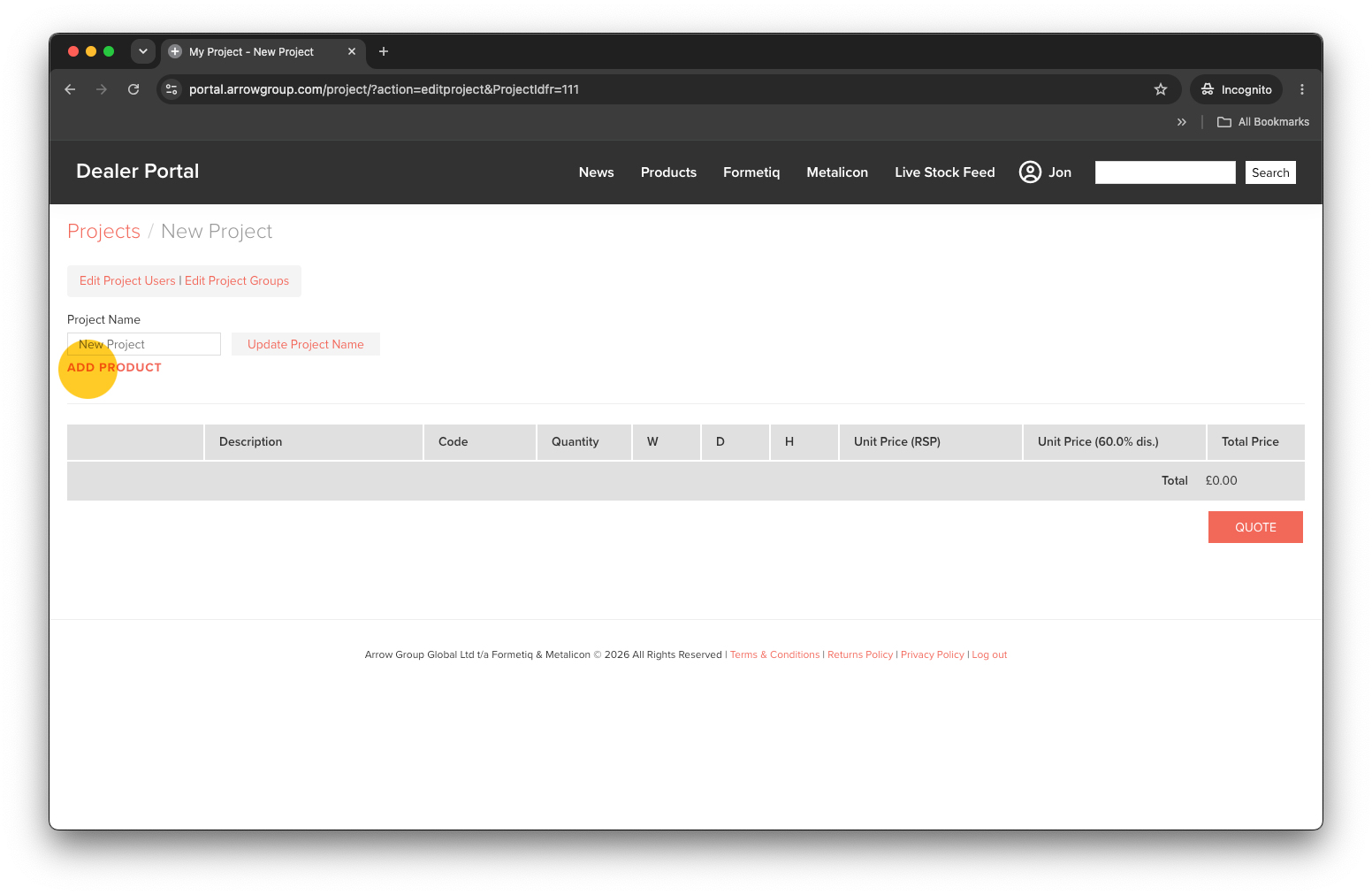
To add products to your project click ‘ADD PRODUCT’.

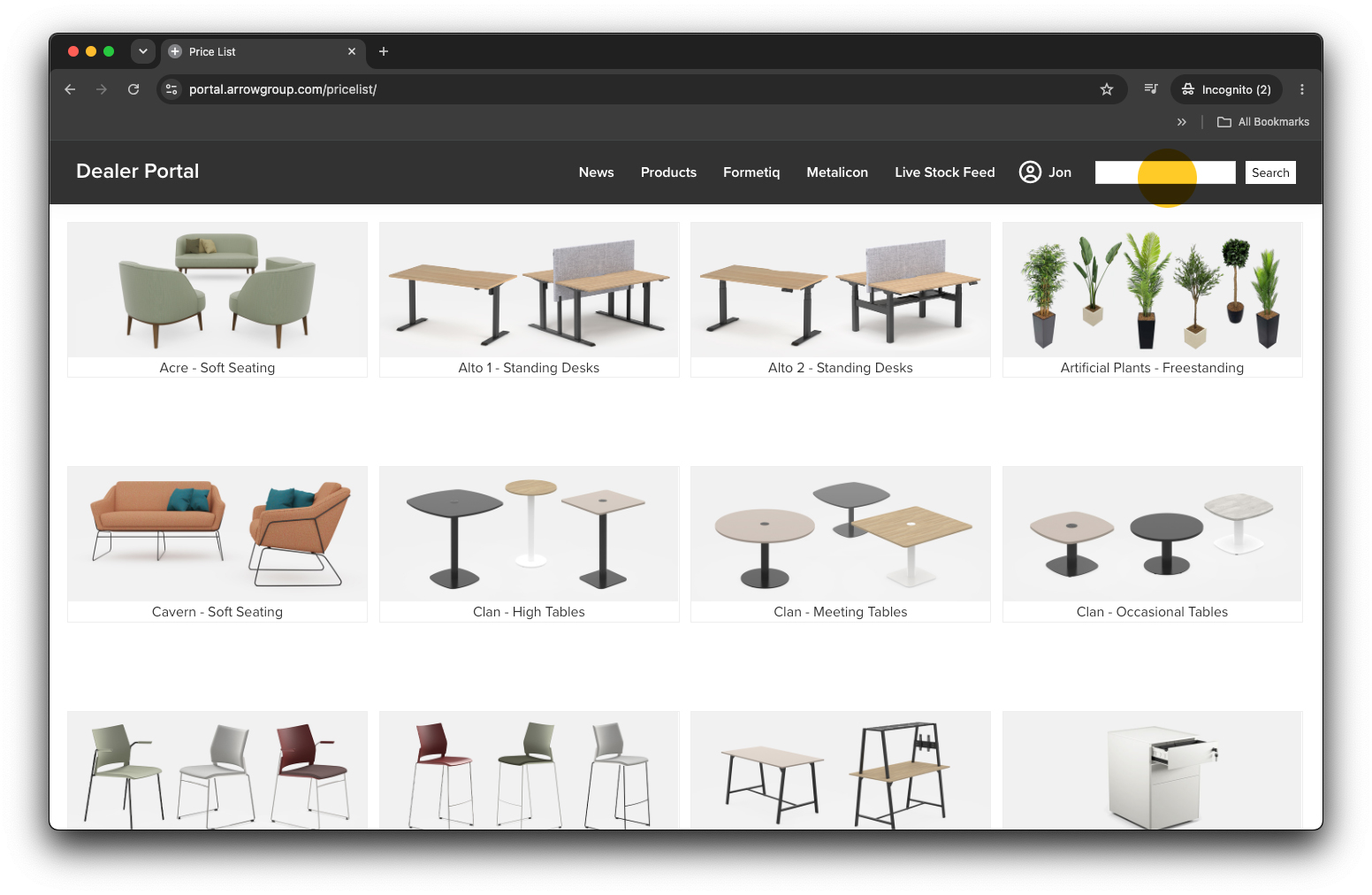
Use the navigation menus or Search bar (top right) to navigate to your desired product. You cannot add products from the Live Stock Feed.


Add a Simple Product

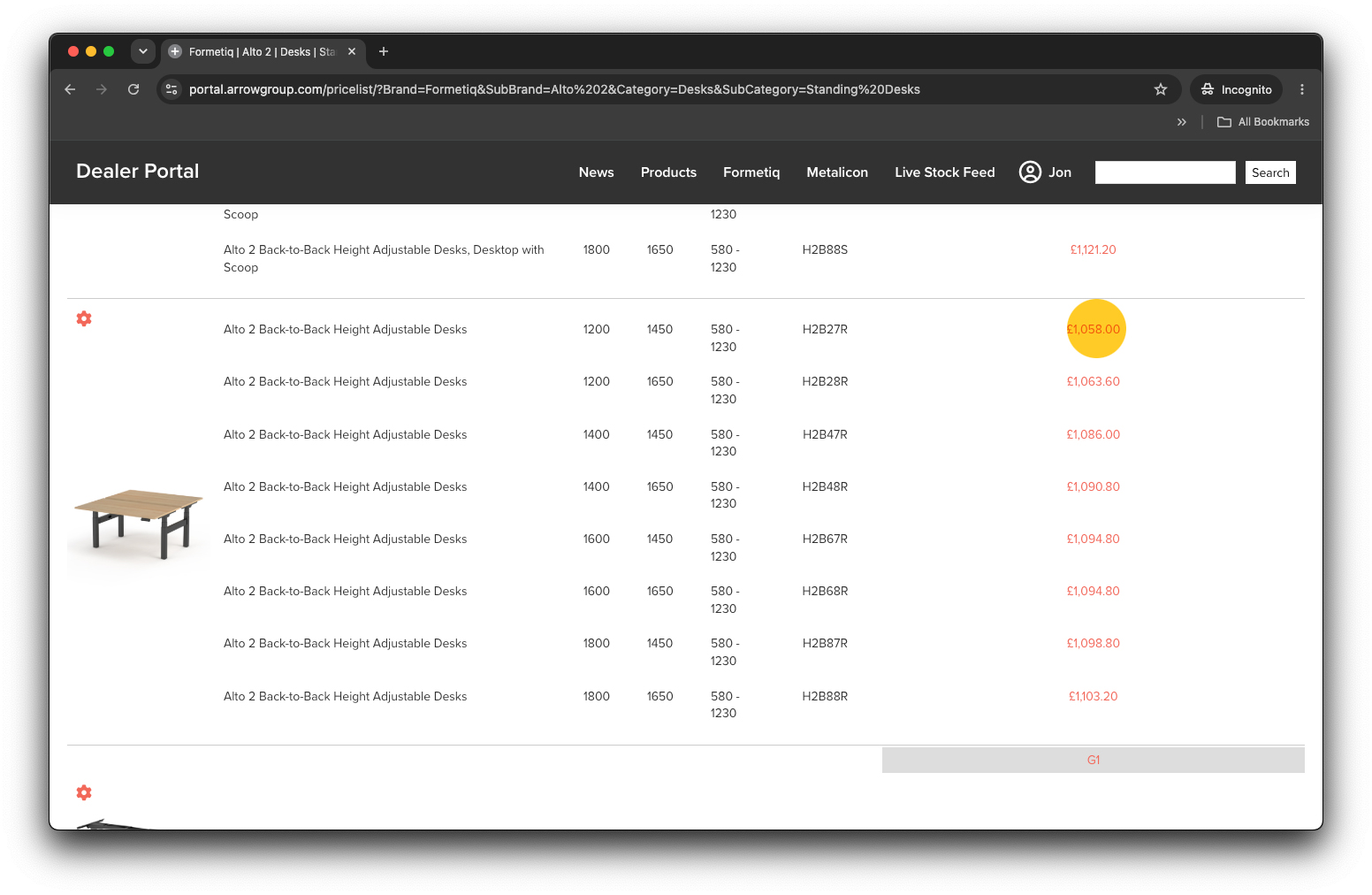
To quickly add a specific product to your project click the red price link.

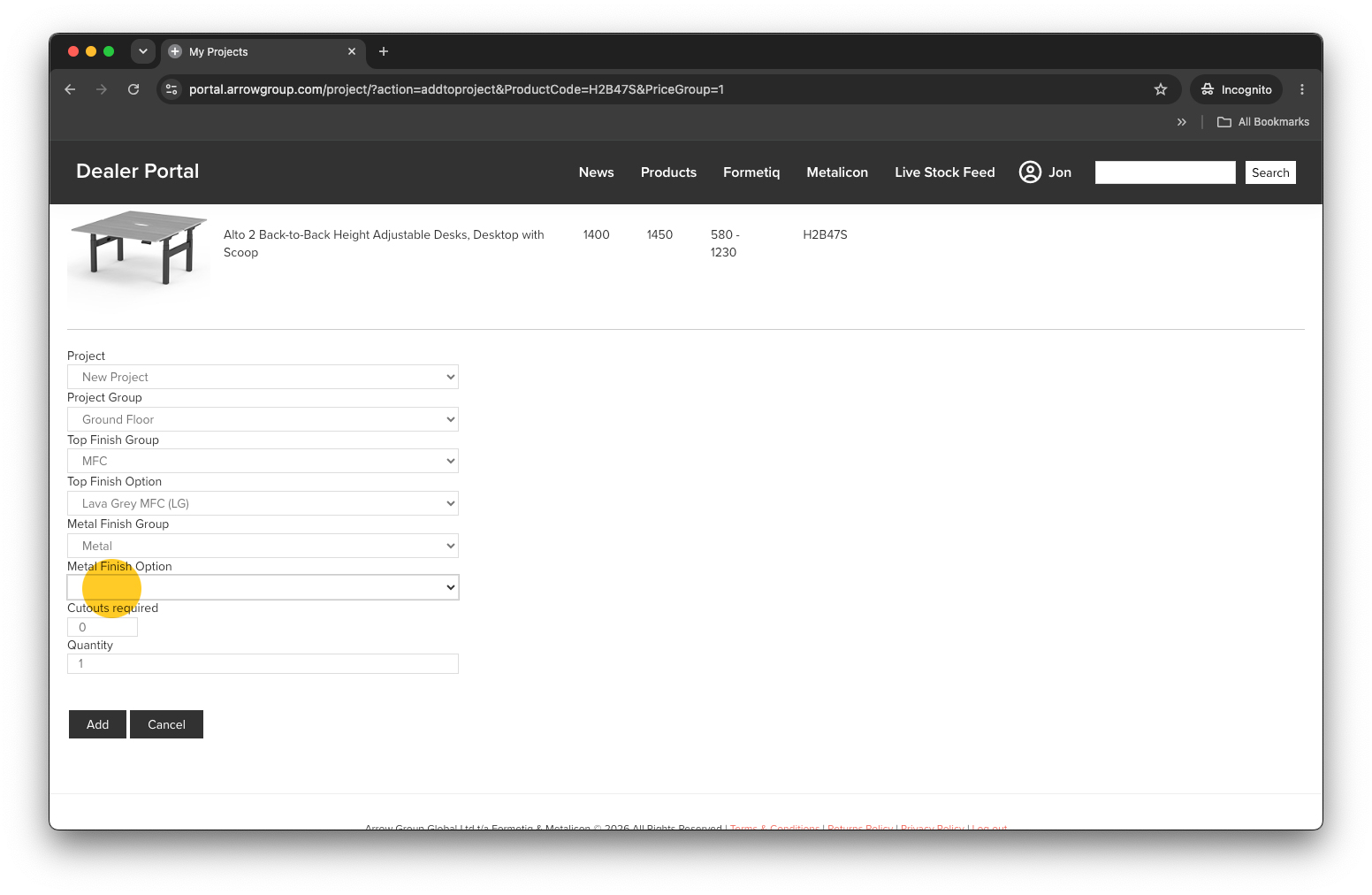
Select the project you want to add the product too (or create a new project). If you have created project groups within your project you can select the group here.

Choose the options / finishes from the drop-down menus, choose a Quantity and click the ‘Add’ button. With simple products you can select a general price group (or leave the finish blank) to avoid selecting a specific finish.

If you’re adding a desk or table and you want to include 1 or more cutouts please simply add the number of cutouts in the ‘Cutouts required’ box. All sizes of cutout incur the same cost.

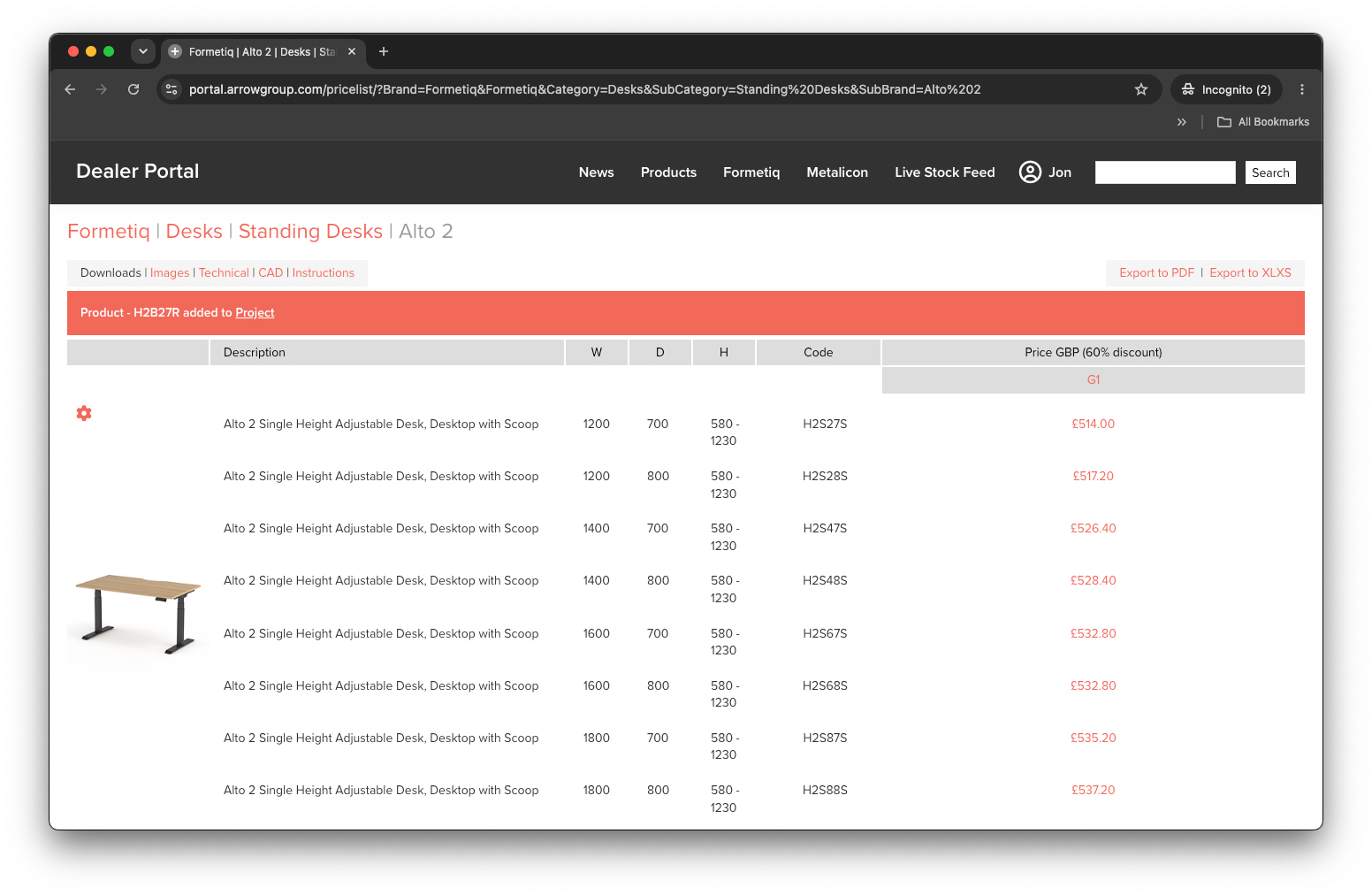
The red banner will tell you your product has been added and you can continue to add more products to your project(s).

NOTE: Simple Products have greyed thumbnail images in the project list since the selected finishes may not match the default product thumbnail.


Add a Configured Product

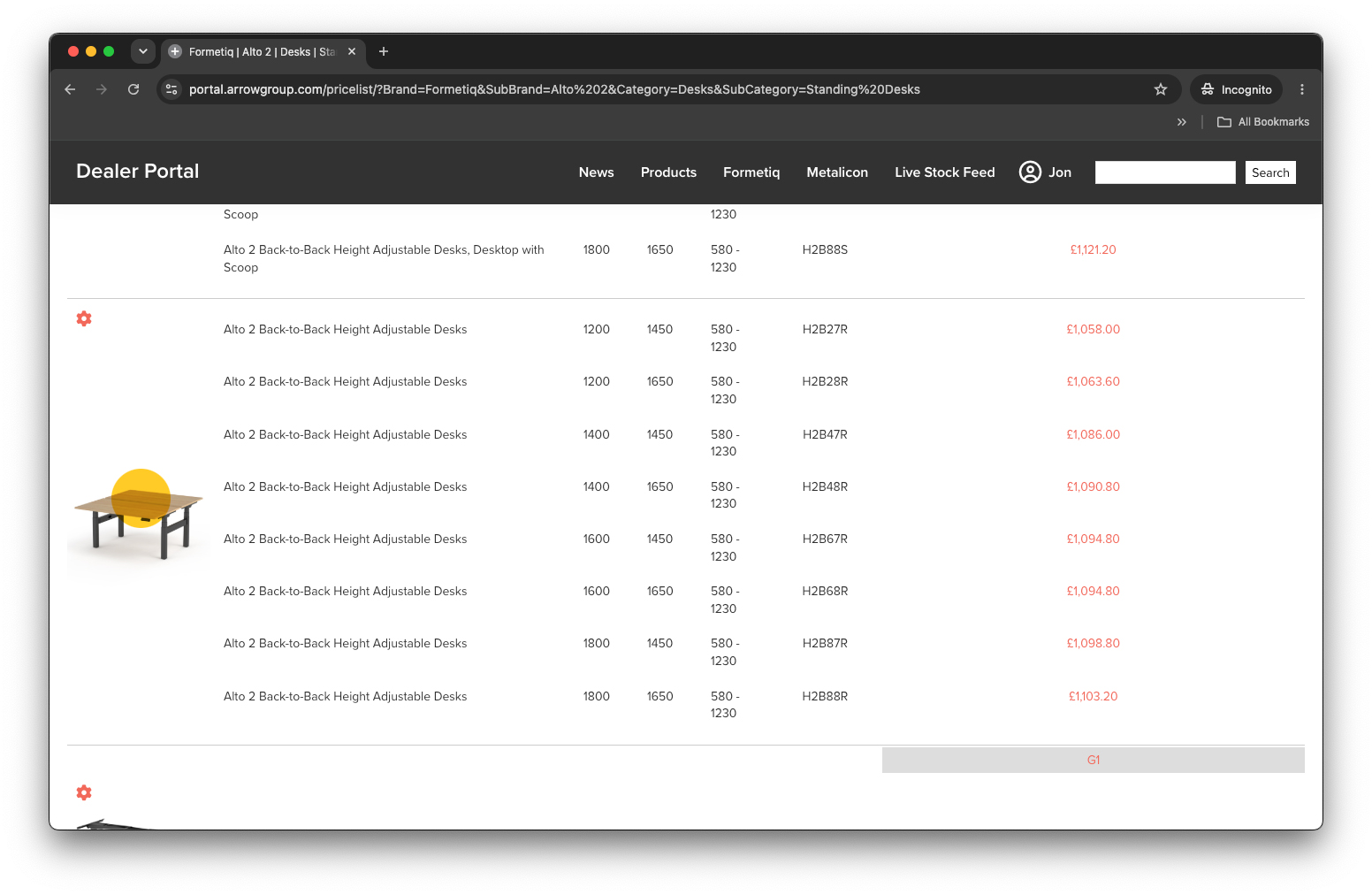
If a product can be configured in 3D the thumbnail image will have a small red cog .
To configure a product in 3D simply click the product thumbnail image.

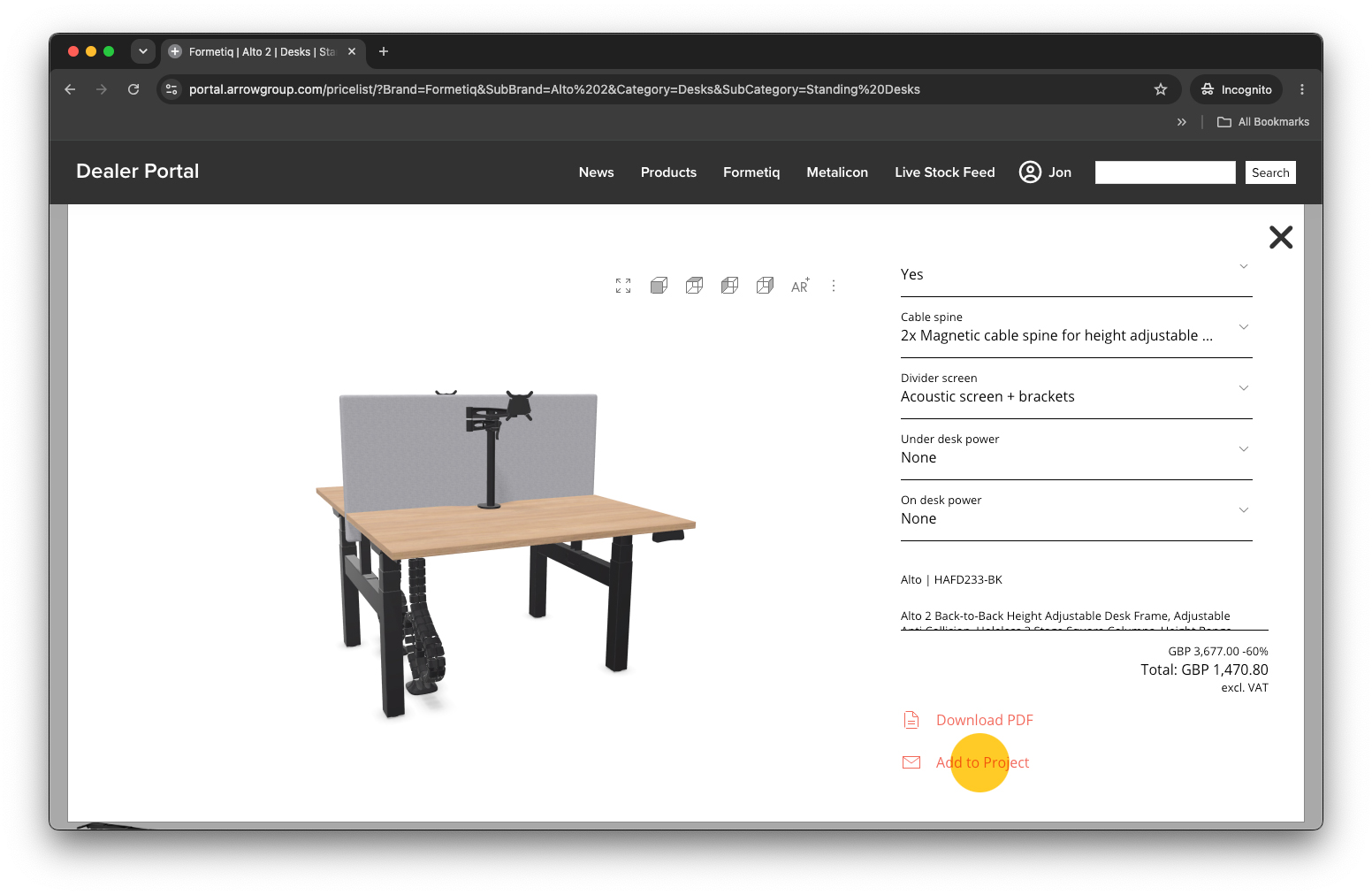
Use the 3D configurator to configure your product. You can add extras like fabric screens, cable trays and other ergonomic accessories. Click the ‘Add to Project’ link.

NOTE: You can’t add cutouts using the 3D configurator.

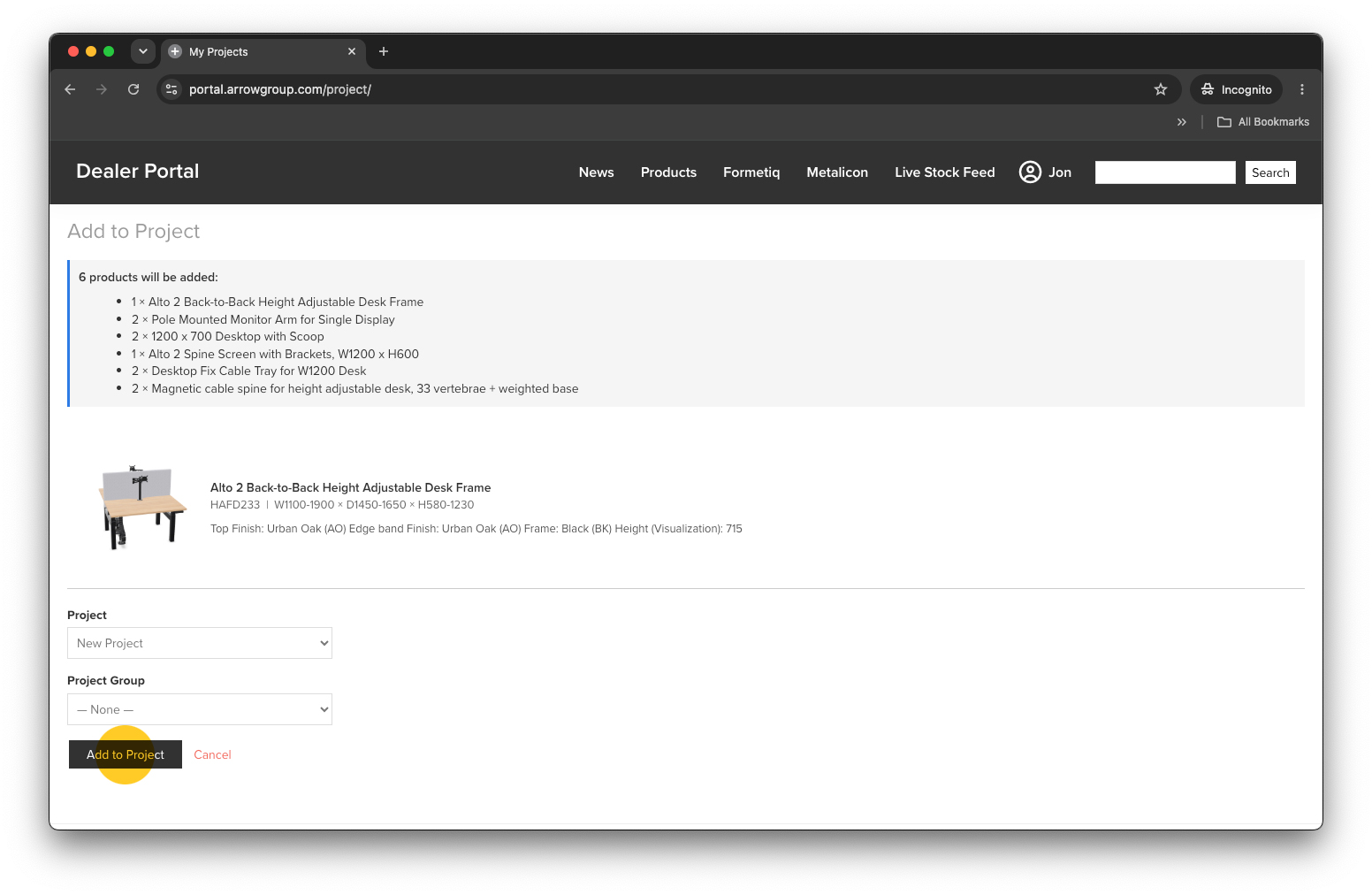
Next, select which project you want to add the configured product to and, if applicable, the group within that project. Click the ‘Add to Project’ button.

The red banner will tell you your product has been added and you can continue to add more products to your project(s).

NOTE: Configured Products have colour thumbnail images in the project list since our 3D configurator generates the thumbnail image to match your selected finishes.


Edit Products

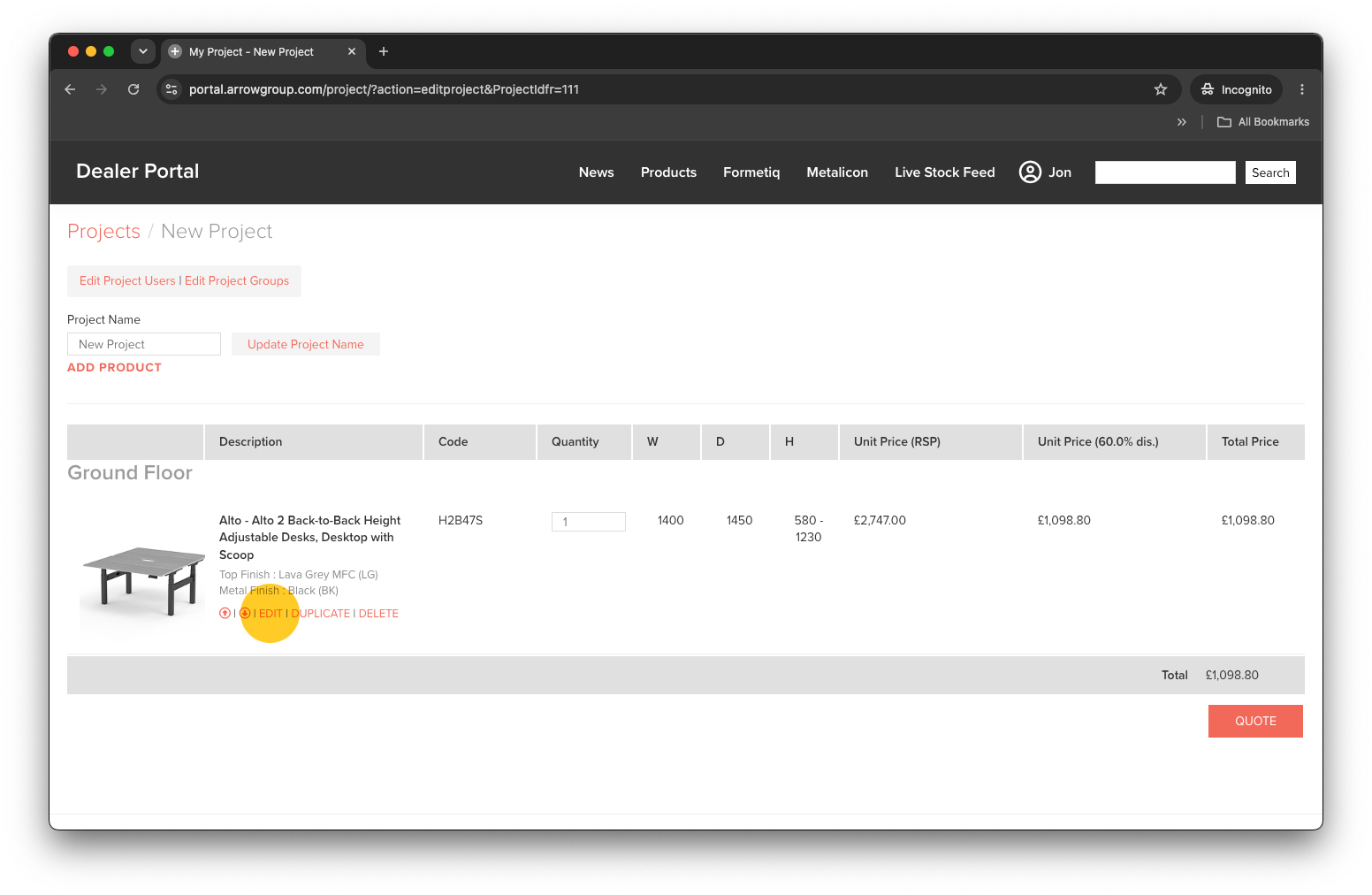
To edit Simple Products within a project click the ‘EDIT’ link.

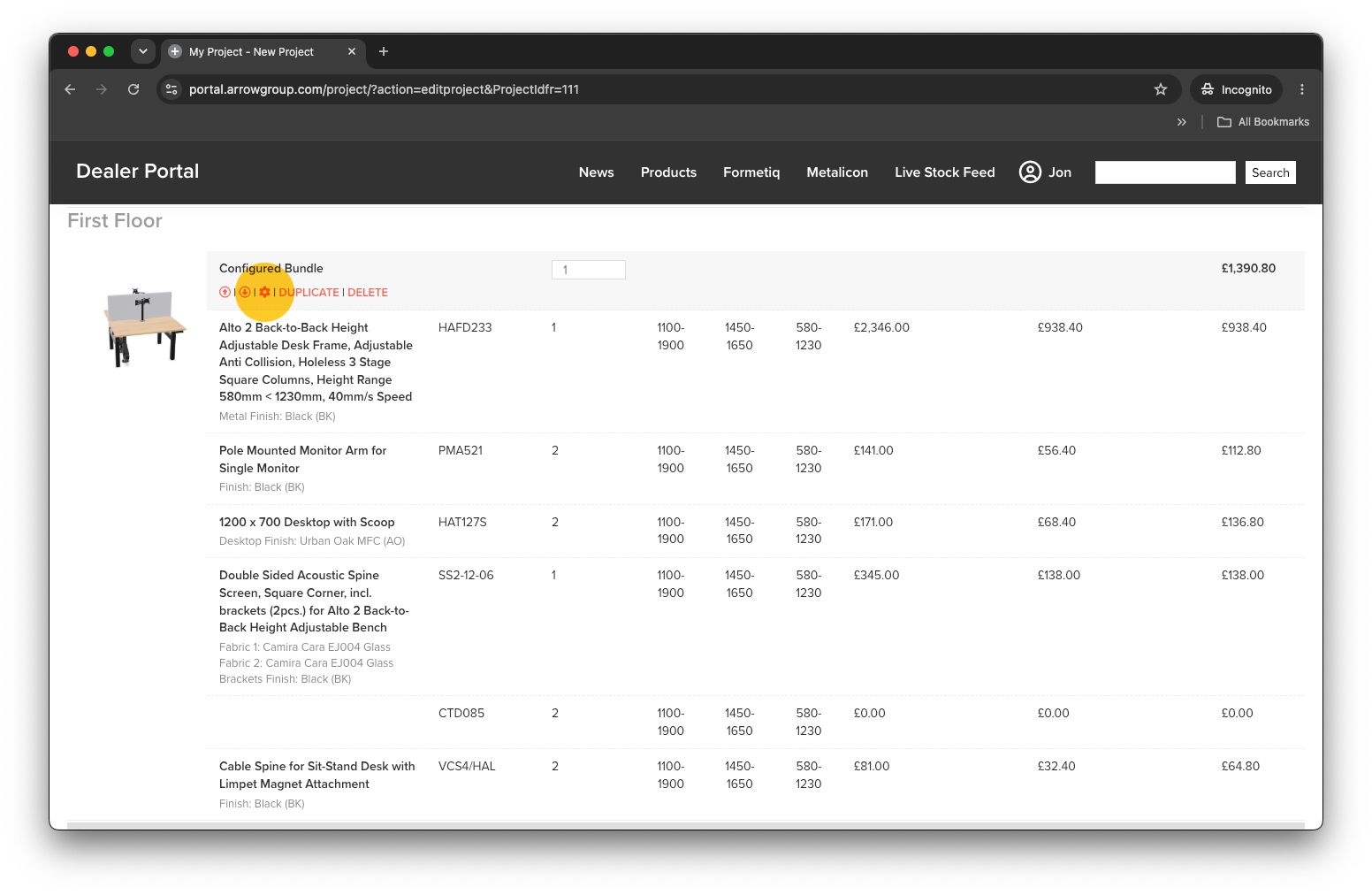
To edit Configured Products within a project simply click on the red cog symbol .


Change Quantities

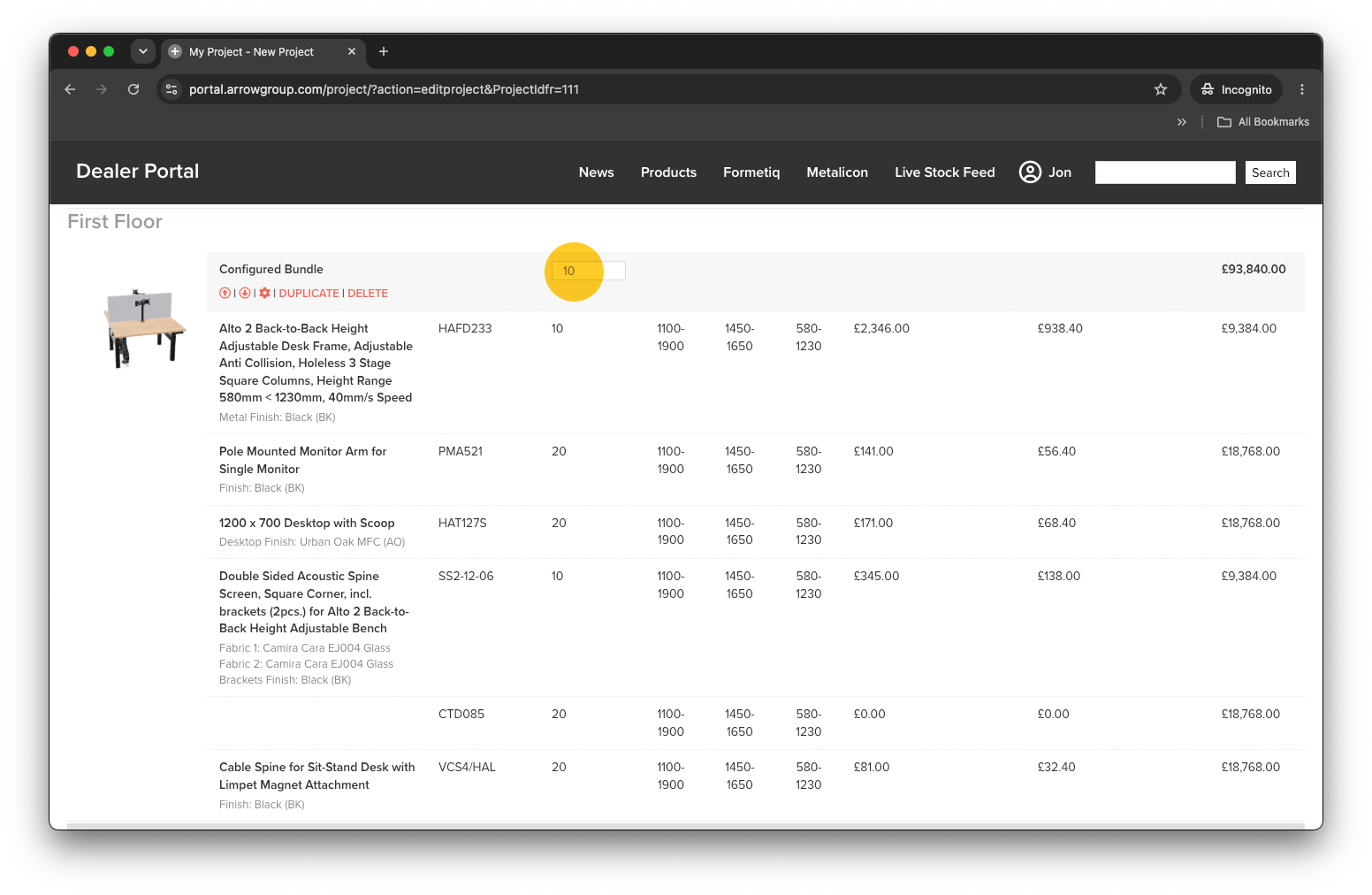
To change the quantities of a product within a project simply type the new quantity into the quantity box. The price will update automatically. For Configured Products you can only change the quantity of the parent product bundle, not the individual configured components.


Duplicate / Copy a Product

To duplicate a product simply click the ‘DUPLICATE’ link.


Delete / Remove a product

To delete a product simply click the ‘DELETE’ link. This action can’t be undone!


Request a Quotation

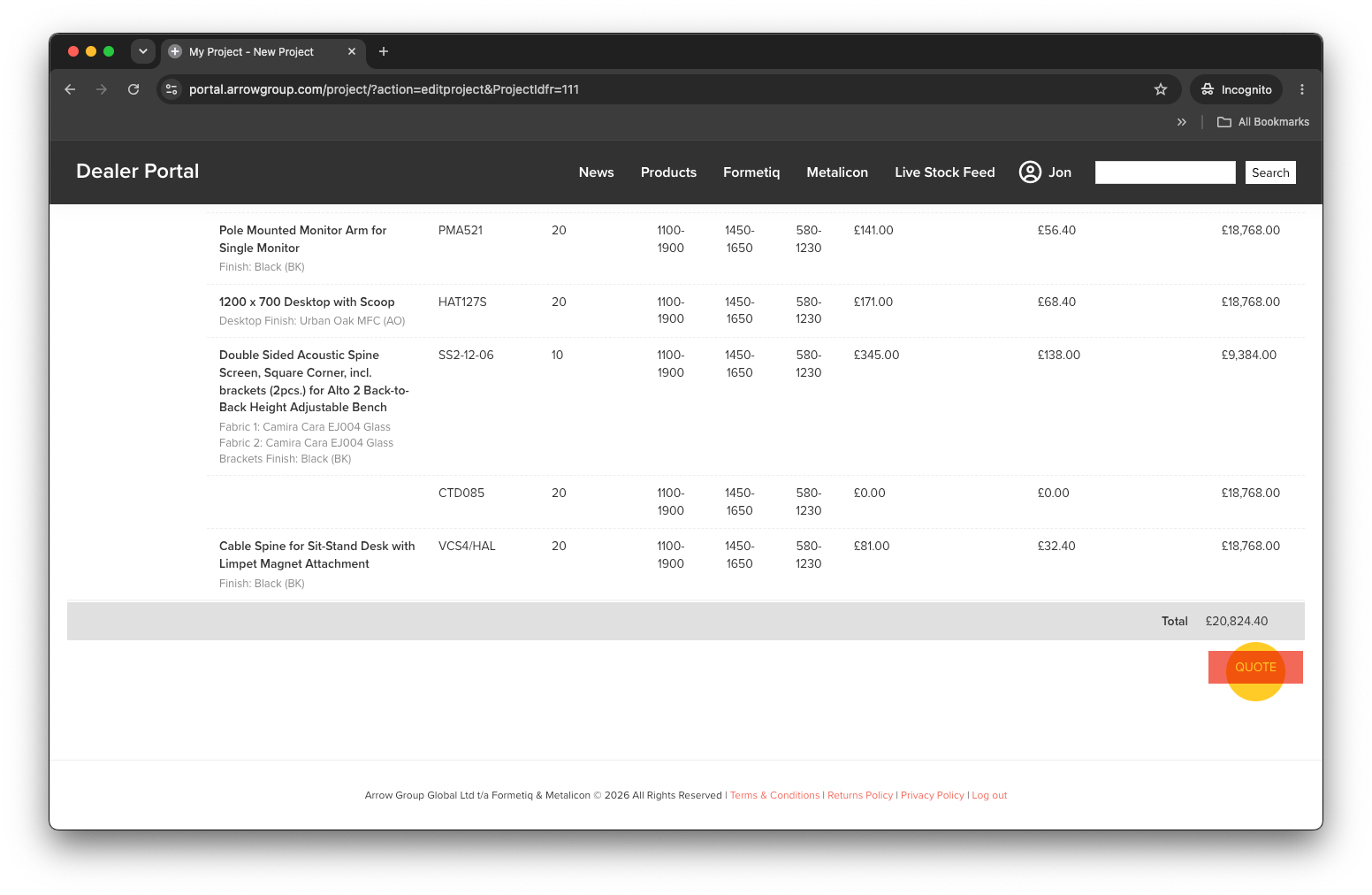
If you’re happy your project is complete you can request a quotation. Simply click the red ‘QUOTE’ button (bottom right).

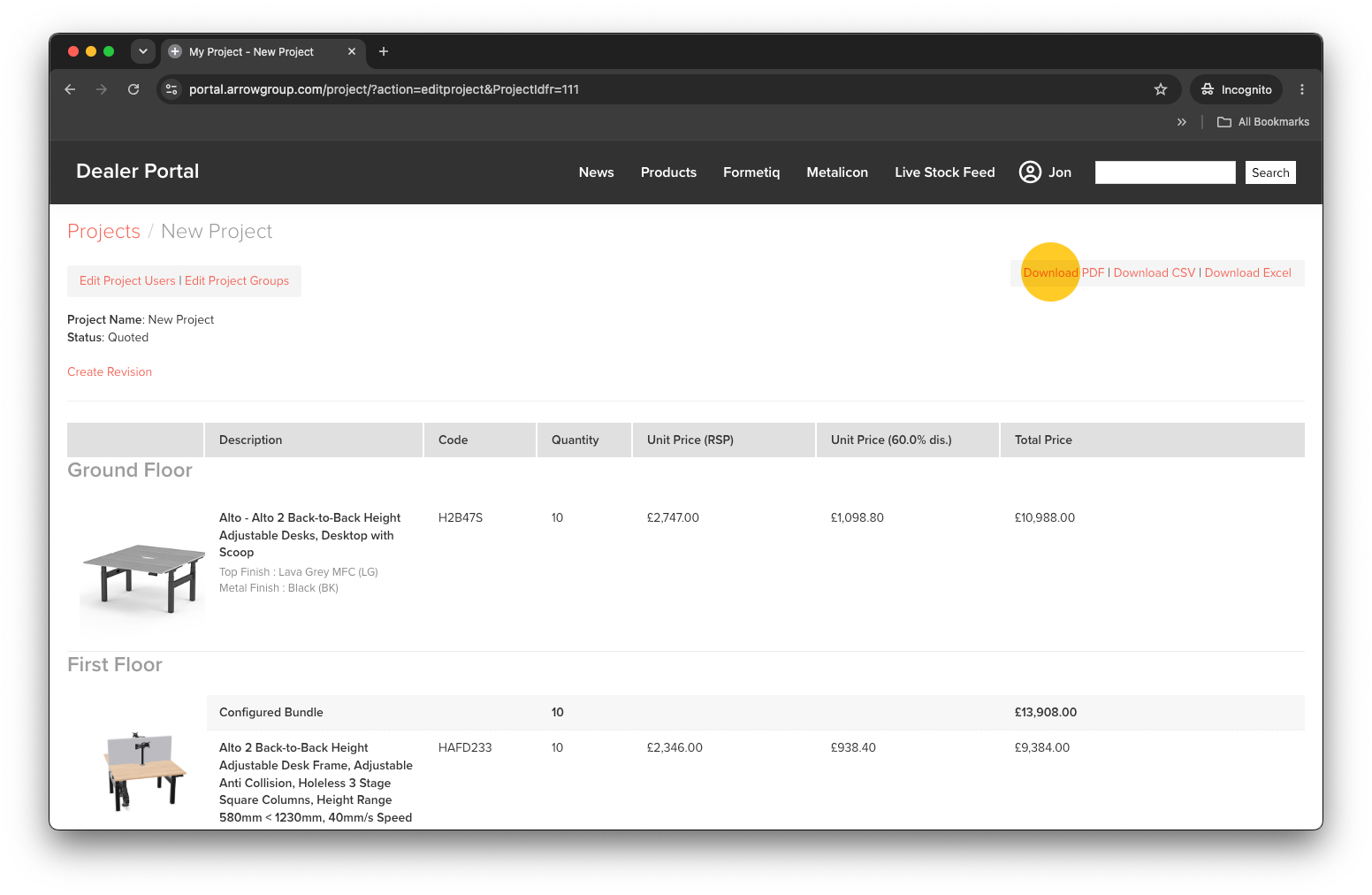
Now you can download your quoted project as a PDF, CSV file or Microsoft Excel file (.xlxs) using the download links (top right).

NOTE: At the moment none of our portal quotations include delivery. For delivery costs included in your quotation please contact our business support team. Please include your unique quotation number found on the PDF download.


Revise a Quotation

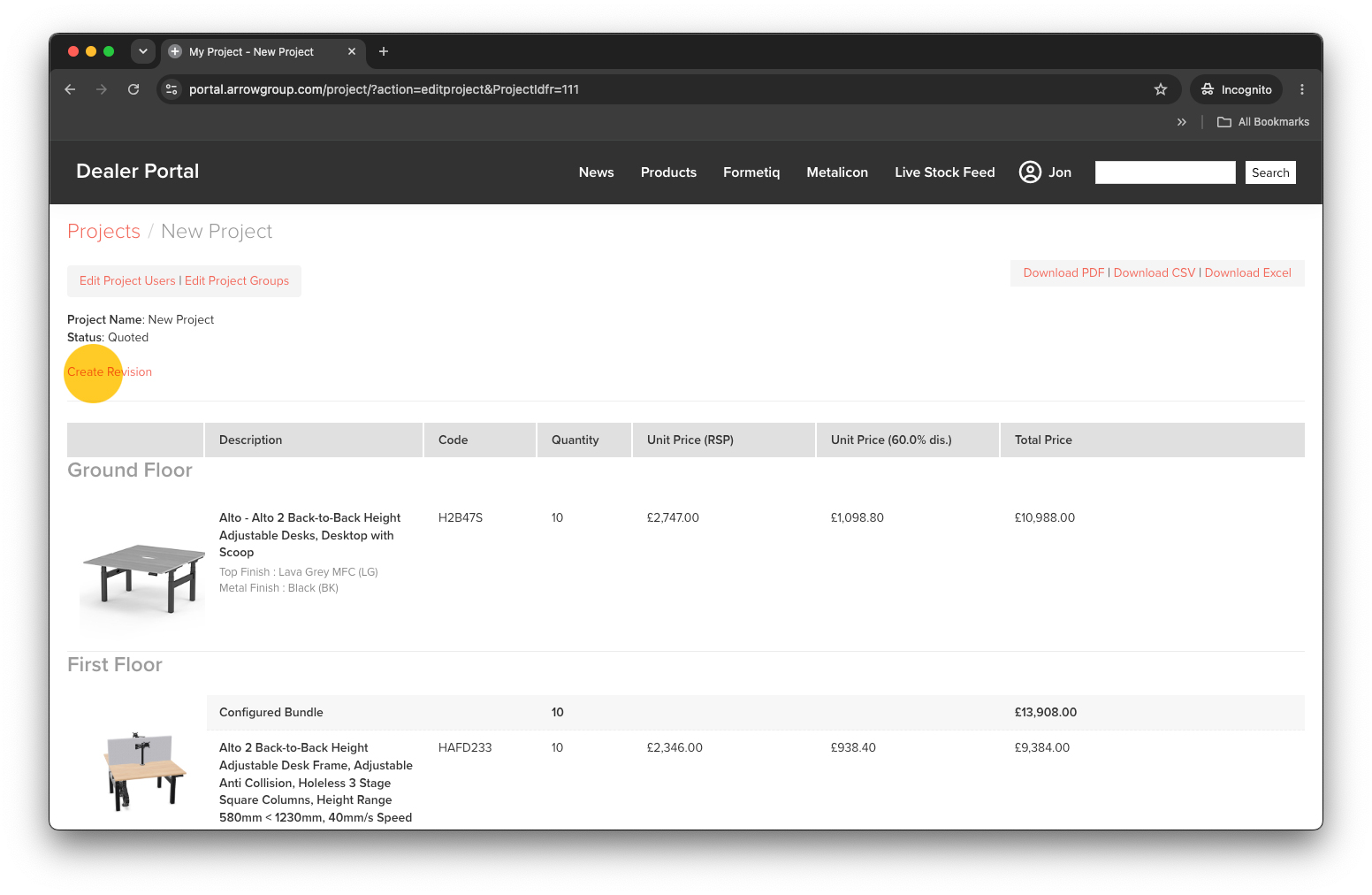
To revise a quotation click the ‘Create Revision’ link within the quoted project.

This will create a duplicate project that you can edit. When you’ve made the necessary revisions simply click the red ‘QUOTE’ button (bottom right) to create a fresh quotation.

This revised quotation will share the name of the original quoted project but with ‘Rev X’ at the end.

Filed Under: Uncategorized

Price Update

June 30, 2026 by Jon


Price Update

We will be publishing updates to our prices, for all products, effective from Monday 3rd August 2026.

Dear Valued Customer,

I’m writing to let you know that we’ll be applying a 2.5% price increase across our ranges from Monday 3rd August. I recognise that the news of further price increases coming so quickly after those imposed in April will not be welcome. It’s not a decision we’ve taken lightly. Like many in our sector, we continue to face rising material costs and, in particular, sustained increases in freight costs due to recent geopolitical events.

Wherever possible, we’re absorbing these pressures ourselves to keep your costs as stable as we can. This 2.5% increase reflects only the portion we’re genuinely unable to carry, and we’ve worked hard to keep it as modest as possible. We value the relationship we have with you and would much rather be open about the reasons behind this than let it pass without explanation.

Any quotations already issued and orders placed before 3rd August will be honoured at current pricing. If you’d like to discuss anything, or get orders in ahead of the change, please don’t hesitate to get in touch with me or your usual contact directly.

Thank you, as always, for your understanding and continued business.
With best regards,

Ronnie Temple
Sales Director

Our updated prices will be available from Monday 3rd August. If you have any questions or require further information, please don’t hesitate to contact your account manager.

Thank you for your continued partnership with us.

Filed Under: Formetiq, Metalicon, Narbutas

We’re serious about SketchUp

June 23, 2026 by Jon


SketchUp (.skp) files now available on our Google Drive

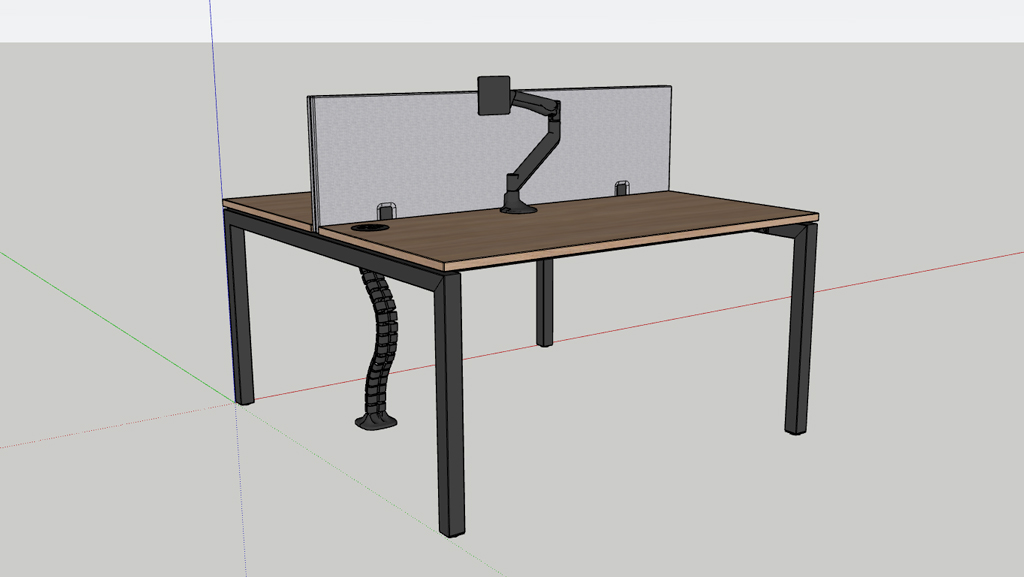
As part of our commitment to provide our designers and dealers with the best resources possible, we are pleased to release SketchUp files for a significant number of our product ranges.

You’ll find optimised Sketchup (.skp) files on our Google Drive for all our SYSTM integrated furniture, and Metalicon accessories. We hope to release SketchUp files for our seating soon.

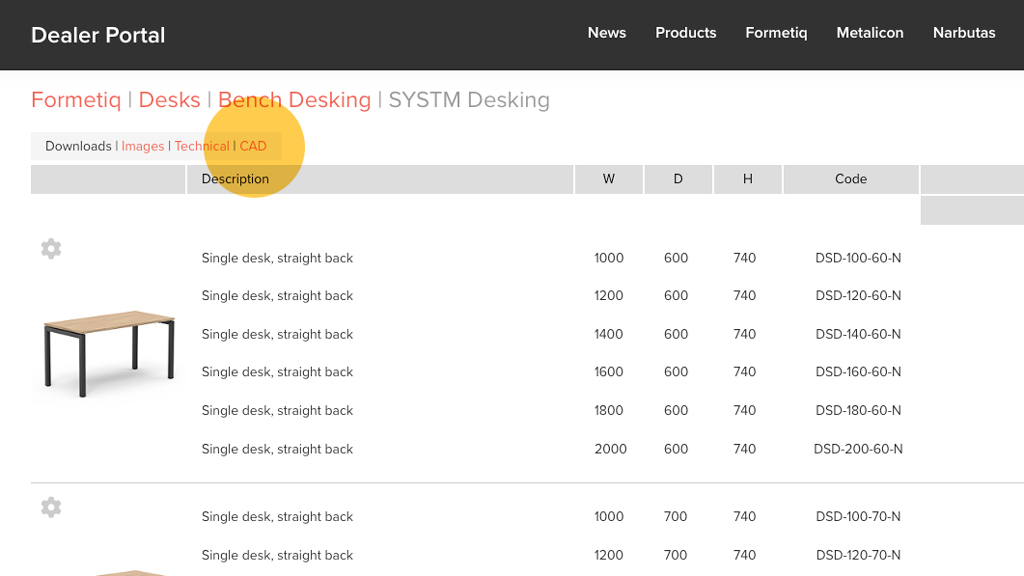
Simply click on the ‘CAD’ link in each Downloads section for access to the files on our Google Drive.

Filed Under: Formetiq, Metalicon

  • Page 1
  • Page 2
  • Page 3
  • Interim pages omitted …
  • Page 5
  • Go to Next Page »

Primary Sidebar

Recent Posts

  • Discover designer fabrics from Cristina Marrone
  • New Como stackable conference chairs + stools
  • New 65W USB-C charging
  • New Projects Function
  • Price Update

Recent Comments

No comments to show.

Archives

  • October 2026
  • September 2026
  • June 2026
  • May 2026
  • March 2026
  • January 2026
  • December 2025
  • November 2025
  • July 2025
  • April 2025
  • March 2025
  • February 2025
  • December 2024
  • October 2024
  • September 2024
  • July 2024
  • June 2024
  • April 2024
  • March 2024
  • August 2023
  • April 2023

Categories

  • Formetiq
  • Metalicon
  • Narbutas
  • Uncategorized

Arrow Group Global Ltd t/a Formetiq & Metalicon © 2026 All Rights Reserved | Terms & Conditions | Returns Policy | Privacy Policy | Log in